Xtream IPTV is the most common way to connect a player to a subscription, and it is the format we suggest first to ClearPick IPTV customers. Instead of one long playlist link, you receive three short details and type them into three fields. That is the whole idea. This guide explains what each detail means, how the server URL is built, where the details go in the players we document, how to type them on a TV remote without slips, and how to diagnose a login that refuses to work.
As with every ClearPick IPTV guide, we lay out the criteria and let you judge. We sell three packs ourselves, and each one comes with both Xtream details and an M3U link, so we explain where each route shines and where it does not. This page sits within our wider setup section, which covers every stage from order to first channel.
What Xtream IPTV login details are
“Xtream Codes” began as the name of a server panel. Today the term simply describes a login format that most IPTV players understand, sometimes labelled “Xtream API” or “XC login”. Your access e-mail lists three items. Here is what each one looks like, where it goes, and the slip that most often trips people up.
| Detail | What it looks like | Where it goes | Common mistake |
|---|---|---|---|
| Server URL | A web address, often followed by a colon and a port number | The “Server”, “URL”, “Host” or “Portal” field | Dropping the port, or leaving a space at the end |
| Username | A string of letters and numbers | The “Username” or “User” field | Mixing up look-alike characters, such as a capital I and a lowercase l |
| Password | A second string, separate from the username | The “Password” field | Letting the TV keyboard capitalise the first letter |
| Profile name | Anything you choose | “Name”, “Playlist name” or “Any name” | Thinking it must match something in the e-mail. It does not. |
The fourth row is not part of your access. Some players ask for a “playlist name”, “profile name” or “any name” so you can tell accounts apart. Type something that helps you recognise this device later, such as “Living room” or “Cottage tablet”. It has no effect on the login itself.
The three real details always travel together. A username from one order and a password from another will not work, and neither will a server URL copied from an older e-mail. When in doubt, take all three from the most recent access e-mail.
Why we suggest the Xtream route first
Both formats open the same catalogue. The difference lies in how comfortable they are to enter and how the player organises what loads. For most living rooms, the Xtream route wins on comfort. It is not the right answer in every case, though, so here is the honest balance.
Strengths of the Xtream login
- Three short fields instead of one long address, much easier on a remote
- Live channels, movies and series land in separate menus
- The programme guide usually loads with the account
- Editing one field at renewal is simpler than replacing a long link
Where the M3U link is better
- Players that accept only a playlist address
- Apps where you manage several playlists side by side
- Detailed group hiding and reordering in some players
There is also a quieter advantage at renewal time. With the Xtream route, a change usually affects one or two short fields, which you can update in a minute. With a link, you replace one long address and hope the paste was complete. Over a year of use, that difference adds up, especially in a home with several devices to update.
If your player offers both, start with Xtream. If it offers only a playlist option, our M3U setup guide covers that route in detail. Either way, the catalogue, the picture quality and the one-connection rule are the same.
Anatomy of the server URL
Of the three details, the server URL causes the most trouble, because it has more parts than it seems. It is easy to copy most of it and miss the end. Knowing its structure lets you check it at a glance instead of character by character.
The prefix and the host name are what most people recognise as a web address. The colon and port number at the end are what most people drop, because they look like an afterthought. They are not. The port tells the player which door on the server to knock on, and without it the player knocks on the wrong one and reports that the server cannot be reached.
Three checks for the server field
First, does the address start exactly as in the e-mail, including the prefix if the e-mail shows one? Second, does it end with the colon and port number shown in the e-mail? Third, is there nothing after the port, not even a space or a slash the e-mail does not show? If all three are true, the server field is right.
A good way to remember the structure: the host name says which building, the port says which door. Your e-mail gives you both, and the player needs both. If either is missing or altered, the player is knocking somewhere that does not answer, and it reports the failure in its own words, which vary from “server unreachable” to “network error”.
Some players add the prefix for you, and some refuse an address without it. If your player complains about the format, try the address both with and without the prefix shown in your e-mail, and keep everything else identical. Never change the host name or the port to “fix” a login; those come from your access e-mail and must stay as written.
Before you type: set up a two-screen workspace
Most typing errors happen because people read the details on the same screen they are typing into, or from memory. A minute of preparation removes most of them before they happen.
E-mail on a second screen
Open your access e-mail on a phone or computer and keep it beside you while the TV shows the player.
Zoom in on the details
Enlarge the e-mail text so look-alike characters are easy to tell apart.
Caps lock off
Check the on-screen keyboard settings and turn off automatic capitalisation before you start.
Latest e-mail only
If you have ordered more than once, use the newest access e-mail and archive the older ones.
Steady connection
The first sign-in loads several lists. A wired or 5 GHz link avoids a stall halfway.
Player installed
Install from your device’s official app store and open it once before you start typing.
One last preparation step is often skipped: decide in advance which device you will set up first. Start with the one where typing is easiest, usually a phone or tablet. Once the login works there, you know the details are right, and any later trouble on the TV can only come from the TV entry. That single decision removes most of the guesswork from the evening.
Where to enter Xtream IPTV details in each player
Field labels change from one app to the next, but the logic stays the same: three boxes, one per detail, plus an optional name. Install your chosen player from your device’s official app store. Some players ask for a publisher licence after a period of use; check the current price on the app’s official website. ClearPick IPTV is independent from app publishers.
IPTV Smarters Pro
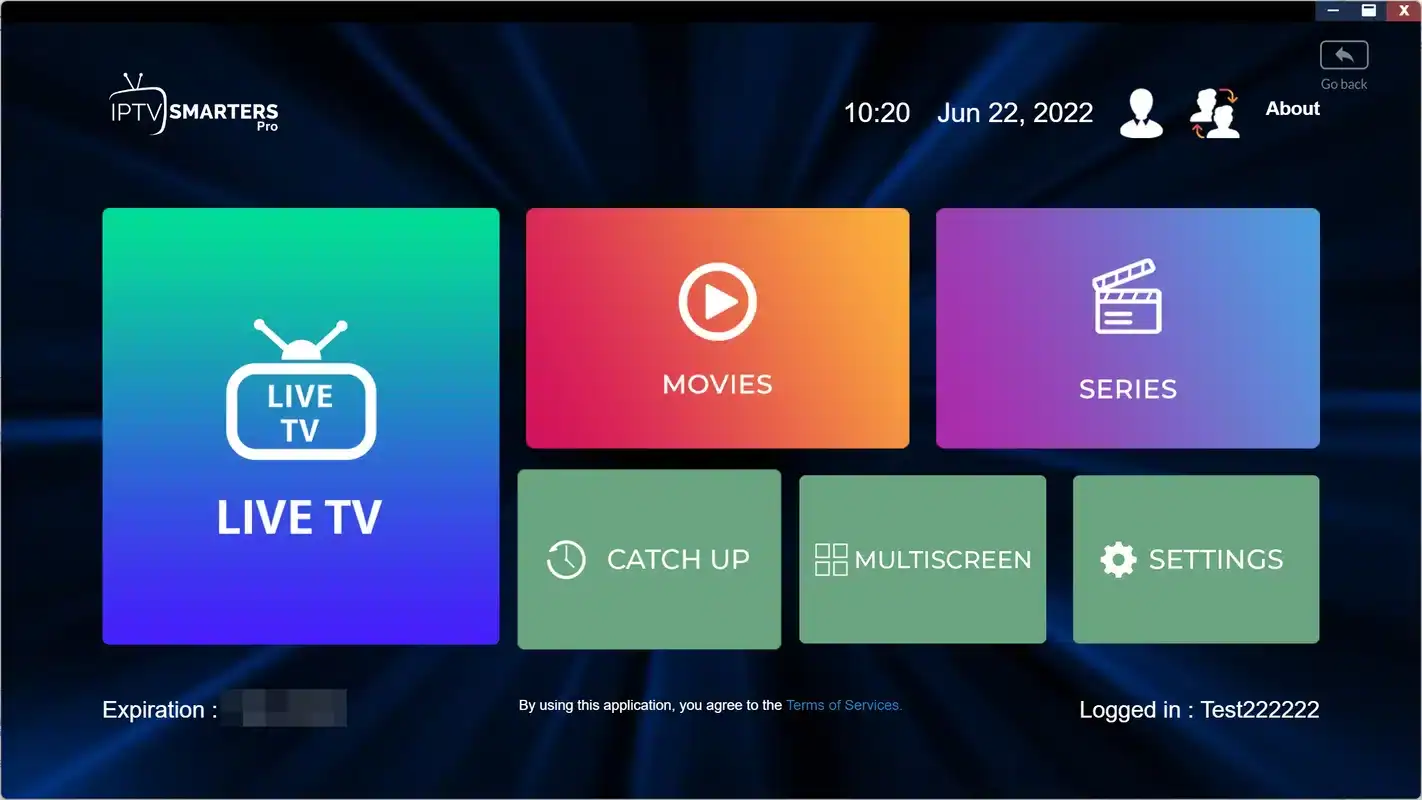
Choose to add a new user, then pick the option that mentions the Xtream Codes API. Fill in a name, then the username, password and URL. Our IPTV Smarters Pro guide walks through each screen.
The typical Xtream login screen. Every value except the name comes straight from your access e-mail.
TiviMate
Add a playlist and select Xtream Codes as the type. The app asks for the server address first, then the username and password, and finally lets you name the playlist. See our TiviMate review and setup.
XCIPTV
The Xtream-style login is its main route. You will see separate fields for the server, username and password on the opening screen. Our XCIPTV guide covers its settings.
IBO Player, Smart IPTV and GSE Smart IPTV
These players vary more from version to version. GSE Smart IPTV lists Xtream Codes among its source types. Smart IPTV is built around playlist links, so the M3U route usually suits it better. For IBO Player, follow the on-screen options and choose the Xtream-style login if your version offers one; our IBO Player guide explains its activation.
How to set up Xtream IPTV step by step
Follow this order and you avoid the most common dead ends. It assumes your player is already installed and your two-screen workspace is ready.
- Open your access e-mail on a phone or computer. Reading the details on a second screen is easier than squinting at the TV while you type.
- Open the player and choose the Xtream Codes login. If you see both a playlist option and an Xtream option, pick Xtream.
- Type the server URL exactly. Include the colon and port number at the end if your e-mail shows one. Leave no space before or after.
- Enter the username and password. Watch for automatic capital letters and for characters that look alike in a TV font.
- Name the profile. Use the room or device, so you can recognise it later.
- Confirm and wait. Live channels, movies and series load as separate lists. Let each one finish before you start browsing.
- Open the guide. With Xtream IPTV, most players pull programme listings from the same server. If the guide stays blank, see our TV guide setup page.
- Play a test channel. Start with an HD channel. If it plays smoothly, try Full HD or 4K.
Copy rather than retype
If your player lets you add an account from a phone or computer on the same network, use that option. Copying and pasting from the e-mail removes nearly every typo. Just trim any space that the paste adds at the end of each field.
On a phone or tablet player, you can copy straight from the mail app into each field. That makes a phone a good place to test your details first: if they work there, you know any later failure on the TV is a typing slip.
Typing on a TV remote without mistakes
On many TVs you have no choice but to type with the remote. It is slow, but it need not be error-prone. The trouble comes from a small group of characters that look alike in TV fonts and from keyboards that try to be helpful.
| Look-alike pair | How to tell them apart | Tip |
|---|---|---|
| Capital I and lowercase l | Zoom in on the e-mail; the capital is usually plainer | Copy the detail on a phone and paste it into a notes app with a different font |
| Capital O and zero | Zero is often narrower, sometimes with a slash or dot | Check the keyboard’s number row versus the letter rows |
| Letters “rn” and “m” | Side by side, “rn” shows a small gap | Type slowly and compare in pairs |
| Number 1 and lowercase l | The 1 often has a small flag at the top | Read the detail aloud, saying “number” or “letter” |
| Hyphen and underscore | The underscore sits on the baseline | Look for it on the symbols page of the keyboard |
Two keyboard behaviours cause the rest. Automatic capitalisation turns the first letter of a field into a capital, which breaks a username or password that starts in lowercase. Predictive text sometimes “corrects” a username into a dictionary word. Turn both off in the keyboard settings before you begin, and switch them back on afterwards if you use them elsewhere.
Finally, type each field, then move the cursor back to the start and read it once against the e-mail before pressing next. It takes a few seconds per field and saves the frustration of an “invalid login” message with no clue which field is wrong.
Stuck on the login screen
Send support a photo of the error, your player and your device. We answer 7 days a week by e-mail and WhatsApp, in English and French.
What loads after you sign in
Once the player accepts your details, it fetches several lists from the same server, one after the other. Knowing the order helps you tell a normal wait from a real problem.
- First
Account accepted
The player confirms the login, sometimes showing your expiry date and connection count.
- Next
Live channels
Groups and channel names appear. This list is usually the quickest to arrive.
- Then
Movies and series
The on-demand libraries load with posters and summaries. Larger packs take a little longer here.
- After that
Programme guide
Listings are fetched and matched to channels. The grid fills in behind the scenes.
- Ready
Browse and play
Every menu is populated. Start with an HD channel as a first test.
Many players show account information after sign-in, including the end date of your access and the number of connections allowed. That screen is a quick health check. If it shows the expected end date and one connection, your details are correct and any later issue lies with the network, the device or the guide, not the login.
Bigger catalogues take longer at each stage, and smaller devices take longer to sort what arrives. On a compact stick with the Ultimate 4K Pack, the on-demand libraries may need noticeably more time than the live list on a first sign-in. That is normal behaviour rather than a fault. Keep the player in the foreground, avoid pressing buttons while it works, and let it finish before you judge the result.
If the player accepts the login but one of the lists stays empty, give it more time first, then use the player’s refresh or reload option for that section. A list that stays empty after a refresh and a restart is worth a message to support with the name of the section.
Checklist when an Xtream IPTV login fails
An “invalid login” or “authorisation failed” message almost always has a simple cause. Work through this list in order before you contact anyone. Each line takes seconds to check.
- The server URL matches the e-mail character for character, port included.
- No field has a trailing space, which copy and paste often adds.
- The username and password sit in the right fields and are not swapped.
- Caps lock and automatic capitalisation are off on the on-screen keyboard.
- The details come from your most recent access e-mail.
- Your access is still within its 1, 3, 6 or 12 month term.
- No other device is streaming on the same credentials right now.
- The device’s date and time are set correctly, since a wrong clock can upset some players.
Look at the server field first: the port, the prefix, a trailing space. Then check the device’s internet connection.
Then: test the same details on a phoneCompare both fields with the e-mail, looking for look-alike characters and an automatic capital.
Then: retype rather than editYour term may have ended, or the details come from an older order.
Then: check your latest access e-mailAnother device is playing on your credentials, or a player is holding a stream open in the background.
Then: stop playback everywhere and retryIf every box is ticked and the player still refuses, write to support with a photo of the error, the name of your player and the device you use. That gives the team what it needs to answer in one reply rather than three. Our IPTV not working checklist covers the wider family of access problems.
Testing your Xtream IPTV details on a second device
When a login fails on the TV, the single most useful test is to try the same details on a phone or tablet. It splits the problem cleanly in two and stops you from reinstalling a TV player that was never at fault.
Reading the result
If the details work on the phone, they are correct, your access is active, and the TV entry has a typo or the TV player needs attention. If they fail on the phone too, the problem lies with the details themselves or with your access, and a message to support is the next step.
- Install a player from the phone’s official store
- Paste the three details straight from the e-mail
- Stop the test before going back to the TV
Remember the one-connection rule while testing. Stop playback on the phone before you try the TV again, or the TV may refuse with a “connections reached” message that has nothing to do with your typing.
Your connection and the first Xtream IPTV sign-in
The login itself uses almost no bandwidth, but what follows does. Right after sign-in, the player fetches the channel list, the on-demand libraries and the guide, and then you start playing. A connection that handles browsing comfortably can still stall during that first load or during playback if the signal in the TV room is weak.
Steady speed to plan for, per screen playing
Measure the speed on the device itself, or on a phone held next to it, rather than trusting the figure on your internet plan. If the result is close to the figure for the quality you want, connect the device by Ethernet or move it to the 5 GHz band. A 2.4 GHz signal through two walls is a frequent reason for a first load that never finishes.
A slow first load is not a login problem. If the player has accepted your details and shows account information, your Xtream setup is complete, and any stall from there is a network question. Our buffering guide walks through the network checks in order.
Editing a saved account at renewal
Nothing renews automatically on a ClearPick IPTV pack. When your term ends, the player stops loading content. If you order again, your new access e-mail becomes the reference, and the cleanest approach is to edit the saved account rather than add a new one alongside it.
- Open the newest access e-mail. Compare all three details with the ones saved in the player. Any of them may have changed.
- Edit the existing profile. Most players let you edit a user or playlist. Editing keeps your favourites and settings.
- Update every field that differs. Server URL, username and password, each checked character by character.
- Remove any duplicate profiles. An old profile left in place is easy to open by mistake and will simply fail.
- Reload and test. Play a live channel, open a film, then check the guide.
Repeat the edit on every device that holds the login, in the same sitting. A device list kept with your access e-mail makes this quick. If you are still deciding on your next duration, the 12-month plan and the 1-month plan pages explain who each one suits.
One Xtream login, several devices
Your Xtream details are not tied to a single device. You can enter them on the living-room TV, your phone and a tablet, and switch between them freely. The rule is simple: each pack includes one simultaneous connection, so only one of those devices should be playing at any given moment.
Each device keeps its own copy of the login, its own favourites and its own guide settings. Changing a setting on the TV does not affect the phone, and removing the profile from a tablet leaves the others untouched. That independence is handy: you can tailor each device to the room it lives in, with 4K on the main TV and HD on the kitchen tablet, while all of them share the same access.
In practice, that means stopping playback on the TV before you start watching on the tablet. Some players keep a stream open in the background for a short while, so give it a moment. If two people at home want to watch at the same time, read our guide to IPTV on multiple screens, which explains how to request extra simultaneous screens and what support needs to know.
Keep your login in your household: your three details are effectively a key to your account. Posting them in a group chat or lending them to a relative in another home breaks the one-connection rule and our terms, and one of the streams will stop. Store the e-mail somewhere private and share it only with the people you live with.
Three details, one household, one stream at a time. Keep those three ideas together and the Xtream login stays simple for good.
Keeping your Xtream details safe
Three short details are convenient, and that convenience cuts both ways: they are as easy to pass on as they are to type. Most leaks are accidental. A screenshot of the login screen shared in a help group, a photo of the TV sent to a friend, a sticky note on the fridge that a visitor photographs. Each one hands your access to someone outside your home.
Good habits for your access e-mail: keep it in a dedicated folder rather than forwarding it around the family, open it on your own phone when you set up a new device, and archive older access e-mails once you have moved to a new order so nobody types an expired set by mistake.
When you replace or give away a TV, a stick or a tablet, remove the profile from the player first, or reset the device to factory settings. A second-hand stick that still holds your login is a second household on your connection, and you will only notice when your own stream starts to stop.
When you need help, send details privately. Support only needs the e-mail address you ordered with to find your account; there is no reason to post a username or password anywhere public, and no one from our team will ask you to.
Xtream login by device family
The login is the same everywhere, but the players available differ by device. This table maps the device families we support to the players commonly listed in their official stores. Store listings change over time and by region, so check yours before you plan.
| Device | Players to look for | Typing comfort | Our device guide |
|---|---|---|---|
| Samsung or LG smart TV | IBO Player, Smart IPTV | Remote only, slow | Smart TV guide |
| Android TV or Google TV box | TiviMate, IPTV Smarters Pro, XCIPTV | Remote, sometimes a phone keyboard | Android TV box guide |
| Fire TV Stick | TiviMate, IPTV Smarters Pro, XCIPTV | Remote, sometimes a phone keyboard | Firestick guide |
| Apple TV, iPhone, iPad | GSE Smart IPTV and other App Store players | Easy on iPhone and iPad | Apple TV guide |
| Android phone, tablet or PC | IPTV Smarters Pro, XCIPTV, GSE Smart IPTV | Easy: copy and paste | Devices hub |
Whatever the device, the login screen asks for the same three details, so the skills you learn on one transfer directly to the next. Once you have set up a single device successfully, adding a second one usually takes a few minutes, and the most important step is simply to take the details from the same, latest access e-mail.
The “typing comfort” column is worth a thought when you choose a device. If you dread typing on a remote, a device whose player accepts input from a phone keyboard, or a phone and tablet for the first test, will make setup far more pleasant.
A worked example: a Fire TV Stick in Halifax
Here is a scenario we use to show how the pieces fit together on a typical first evening. Picture a viewer in Halifax who has just ordered a pack and plugged in a Fire TV Stick in the living room. The access e-mail has arrived on their phone a few minutes after payment.
They install a player from the stick’s official app store, open it once, and choose the Xtream Codes option. Before typing, they turn off automatic capitalisation on the on-screen keyboard and zoom in on the e-mail on the phone. The username contains a lowercase l followed by the number 1, so they read it aloud as “letter l, number one” while typing.
The first attempt fails with “server cannot be reached”. Instead of retyping everything, they look at the server field and spot that the colon and port at the end are missing: they had stopped at the end of the host name. They add the port, confirm, and the player accepts the login. Live channels load first, then movies and series, then the guide fills in.
- Player installed from the official store and opened once
- Keyboard capitalisation switched off before typing
- Look-alike characters read aloud while typing
- Server field checked first when the error mentioned the server
- Device time zone set to Halifax so the guide lines up
The whole setup took one evening and one corrected field. The point of the example is the method rather than the device: read the error, go to the field it points to, fix that field only. Retyping all three details after every failure multiplies the chances of a new slip. Fixing one field at a time also tells you exactly which detail caused the trouble, which is worth knowing the next time you set up a device.
Xtream words worth knowing
Login screens use a few technical terms without explaining them. Here is the plain-language version.
- Xtream Codes
- A login format made of a server URL, a username and a password, understood by most IPTV players.
- Xtream API
- Another label for the same login, used by some players on their sign-in screen.
- Server URL
- The address of the server, usually ending with a colon and a port number.
- Port
- The number after the colon, telling the player which door on the server to use.
- Profile or user
- A saved login inside a player, with a name you choose.
- Connection
- A stream in progress. Each pack includes one simultaneous connection.
- Expiry date
- The end of your access term, often shown on the player’s account screen.
Which pack sits behind your Xtream IPTV login
The login format is the same whichever pack you choose. What changes is the size of the catalogue that loads once you sign in. We sell these packs ourselves, so weigh them as you would any purchase: catalogue size, picture quality and how many screens you need.
Premium Pack
- 20,000+ channels
- 24,000+ series
- 100,000+ movies
- HD, Full HD and 4K
VIP Premium Pack
- 27,000+ channels
- 61,000+ series
- 155,000+ movies
- HD, Full HD and 4K
Ultimate 4K Pack
- 57,000+ 4K channels
- 47,000+ series
- 179,000+ movies
- 20 servers in Europe
The catalogue includes French-language and international content; if you need a specific language, ask support before ordering. Durations run 1, 3, 6 or 12 months, paid once in Canadian dollars by card or PayPal, with no contract and no automatic renewal. See current prices on the plans page, or compare the packs line by line in our plan comparison.
Your three details are one order away
Choose a pack and a duration; the Xtream details and the M3U link arrive by e-mail within minutes.
More setup guides
The Xtream login is the first step. These guides cover the steps that follow and the alternatives around it.
FAQ
Is Xtream IPTV content different from the M3U link?
No. Both formats open the same catalogue. Xtream Codes is simply easier to type and usually keeps live channels, movies and series in separate menus, with the guide loading on its own.
Where do I find my server URL?
In the access e-mail we send within minutes of your order, next to your username and password. Check your spam or promotions folder if you cannot find it.
Why does my player say “invalid login”?
Usually because of a missing port at the end of the server URL, a trailing space, or an automatic capital letter. Run through the checklist above. If everything matches, contact support with a photo of the error.
Can I use the same Xtream details on my phone and my TV?
Yes, as long as you watch on one at a time. Each pack includes one simultaneous connection. For more screens playing at once, ask support for the conditions and price.
What happens to my login when my term ends?
Nothing renews automatically, so the player stops loading content once your access ends. If you order again, edit the saved account with the details from your new access e-mail rather than adding a duplicate.
My player has no Xtream option. What now?
Use your M3U link instead. It works in players that accept only a playlist address and gives you the same catalogue.
What do I type in the “name” field?
Anything that helps you recognise the profile, such as the room or device. It has no effect on the login.
Should I include the prefix at the start of the server URL?
Type it exactly as your e-mail shows it. If your player rejects that format, try with or without the prefix while keeping the host and port unchanged.
Can I send my details to support to check them?
Send the e-mail address you ordered with and a photo of the error. Support can find your account from that, so you never need to post your password anywhere public.
Can I watch Xtream IPTV on a phone away from home?
Yes, with the same details, as long as nobody is playing on your credentials at home at the same time.
Does the player I choose change my catalogue?
No. Every player opens the same catalogue from your login. Players differ in layout, guide features and comfort, not in content.
Why does the player say maximum connections reached?
Another device is playing on your credentials, or a player is holding a stream open in the background. Stop playback everywhere, wait a moment, then try again.