An IPTV Firestick setup is often the first one people try, and for good reason. The stick hides behind the TV, the remote has only the buttons you need, and the store already lists several IPTV players. This guide takes the buyer’s-guide route: what to check before you buy, how to set the stick up from the first power-on, how to install a player the clean way, which settings are worth changing, how to troubleshoot, and where a stick stops being the right tool.
A word on where we stand. ClearPick IPTV sells three IPTV packs of its own, and we will point out where that is relevant. We do not sell sticks or player licences and earn nothing from either, so the advice below is about getting a smooth picture, whatever lawful service you end up choosing. If you are still comparing device families, start with our hub on the best devices for IPTV and come back here once the stick wins.
Is an IPTV Firestick setup right for you
A stick is a specialist. It is excellent in some homes and merely acceptable in others, and knowing which kind of home you have saves a disappointing first week. Run through the two lists below and count which one you agree with more.
A stick suits you if
- You watch mostly on one TV at a time
- The room has a solid Wi-Fi signal, or you can add the official Ethernet adapter
- You want nothing visible around the screen
- One player, maybe two, is all you need
- A short remote with few buttons feels like a plus
Look at other devices if
- The router is two floors away and a cable is impossible
- You like keeping three or four apps installed
- The TV sits inside a closed cabinet that traps heat
- You want direct number keys for live channels
- The player you want is missing from the stick’s store
If the right-hand column sounds like your living room, two other routes are worth a look. An Android TV box gives you a network port, more storage and a remote that feels closer to a cable remote. A recent television can also run players itself; our guide to IPTV on Samsung and LG smart TVs explains how to check whether yours can.
If you mostly agree with the left-hand column, a stick is a sensible, low-risk pick. It also travels well. Because it runs from a small power adapter and joins any Wi-Fi network you have permission to use, it can move from the living room to a guest room or a cottage in a minute, as long as you remember the single-connection rule we cover later.
On legality: the technology is legal; whether a service is legal depends on the broadcasting rights it holds, so check before subscribing. A stick is a general-purpose streaming device; what you watch on it is a separate choice. Our page Is IPTV legal in Canada? covers the question in more depth.
Which Fire TV Stick to look for
Fire TV Sticks come in a few versions, and the differences matter more for IPTV than the packaging suggests. Use this table as a scoring grid. Mark each line good, fair or weak for the model you are considering and for your own TV.
| Criterion | Why it matters for IPTV | What to look for | Weight |
|---|---|---|---|
| Picture output | Decides whether 4K channels are worth it | A 4K model for a 4K TV; a standard model is enough for an HD set | High if your TV is 4K |
| Wi-Fi support | Most stutter on a stick comes from the wireless link | Support for the newer Wi-Fi standards your router offers | High |
| Storage | Players keep caches and guide data that grow | The roomiest version available, especially for two players | Medium |
| Wired option | A cable is steadier than any radio signal | Compatibility with the official Ethernet adapter | High if the router is far |
| Remote | You will zap channels and scroll guides daily | TV power and volume buttons, a responsive directional pad | Medium |
A simple rule ties the grid together: match the stick to your TV, not the other way round. A 4K stick on an HD television costs more and shows the same picture as a standard model. A standard stick on a 4K television leaves the best part of the screen unused. If you are unsure what your television supports, check the label on its back or the picture menu before you buy.
One more point that listings rarely mention: the wall power adapter. Sticks are designed to run from the adapter supplied in the box. Powering one from the TV’s USB port is tempting because it saves a socket, but many TV ports deliver too little power, which can cause random restarts or a warning on screen. Plug it into the wall and that whole category of odd behaviour disappears.
How the pieces fit together
Many first-time buyers expect the stick to come with channels, or the player to be the subscription. Neither is true, and seeing the chain clearly makes every later step easier to understand and every problem easier to place.
The stick is a small computer that runs apps. The player is one of those apps; it knows how to show live channels, a guide and a library, but it holds no content of its own. Your subscription supplies the content, and the access e-mail is the key that connects it to the player. Three separate products, often from three separate companies.
That split has a practical upside. If you change player one day, your subscription stays the same and you simply type the same details into the new app. If you replace the stick with a box, the same player and the same login usually follow you across. And when something goes wrong, you can test each link on its own: another app on the stick tells you whether the hardware and network are healthy, and another device with the same login tells you whether your access is working. Our guide to what IPTV is explains the wider picture if this is your first subscription.
What you need before you start
Gather everything before you plug the stick in. Setup is quicker and calmer when you are not hunting for a password halfway through.
A spare HDMI port
Ideally the one your TV manual marks for 4K and HDR if you bought a 4K stick.
A wall socket nearby
For the supplied power adapter. Avoid the TV’s USB port.
Your Wi-Fi password
And the name of the faster band if your router shows two networks.
The stick’s account
The store asks you to sign in once; have those details ready.
Your access e-mail
Open on a phone so you can copy the server URL, username and password.
A quiet half-evening
The first sync of the catalogue takes a while. Do not start ten minutes before a match.
If the TV is wall-mounted, use the short HDMI extender cable from the box. It moves the stick away from the metal back of the screen, which improves the Wi-Fi signal and keeps the stick cooler. It also stops the stick from pressing against the wall, which can loosen the port over time.
First power-on: preparing the stick itself
Before any IPTV player comes into play, the stick needs its own short setup. Doing it carefully once avoids most of the strange problems people blame on players later.
- Step 1
Plug in and switch the input
Connect the stick, plug the adapter into the wall, then choose the matching HDMI input on your TV.
- Step 2
Pair the remote
The remote usually pairs on its own. If it does not, hold the Home button until the screen confirms it.
- Step 3
Join your network
Choose the faster band when the router is close, and type the password carefully.
- Step 4
Sign in and set up the remote
Sign in to the store account, then let the stick configure the remote to control your TV’s volume and power.
- Step 5
Update the system
Open Settings, then My Fire TV, then About, and install any pending update before adding a player.
That last step matters more than it looks. A stick fresh out of the box can be several versions behind, and some players refuse to install or behave oddly on an old system. Let the update finish completely, including the automatic restart, before moving on. If the stick offers to install a list of suggested apps during setup, you can skip them; every app you add takes storage you may later want for your player.
Installing a player from the official store
Every IPTV player you use should come from your device’s official app store. On a Fire TV Stick, that is the store built into the home screen. Availability changes by region and over time, so check what is listed on your own stick rather than relying on a list you read online. If the player you wanted is not there, choose another one from the store rather than installing it from anywhere else.
Which player to try first on a stick
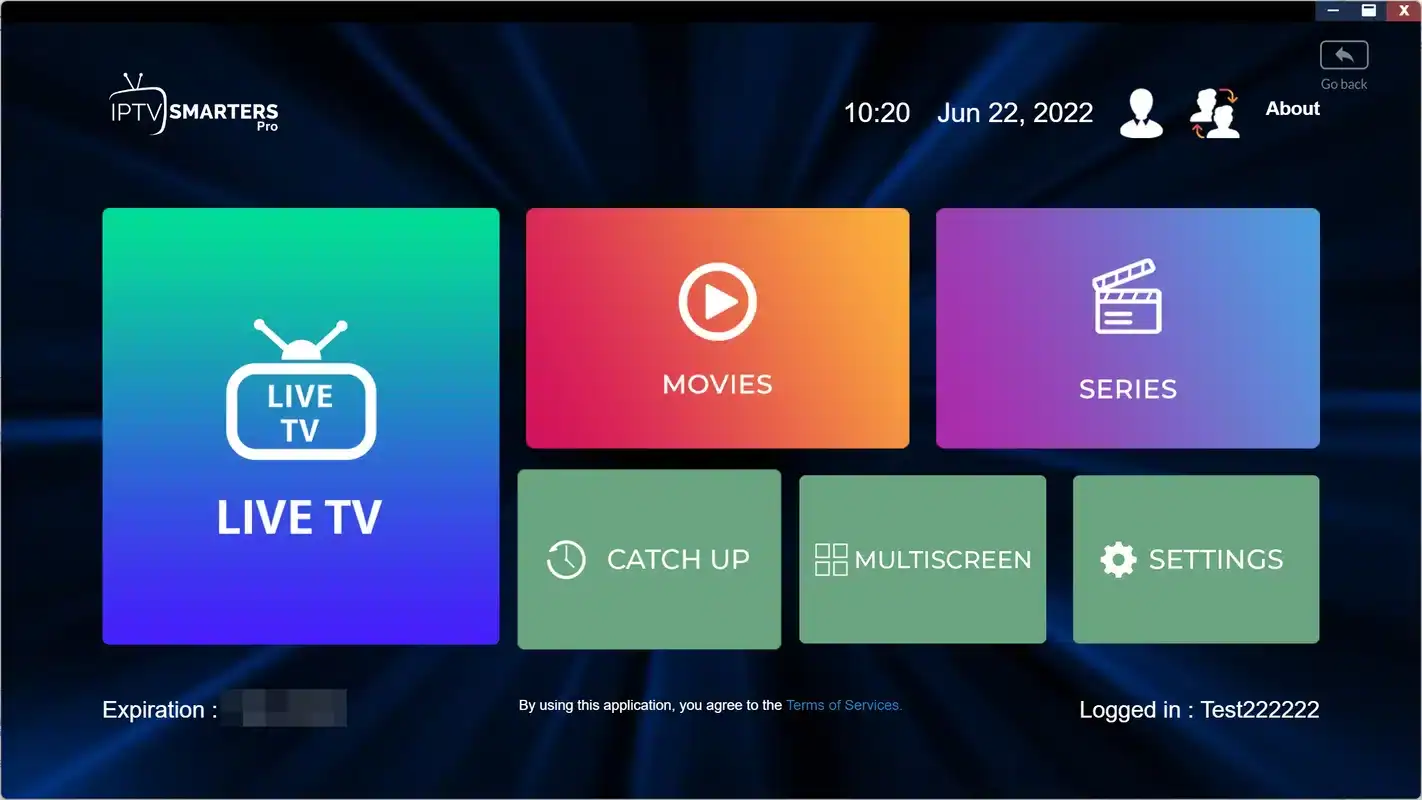
On a stick, a light player keeps menus quick and leaves room in storage. IPTV Smarters Pro and XCIPTV are often listed and handle both live TV and the library cleanly. Where the store lists it, TiviMate offers a guide-first layout that live-channel fans enjoy.
- Search each name in the stick’s store.
- Note which ones appear in your region.
- Install one to start; add a backup later only if storage allows.
- Open the search. From the home screen, go to Find, then Search, and type the player’s name with the remote or the voice button.
- Check the listing. Make sure the publisher name matches the official one, and read what the listing says about licences or premium features.
- Install it. Select the player, choose Get, and wait for the install to finish.
- Open it from your apps. Find it in your apps row; if you will use it every evening, move it to the front of the row.
- Pick the login type. Most players ask whether you are using Xtream Codes or an M3U link; the next section helps you choose.
- Let it load fully. The first sync of channels, series and movies can take a while; leave the stick on until it finishes.
Some publishers charge for a licence or premium features. We are independent from app publishers, so check the current price on the app’s official website before you commit. A sensible routine is to use the basic version for a few evenings first, and only pay once you know the player suits your habits.
Entering your login with a stick remote
Typing a long server URL with a directional pad is the least enjoyable part of the whole process. A little preparation makes it painless, and choosing the right login type means you only do it once.
| Login type | What you type | What loads on its own | Our view on a stick |
|---|---|---|---|
| Xtream Codes | Server URL, username, password | Live channels, guide, movies, series | First choice: three short fields and the guide follows |
| M3U link | One long playlist address | Live channels; guide sometimes needs its own address | Backup choice when a player only accepts playlists |
The fields look like this in most players. Field names vary slightly from app to app.
Three habits prevent most failed logins on a stick. First, type slowly and check each character on screen before moving on; the on-screen keyboard is easy to overshoot. Second, watch for the colon and the number that follow the server address, because leaving them out is the single most common slip. Third, look out for a stray space at the end of the password, which some phones add when you copy text. If the player still refuses the login, our walkthrough on setting up IPTV with Xtream Codes explains each field, and the one on setting up IPTV with an M3U link covers the playlist route.
IPTV Firestick settings that make a difference
Out of the box, a stick is tuned for general streaming apps. A handful of system changes make it calmer and more reliable for long evenings of live TV. Menu names can shift slightly between software versions, but the options are easy to find.
- Set the video resolution to automatic under Display and Sounds so the stick matches what your TV can show.
- Turn on Match Original Frame Rate in the display settings, if your model offers it, to reduce judder on sport and films.
- Switch off data monitoring in Preferences; it can raise warnings during long viewing sessions.
- Turn off app usage data collection in the privacy settings to keep background activity low.
- Disable automatic playing of videos and sounds on the home screen if they slow menus down.
- Clear a player’s cache from Manage Installed Applications only when its guide starts acting strangely.
- Restart the stick from the My Fire TV menu once a week, or whenever menus feel sluggish.
The quick restart shortcut
When the stick freezes and menus do not respond, hold the Select button and the Play button together for a few seconds. The stick restarts without you having to pull the power adapter. It is the fastest cure for a stuck player and does not delete anything.
Player settings worth changing on a stick
Inside the player, a few options affect smoothness more than anything else. Their names differ between apps, but most players offer an equivalent for each line below.
| Setting | Suggested choice | Why |
|---|---|---|
| Decoder | Hardware | Uses the stick’s video chip; smoother and cooler than software decoding |
| Buffer size | Medium | Absorbs brief Wi-Fi dips without making channels slow to start |
| Guide refresh | Once a day | Keeps listings current without loading the stick every hour |
| Time offset | Match your province | Lines the guide up with the clock where you live |
| Hidden groups | Hide groups you never open | Shorter lists, quicker scrolling, less memory used |
| Parental code | Set one if children use the TV | Locks the groups you choose behind a code |
Change one setting at a time and watch for an evening before changing the next. If you change three things at once and the picture improves, you will not know which one helped, and if it gets worse, you will not know which one to undo. Our guide to setting up the IPTV TV guide explains the time offset in more detail, which matters in a country with several time zones.
Wi-Fi, placement and the Ethernet adapter
Bandwidth is the part people underestimate, and on a stick the antenna is small, so placement counts double. Start with the speed each screen needs.
Speed to plan for on the stick’s screen
Those figures add up when other people stream in the house. If the stick plays 4K while someone else watches Full HD on a laptop, you need about 40 Mbps of steady capacity. Test where the stick actually sits: hold a phone beside the TV at your usual viewing hour and run a speed test. A result close to what your quality needs means you should improve the link before blaming the stick or the player.
Four placement fixes, cheapest first
Try them in this order and stop as soon as the picture is steady.
- Use the HDMI extender so the stick hangs clear of the TV’s metal back.
- Move the router higher and out of cupboards, or closer to the living room.
- Add the official Ethernet adapter and run a cable from the router.
- Place a mesh point in the TV room if a cable is impossible.
The Ethernet adapter deserves a special mention. It plugs into the stick’s power input and passes power through while adding a network port, so the stick gets a cable without losing its small size. Check that the adapter is listed as compatible with your exact model before buying it. For a 4K screen, or a router on another floor, it is the single most effective upgrade a stick can get.
Stick ready, login next
Compare the three packs and every duration, then add your access to the player you just installed.
Keeping storage under control
Storage is the stick’s tightest resource. The system itself takes a large share, and every player keeps a cache of artwork, guide data and catalogue lists that grows over the weeks. When available space runs low, the symptoms are vague: slow menus, a guide that takes ages to appear, or a player that closes without warning.
The cure is a monthly tidy-up rather than a dramatic reset. Open Settings, then Applications, then Manage Installed Applications. The list shows how much space each app uses. Uninstall anything you have not opened in a month, especially games and preinstalled apps you never chose. Leave your main player alone unless it misbehaves; clearing its cache forces it to rebuild the guide and the catalogue, which takes time and is only useful when something is wrong.
Keeping two players on a stick is possible and handy as a backup, but only if the space allows it. If the stick warns about low storage, remove the backup player before touching the main one. A stick that runs with a comfortable margin of space behaves noticeably better during long evenings than one that is nearly full.
Deep dive: cache, data and what each button removes
Manage Installed Applications offers two buttons for each app. Clear cache removes temporary files such as artwork and partly loaded guide data; your login and favourites stay. Clear data resets the app to the state it was in right after installation, which removes your login, your favourites, your hidden groups and your parental code. Use clear cache when the guide looks wrong. Use clear data only as a last resort, and keep your access e-mail and a note of your favourites at hand before you press it.
A good rhythm for most homes looks like this: a weekly restart from the My Fire TV menu, a monthly look at Manage Installed Applications, and a cache clear only when the guide misbehaves. Pair that with system updates whenever the stick offers them, and a stick can stay quick for a long time. If none of it helps and the stick is still slow with almost nothing installed, the model may simply be too modest for the size of the guide you load, and hiding more groups in the player is the next step before thinking about new hardware.
Troubleshooting common IPTV Firestick problems
Most stick problems fall into a short list of patterns. Find the one that matches what you see, try the advice, and move to the next step only if the problem stays.
Check the server URL, username and password for a typing slip, especially the colon and number after the address.
Then: restart the stick and the routerThe Wi-Fi link is dipping. Run a speed test beside the TV at the same hour.
Then: try the extender cable or the Ethernet adapterStorage or memory is short. Remove unused apps and restart the stick.
Then: clear the player’s cacheThe guide has not refreshed or the time offset is wrong.
Then: refresh the guide and set the offset for your provinceIt is often a power issue. Use the supplied wall adapter, not the TV’s USB port.
Then: move it out of any closed cabinetOne link in the chain is not 4K: the stick, the HDMI port or the TV.
Then: check the resolution in Display and SoundsWhen a problem affects only one channel, try a few others before changing anything. If one channel struggles and the rest play normally, the issue is with that stream rather than your stick. If every channel struggles, the cause is closer to home: the network, the stick or the player. Our guides to fixing IPTV buffering and fixing IPTV freezing go further, and our troubleshooting hub sorts problems by symptom.
Living with the stick remote
The stick remote is deliberately minimal, so a few habits make daily use feel quicker than it looks. Within most players, pressing the centre button during live TV opens the channel list, and the left and right arrows jump between groups. The Menu button, the one with three lines, often opens player options such as audio tracks and subtitles, which is useful in a bilingual home. Pressing Back twice usually takes you out of full screen and into the guide.
Holding the Home button opens a quick panel with settings, sleep and a list of your apps. Sleep is worth using: a stick left streaming to a TV that is switched off still uses your connection and your single stream. If someone at home leaves the TV on overnight, set the player’s own sleep timer where it offers one.
A stick rewards small habits: close the player when you stop, keep storage tidy, and give the antenna a clear view of the room.
If you miss number keys, favourites lists are the answer. Put the channels you watch most into a favourites group and set the player to open on it. You will reach your usual channels in two clicks instead of scrolling through thousands of entries.
The limits of a Fire TV Stick
A stick is good value, but it is not a home cinema box, and it helps to know where it stops. Storage is tight, so one or two players is a realistic ceiling. The antenna is small, so a distant router hurts more than it would on a box. Heat builds up behind a TV or inside a cabinet, which slows the stick after long sessions. And the remote has no number keys, which matters to people who zap through dozens of channels each evening.
None of these limits is a defect. They are the price of a device small enough to hide behind the screen. When they start to bother you, a certified Android TV box removes most of them at once, and an Apple household may prefer the route described in our guide to IPTV on Apple TV and iPhone.
One stream at a time: your pack allows 1 simultaneous connection. You can sign in on the stick, a phone and a tablet with the same credentials, but only one may play at a time. If your household needs more screens at once, ask us through support; we explain the conditions and price. Never share your login with another household, and never install players from outside the official store.
Before you replace a stick
Run three checks first. Play the same channel on a phone on the same Wi-Fi: if it stutters there too, the network is the cause. Restart the stick with the Select and Play shortcut and test again with no other app open. Then look at storage in Manage Installed Applications. If the phone plays smoothly, the stick is tidy and restarted, and the stick still struggles, an upgrade to a box with a cable is a reasonable next step rather than a guess.
Setting the stick up for a whole household
A stick in a shared living room is used by people with very different habits. A little setup on the first weekend avoids arguments over the remote and keeps younger viewers in the right part of the catalogue.
Start with the player’s favourites. Ask each person for the handful of channels they open most, and build one favourites group per person or one shared group, depending on how your home works. Most players let you set the group that appears first, so the person who watches most often lands on their channels straight away. Then hide the groups nobody opens. A shorter list scrolls faster on the stick’s remote and uses less memory, which a stick appreciates.
Next, the parental code. Choose a code that children do not know, apply it to the groups you want locked, and test it once by trying to open a locked group yourself. Write the code down somewhere safe, because resetting it often means clearing the player’s data and rebuilding your favourites. On the stick itself, you can also restrict purchases in the store so nobody installs an unexpected app.
- One favourites group per person, or one shared group for the whole home.
- Unused groups hidden to shorten the lists.
- A parental code on the groups children should not open.
- Store purchases protected on the stick.
- A house rule: close the player when you stop watching, so the single connection is available for the next person.
That last line is the one families forget most. With 1 simultaneous connection per pack, a player left running on the stick blocks the phone in the kitchen. A simple habit of pressing Home and then closing the player solves it.
IPTV Firestick away from home
A stick is the easiest device to take on a trip to a cottage, a family visit or a hotel with an HDMI port. Pack the stick, the power adapter, the extender and the remote in one pouch. At the destination, join the local Wi-Fi from the network settings, and your player opens with your login already saved.
Two practical points. Hotel and guest networks are often slower and shared with many people, so choose HD in the player if the picture struggles. And remember the single-connection rule travels with you: if someone at home is watching on the living room box, your stick will struggle to start a stream until they stop. Agree beforehand who uses the pack during the trip. Your login belongs to your household; it is not something to leave signed in on a relative’s TV after you go home.
How our packs work on a Fire TV Stick
We sell our own packs, and they work on a stick through any compatible player from the official store. Access is e-mailed within minutes as Xtream Codes details or an M3U link. The catalogue includes French-language and international content; if you need a specific language, ask support before ordering.
VIP Premium Pack
- 27,000+ channels
- 61,000+ series
- 155,000+ movies
- HD, Full HD and 4K
Ultimate 4K Pack
- 57,000+ 4K channels
- 47,000+ series
- 179,000+ movies
- 20 servers in Europe
On a standard HD stick, the Premium Pack or VIP Premium Pack covers everything the stick can show. The Ultimate 4K Pack makes sense with a 4K stick, a 4K TV and about 25 Mbps on that screen. Payment is a one-time charge in Canadian dollars by card or PayPal, with no contract and no automatic renewal. For amounts, see current prices on the plans page, or compare durations in our guide to comparing IPTV plans side by side.
Firestick words in plain English
These terms appear in the stick’s menus and in player settings. Knowing them makes it easier to follow this guide and to describe a problem to support.
- HDMI extender
- The short cable in the box that moves the stick away from the back of the TV.
- Ethernet adapter
- An official accessory that adds a network port to compatible sticks while passing power through.
- Match Original Frame Rate
- A display option on some models that follows the frame rate of what is playing.
- Manage Installed Applications
- The menu where you see each app’s size and clear its cache or data.
- Xtream Codes
- A login made of a server URL, a username and a password.
- M3U link
- A single playlist address that some players accept instead of separate fields.
- Time offset
- A player setting that shifts the guide to match the clock in your province.
Questions about your stick
Tell us your model and what you see on screen. We reply by e-mail or WhatsApp, in English or French.
FAQ
Which login method works best on a stick?
Xtream Codes is usually smoother. You type the server URL, username and password once, and the player loads the guide and the catalogue on its own. An M3U link also works but can need more setup for the guide.
Can I watch 4K on any Fire TV Stick?
No. You need a 4K model, a 4K TV and about 25 Mbps available for that screen. On a standard model or an HD television, the picture tops out at the weakest link.
Why does my player say it cannot connect?
Check the server URL, username and password for typing errors first. Then restart the stick and your router. If the problem stays, write to support by e-mail or WhatsApp at +33 6 44 65 43 13, 7 days a week, in English or French.
Can I use my stick and my phone with one pack?
Yes, with the same credentials, as long as you use them one at a time. Your pack includes 1 simultaneous connection. Extra simultaneous screens are only available on request through support.
The player I want is not in the store. What now?
Pick another supported player from the store on your stick. Several of them may be listed, depending on your region. We do not recommend installing apps from outside the official store.
How often should I clear the cache?
Only when something feels off, such as a frozen guide or slow menus. Clearing it routinely forces the player to rebuild everything and slows the next start.
Can I power the stick from my TV’s USB port?
We advise against it. Many TV ports deliver too little power, which can cause restarts. Use the wall adapter supplied with the stick.
Is the Ethernet adapter worth buying?
For a 4K screen or a router on another floor, yes. Check that it is listed as compatible with your exact stick model first.
Do I need to keep two players installed?
No. One player is enough. A second is a handy backup if storage allows, but remove it first if the stick warns about low space.
Can I take my stick on holiday?
Yes. Join the local Wi-Fi and your saved login works. The single connection still applies, so agree with your household who watches while you are away.