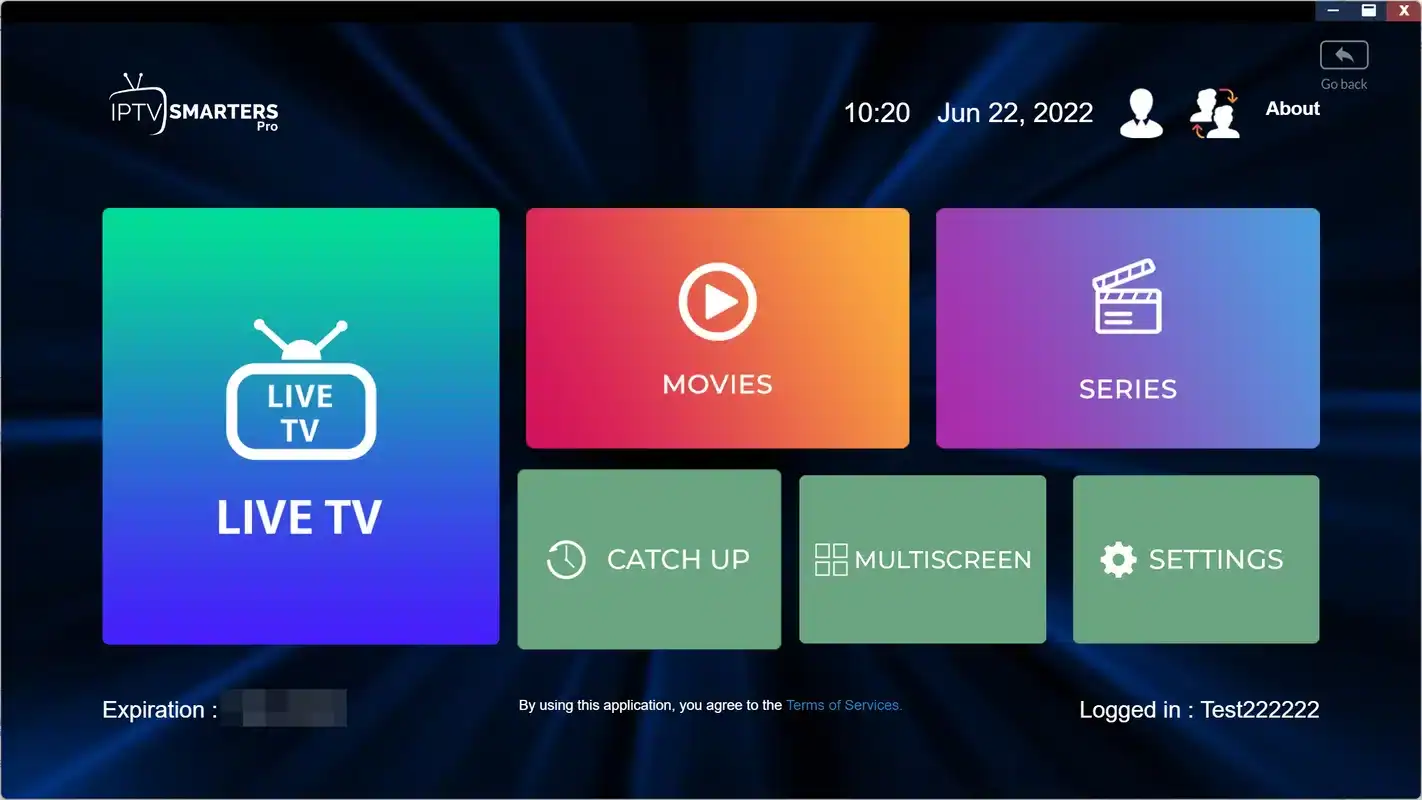
XCIPTV is a no-frills player that does one thing well: it takes an Xtream Codes login and turns it into a tidy menu of live TV, movies, series and a programme guide. It runs on Android devices, including TV boxes and Fire TV devices, and it is light enough to stay responsive on older or entry-level hardware. This review covers what it does well, where it falls short, how to set it up, which settings are worth changing, how to fix the problems people meet most often, and why it makes such a good backup player even in homes that use something else every day.
Where we stand: ClearPick IPTV sells three packs of its own, and they work in XCIPTV with the Xtream Codes details we e-mail within minutes. We are independent from the player’s publisher and earn nothing from it. The opinions below are ours, built on the same criteria we apply in our best IPTV apps hub, and every one of them can be checked on your own device in an evening.
XCIPTV at a glance
Some players try to impress. XCIPTV tries to get out of the way. Its menus are short, its settings are few but useful, and its main job is to turn your login into something you can watch with as little fuss as possible. That makes it easy to underestimate, and easy to come back to once you have tried something heavier on a modest box.
Light
Stays responsive on entry-level Android boxes, older sticks and budget tablets.
One login
An Xtream Codes sign-in brings in channels, guide, movies and series together.
Two engines
A choice of video engine lets you work around a channel that stutters.
Touch and remote
Tap on a phone, use the arrow keys on a TV; the layout stays the same.
Great backup
Sign in with the same details when your main player has a bad day.
Android only
No version for Apple devices or Samsung and LG TVs.
Like every player, XCIPTV is a tool, not a service. It contains no channels, movies or series of its own; it displays the subscription you add to it. If someone offers XCIPTV bundled with channels, they are mixing two separate products, and that is a reason to be careful rather than a bargain. On legality, the technology is legal; whether a service is legal depends on the broadcasting rights it holds, so check before subscribing.
Why a light player matters on modest hardware
Most of the frustration people feel with IPTV on a small stick or an older box has little to do with the stream and a lot to do with the device struggling to run a heavy app. Menus lag, channel lists take ages to scroll and the remote seems to respond a beat late. A light player reduces that load, and the difference can be striking on hardware that is a few years old.

Where XCIPTV makes the biggest difference
The lighter the device, the more you notice a light player. On a powerful box, most players feel quick; on a modest one, the gap widens.
- Entry-level Fire TV Sticks with little storage left
- Older Android TV boxes that feel slow in other apps
- Budget tablets used as a second screen in the kitchen
- Phones that are a few generations behind
A light player does not make a weak connection stronger, of course. If the line or the Wi-Fi cannot carry the quality you are watching, every player will pause. What XCIPTV changes is the part that belongs to the device: how quickly menus open, how smoothly lists scroll and how much memory is left for the video itself. If your hardware is the bottleneck, this is one of the cheapest fixes available, because it costs nothing more than trying another app from the official store. Our page on IPTV on Firestick covers the device side in more detail.
How XCIPTV turns one login into a full menu
XCIPTV’s main strength is how little it asks of you. You type a server URL, a username and a password, and everything else arrives on its own: channel groups, the programme guide, the movie library and the series list with seasons and episodes. There is no separate guide link to find and no playlist file to manage.
An illustration of the sign-in form. The order of fields can vary between versions.
The detail people miss most often is the port. Some server URLs end with a colon and a number, and that part is not decoration: without it, the login fails. Copy the whole line exactly as your e-mail shows it. If you only have an M3U link, XCIPTV is less comfortable, because it is designed around Xtream Codes; another supported player may suit you better, or you can ask our support for your details in the other format. Our guide to setting up IPTV with Xtream Codes explains each of the three fields.
The first load after sign-in is the slowest moment you will ever see in XCIPTV, because the player is reading the full catalogue and the guide for the first time. On a modest stick, give it the time it needs and avoid pressing buttons while it works. From the second launch onwards, menus open from what is already stored, which is where the player’s lightness really shows.
Is XCIPTV right for you: a quick self-check
Before reading the detailed scores, it helps to place your own home on the map. The table below lists the situations we hear about most often and how well XCIPTV fits each one. Find the rows that describe you; if most of them say “strong fit”, read on with confidence, and if most point elsewhere, the alternative column tells you which review to open next.
| Your situation | XCIPTV fit | Alternative to consider |
|---|---|---|
| Older Android box or small Fire TV Stick | Strong fit | None needed |
| Android phones and tablets as second screens | Strong fit | IPTV Smarters Pro if you want the same app on Apple devices |
| You want a backup next to your main player | Strong fit | None needed |
| Live TV on a big screen, guide open all evening | Partial fit | TiviMate on an Android TV box |
| iPhone, iPad or Apple TV | Not available | IPTV Smarters Pro or GSE Smart IPTV |
| Samsung or LG TV with no box | Not available | IBO Player or Smart IPTV |
| Only an M3U link, no Xtream Codes | Partial fit | A player designed around playlists, or ask support for Xtream details |
Most Android homes end up with at least two “strong fit” rows, which is why XCIPTV is so common on boxes and sticks even where it is not the main player. The rows that say “not available” are not a judgement on quality; they simply reflect where the publisher offers the app.
Our XCIPTV scorecard
Here is how we rate XCIPTV on the six criteria we apply to every player, plus two lines that matter specifically for a light app. These are our editorial opinions from ordinary evening use, not user ratings.
| Criterion | Our view | Note |
|---|---|---|
| Device support | Fair | Android phones, tablets, boxes and Fire TV; nothing on Apple or smart TVs |
| Login type | Very good | Built around Xtream Codes; M3U is less comfortable |
| Programme guide | Fair | Readable, less detailed than a grid-first player |
| Library | Good | Covers, summaries, seasons and resume points |
| Settings | Good | Engine choice, buffer, guide offset, languages, parental controls |
| Licence model | Check | Any paid extras depend on platform; see the official website |
| Speed on modest hardware | Very good | Responsive where heavier players lag |
| Looks and customization | Fair | Functional rather than pretty; limited layout changes |
The scorecard describes a practical tool. It wins on speed and simplicity, holds its own on the library, and gives ground on reach and polish. For an Android household with modest devices, that is often the best trade available. For a home that wants one app on every screen, it can only ever be part of the answer.
XCIPTV strengths and limits
Scores are a summary; daily use is the real test. Here is what the strengths and limits feel like once the novelty has worn off and XCIPTV is simply the app you open every evening.
What you will appreciate
- Menus that stay quick on older boxes and small sticks
- A sign-in that brings everything in at once
- A video engine switch that rescues stubborn channels
- The same layout on a phone and on a TV
- Subtitle and audio tracks you can change during playback
What may frustrate you
- A plain design that will not impress visitors
- A guide that is useful but not a full-screen grid
- Few options to reshape the layout
- No version for Apple devices or Samsung and LG TVs
- Store availability that varies by region and device
The design point is worth taking seriously only if appearance matters to you. Some people genuinely enjoy a handsome interface every evening, and that is a fair preference. Others care only that the channel starts quickly, and for them XCIPTV’s plainness is a feature. The reach point matters more: if your household mixes Android with Apple devices or a smart TV, you will need a second player on those screens. Our IPTV Smarters Pro review covers the usual cross-platform choice.
XCIPTV compared with other players
This table places XCIPTV next to the other players we review, on the points that most often decide between them. It reflects our editorial view, not user ratings.
| Criterion | XCIPTV | TiviMate | IPTV Smarters Pro | IBO Player |
|---|---|---|---|---|
| Main platforms | Android phones, tablets, boxes, Fire TV | Android TV and Fire TV | Most platforms | Smart TVs mainly |
| Programme guide | Basic | Very detailed | Basic | Fair |
| Light on old hardware | Very good | Good | Fair | Depends on the TV |
| Movies and series | Good | Fair | Good | Good |
| Engine choice | Yes | Decoder options | Yes | Limited |
| Touch-friendly | Yes | No | Yes | No |
For a guide-first experience on one TV, read our TiviMate review. If you need one player across phones, TVs and Apple devices, IPTV Smarters Pro is the usual answer. On a Samsung or LG TV, the IBO Player review explains the MAC-based route. XCIPTV’s place in this line-up is clear: the light, quick option for Android, and a dependable second app wherever another player is the main one.
A useful way to read the comparison is by role rather than by score. Ask which job each screen in your home needs done: a living room set dedicated to live TV, a kitchen tablet for the odd episode, a bedroom stick that must not lag. Then give each job to the player that does it best. XCIPTV tends to collect the jobs where speed and simplicity count more than polish.
Before installing XCIPTV: device and storage checks
A light player is forgiving, but a few checks before installation still make the first evening smoother. Most of them concern the device rather than the app, because that is where small problems hide.
- XCIPTV appears in your device’s official app store.
- The device has storage space left; remove apps you no longer use.
- The device’s own software is up to date.
- A TV box is on a network cable, or close to the router on 5 GHz Wi-Fi.
- Your access e-mail is open on another device, so you can copy each detail.
- Other players are closed, since each pack includes 1 simultaneous connection.
On a Fire TV Stick, storage comes first
Sticks have little room, and a full stick slows every app on it, not just the one you are using. Before installing XCIPTV, remove players you tried and abandoned, and clear the cache of the ones you keep. Keep only the apps you actually open. A stick with breathing space feels noticeably quicker in menus and recovers better after a pause in the stream.
Every player should come from your device’s official app store. If XCIPTV is not listed on yours, choose another supported player rather than installing it from elsewhere. A legitimate setup never needs a file, a link sent by message or a change to your device’s security settings, and a seller who suggests otherwise has told you something important about how they work.
Setting up XCIPTV step by step
Keep your access e-mail open on another device. It contains the server URL, username and password. On a phone or tablet, copy and paste each field; on a TV, type slowly and compare as you go.
- Install the player. Open your device’s official app store, search for XCIPTV and install it.
- Choose Xtream Codes. Open the app and pick the Xtream Codes login if it asks which type of account you have.
- Enter your details. Type the username, password and server URL exactly as they appear in your e-mail, including the port if one is shown.
- Sign in. Confirm, then let the player load channels, movies, series and the guide.
- Test a few channels. Try one HD and one 4K channel to see how your line copes.
- Check the guide. Compare a programme on screen with its listing, and note any offset.
- Tidy the menu. Hide groups you never watch and add favourites for quick access.
If the publisher offers paid extras on your platform, we are independent from it, so check the current price on the app’s official website. If the sign-in fails, the most common causes are a missing port at the end of the server URL, a space after the password and a character misread, such as a capital I taken for a lower-case L. Our checklist for when IPTV is not working covers the rest in order.
Video engines in XCIPTV explained
The video engine is the part of the player that decodes the stream and draws the picture. XCIPTV lets you choose between engine options, and that small switch solves more problems than most people expect. Different devices and different streams get along better with one engine or the other, and there is no way to know in advance which pairing will be smoothest.
| What you see | What to try | What it tells you |
|---|---|---|
| One channel stutters, others are smooth | Switch engine, replay that channel | If it clears, the engine suited that stream poorly |
| Picture plays but sound drifts | Switch engine, then compare | Some engines handle certain audio formats better |
| Black screen with sound | Switch engine | The other engine may decode that video on your device |
| Every channel stutters in both engines | Check the connection, not the player | The cause is upstream: line, Wi-Fi or router |
The routine is simple: when a channel misbehaves, change the engine before you touch anything else, and test the same channel again. If the switch fixes it, leave it there, or switch back for other channels if they played better before. If neither engine helps and only that one channel is affected, tell our support which channel it is. If every channel suffers in both engines, the player is not the cause, and our guide to fixing IPTV buffering is the next stop.
Buffer, guide offset and language settings
XCIPTV’s settings menu is short, but a few options have a real effect on daily comfort. Make the changes once, during your first week, then leave them alone so you can judge the result over several evenings.
| Setting | Suggested choice | Why it helps |
|---|---|---|
| Video engine | Try each on a stubborn channel | Often clears stutters without other changes |
| Buffer | Medium; raise only after brief pauses | Absorbs dips but slows channel starts if too large |
| Guide time offset | Match your province | Programmes line up with the clock |
| Subtitle and audio language | Your preferred tracks, where offered | Useful in bilingual homes |
| Parental controls | On, with an adults-only code | Locks categories on shared devices |
| Cache | Clear only when the guide stops updating | Clearing forces a full reload |
Tip: change one setting at a time and test the same channel after each change. If you change three things at once and the picture improves, you will not know which one helped, and you may keep a larger buffer than you need, which makes every channel slower to start.
Parental controls deserve a minute too, especially on a tablet that children pick up on their own. Set a code that only adults know, lock the categories you want to protect, and test that the lock works before handing the tablet over. On a shared device, this is the single setting that matters most.
Language settings deserve a word for bilingual households. Our catalogue includes French-language and international content, and the tracks available vary by title. Setting your preferred audio and subtitle languages saves switching on every film, though some titles will still need a manual change. For any specific language you need, ask support before ordering.
Have a channel that will not behave
Tell us the device, the player and the channel. We answer 7 days a week by e-mail and WhatsApp.
XCIPTV on a phone versus a TV box
One of XCIPTV’s quiet strengths is that the same app works with touch on a phone and with a remote on a TV. The layout stays similar, which helps if you watch on both. The way you use it, though, differs in a few useful ways.
| Point | On a phone or tablet | On an Android TV box or Fire TV |
|---|---|---|
| Entering your login | Copy and paste from the e-mail | Type with the remote, slowly |
| Connection | Wi-Fi, ideally 5 GHz | Network cable when possible |
| Best use | Second screen, kitchen, bedroom | Main viewing in the living room |
| Battery and heat | Long sessions drain the battery | Not a concern |
| Remember | Close the app before the TV starts | Close the app before a phone starts |
The last row is the one that matters most. Each pack includes 1 simultaneous connection, so a phone left playing in another room will block the TV, and the reverse. The habit is easy once it is in place: stop playback and close the app when you finish, wherever you were watching. If two people in your home regularly want to watch at the same time, contact our support for the conditions and price of extra screens.
A phone also makes a handy test device. If the TV box shows a problem, signing in on the phone (with the box closed) and playing the same channel tells you quickly whether the cause is the box, the Wi-Fi in that room or something wider.
Movies, series and catch-up in XCIPTV
The library side is well handled for such a light app. Movies show a cover and a short summary, series are split into seasons, and the player remembers where you stopped on that device. Where the service provides it, catch-up appears in the guide, and subtitle and audio tracks can be changed during playback.
XCIPTV does not try to be a cinema lobby. It tries to start your episode quickly, on whatever Android device you happen to be holding.
Large catalogues need a few habits to stay pleasant. The VIP Premium Pack, for instance, lists 61,000+ series and 155,000+ movies, which is far too much to browse by scrolling. Use the search, add the series you follow to favourites, and hide movie categories nobody in the house opens. When a title starts slowly, press once and wait a few seconds; repeated presses queue several requests and make the wait longer. Resume points are stored per device, so an episode started on the living room box may open at the beginning on your phone. As for catch-up, it depends on what the service provides as well as on the player, so ask our support what applies to your pack rather than assuming.
Fixing common XCIPTV problems
Most XCIPTV issues fall into a few familiar patterns, and each has a quick first check. Work through them in order and change one thing at a time. Clearing all the app’s data or reinstalling should come last, because it wipes your favourites and hidden groups.
Look for a missing letter, a space at the end of the password or a server URL without its port.
Then: paste each field from the e-mailThis usually points to the connection. Move closer to the router or use a cable on a TV box.
Then: compare your speed with what you watchSwitch the video engine and try again a little later.
Then: report that channel to supportAdjust the guide time offset until the programme on screen matches the listing.
Then: update the guideHide unused groups, restart the device and make sure it has storage space left.
Then: remove apps you do not useAnother device may be using your connection. Close the app everywhere else.
Then: agree a one-screen rule at homeDeep dive: reading the clues before you change anything
Good troubleshooting starts with one question: is the problem everywhere, or in one place? If every channel misbehaves on every device in the house, look at the internet line or the router. If every channel misbehaves on one device only, look at that device’s Wi-Fi signal, storage and software. If one channel misbehaves everywhere, it may be that stream, and support should hear about it. If one channel misbehaves in XCIPTV but plays in another player on the same device, the engine or buffer setting is the likely cause. Writing down which case you are in before you start changing settings saves a lot of guesswork, and it gives our support team exactly what they need if you ask for help.
For deeper fixes, our guides to fixing IPTV freezing and troubleshooting cover the network and device sides in more detail.
Reviving an older box with XCIPTV
Many people come to XCIPTV after an older box or stick has started to feel sluggish in their usual player. Before replacing the hardware, a short rescue routine often gives it a second life. Do the steps in order, testing menus and channel changes after each one, so you know what made the difference.
Clear the clutter
Remove apps and games nobody uses. Storage space helps every app on the device run better.
Restart properly
Unplug the box for a moment instead of using standby. It clears memory that standby keeps.
Steady the network
Use a cable if you can, or move to 5 GHz Wi-Fi close to the router.
Shorten the lists
Hide every group you skip and build a short favourites list for daily viewing.
Pick the engine
Test both video engines on your usual channels and keep the smoother one.
Match the quality
On a very old box, Full HD may play more smoothly than 4K. Choose what the device handles.
If the box still struggles after all six steps, the hardware has probably reached its limit, and no player will fully hide that. That is the moment to look at a newer, certified Android TV or Google TV box rather than another app. Our guide to the Android TV box lists what to check, and our hub on the best devices for IPTV compares the device families side by side. Until then, XCIPTV is usually the player that keeps the old box useful the longest.
Keeping XCIPTV as a backup player
Even in homes where another player is the main app, XCIPTV earns a place on the Android box as a backup. If your main player has a bad day, you can sign in to XCIPTV with the same details and keep watching, one player at a time. It is also the quickest way to tell a player problem from a line problem.
- Setup day
Install and sign in
Add XCIPTV next to your main player and sign in with the same Xtream Codes details.
- Same day
Close it fully
Exit the backup so it does not hold the connection while the main player runs.
- When trouble comes
Switch and compare
Close the main player, open XCIPTV and play the same channel.
- Afterwards
Read the result
Smooth in XCIPTV means the main player’s settings need attention; stutter in both points to the connection.
One stream at a time: your pack includes 1 simultaneous connection. You can sign in on a phone and a TV box, and in two players, with the same credentials, but watch on one at a time. Need more screens at once? Ask support for the conditions and price. Never share your login with another household.
A backup player costs nothing but a little storage, and it turns a frustrating evening into a two-minute diagnosis. On a Fire TV Stick with tight storage, keep just one backup, and make it a light one. Our guide to IPTV on multiple screens explains how the connection limit works across a whole home.
Speed and Wi-Fi for a smooth XCIPTV
A light player does a great deal for menus and responsiveness, but the stream itself still needs bandwidth. Before blaming XCIPTV for pauses, check that the device receives enough steady capacity for the quality you are watching.
Speed to plan for, per screen

Network habits that help most
These figures add up when other people stream at once: a 4K channel on the TV box while someone watches Full HD on a tablet calls for about 40 Mbps of steady capacity.
- Use a network cable on TV boxes when the router is within reach.
- On Wi-Fi, prefer 5 GHz near the router over 2.4 GHz across the house.
- Restart the router and the device fully when pauses start.
- Pause large updates and uploads while watching in 4K.
Phones and tablets bring their own twist: they move. A tablet that played perfectly in the living room may struggle in a bedroom two walls further from the router. If XCIPTV stutters only in certain rooms, the Wi-Fi signal there is the cause, and moving closer or improving coverage will help more than any setting. Our 4K IPTV guide covers what a 4K setup needs from the line and the device.
One more check is worth making if your router offers both Wi-Fi bands under the same name: make sure the device has actually joined the 5 GHz band when it sits near the router. Many devices pick the band on their own, and some stay on 2.4 GHz longer than they should. If your router lets you name the bands separately, connecting the box to the 5 GHz one on purpose often removes evening pauses without any other change.
XCIPTV terms in plain English
A few terms appear in XCIPTV’s menus and in our replies. Here they are as they apply to this player.
- Xtream Codes
- The login XCIPTV is built around: a server URL, a username and a password.
- Port
- The number after the colon at the end of some server URLs. Leave it out and the login fails.
- Video engine
- The part of the player that decodes and draws the picture. XCIPTV lets you switch between options.
- Buffer
- A small reserve of video loaded ahead. Larger absorbs dips but starts channels more slowly.
- Guide time offset
- A shift applied to listings so they match the clock in your province.
- Cache
- Stored data that speeds up loading. Clear it only when the guide stops updating.
- Catch-up
- Watching a programme after it aired, from the guide, only where the service provides it.
Using these words when you write to support makes the question precise. “The guide is one hour ahead on the bedroom box after I changed the offset” is a one-message answer; “the app is wrong” usually needs several.
Who XCIPTV suits, and our packs
XCIPTV suits Android households, people with older boxes or sticks, and anyone who wants a quick, simple player with an Xtream Codes login. It also suits homes that use phones and tablets as second screens, thanks to its touch-friendly layout. It suits less well if you live in the programme guide or need a player on Apple devices and smart TVs. Even then, it remains a sensible second player to keep on an Android box.
Our packs work in XCIPTV with the Xtream Codes details we e-mail within minutes. The catalogue includes French-language and international content; for a specific language, ask support before ordering. Each pack is a one-time payment for 1, 3, 6 or 12 months, in Canadian dollars by card or PayPal, with no contract and no automatic renewal. On modest hardware, remember that a larger library takes longer to load, so hidden groups matter more as the catalogue grows.
VIP Premium Pack
- 27,000+ channels
- 61,000+ series
- 155,000+ movies
- HD, Full HD and 4K
Ultimate 4K Pack
- 57,000+ 4K channels
- 47,000+ series
- 179,000+ movies
- 20 servers in Europe
Pair XCIPTV with the right pack
See current prices for every pack and duration on one page.
FAQ
Does XCIPTV include channels?
No. It is a player only. You add your own subscription and XCIPTV displays it. Be wary of any offer that bundles the player with channels.
Is XCIPTV legal?
The technology is legal; whether a service is legal depends on the broadcasting rights it holds, so check before subscribing.
Can I use an M3U link instead of Xtream Codes?
XCIPTV is designed around Xtream Codes. If you only have an M3U link, another supported player may be easier, or ask support for your details in the other format.
Why does my login fail?
Usually a missing port at the end of the server URL, a space after the password or a misread character. Paste each field from your e-mail.
Why does a channel stutter while others play well?
Switch the video engine first, then raise the buffer slightly. If only that channel struggles, contact support.
Is XCIPTV available on iPhone or Samsung TVs?
No. It is an Android player. Use IPTV Smarters Pro on Apple devices and IBO Player or another supported player on smart TVs.
Can I keep XCIPTV and another player on the same box?
Yes, with the same credentials. Watch in one at a time, since each pack includes 1 simultaneous connection.
What speed do I need?
Plan for 10 Mbps per screen in HD, 15 Mbps in Full HD and 25 Mbps in 4K.
How do I reach support?
By e-mail or WhatsApp at +33 6 44 65 43 13, 7 days a week, in English or French.