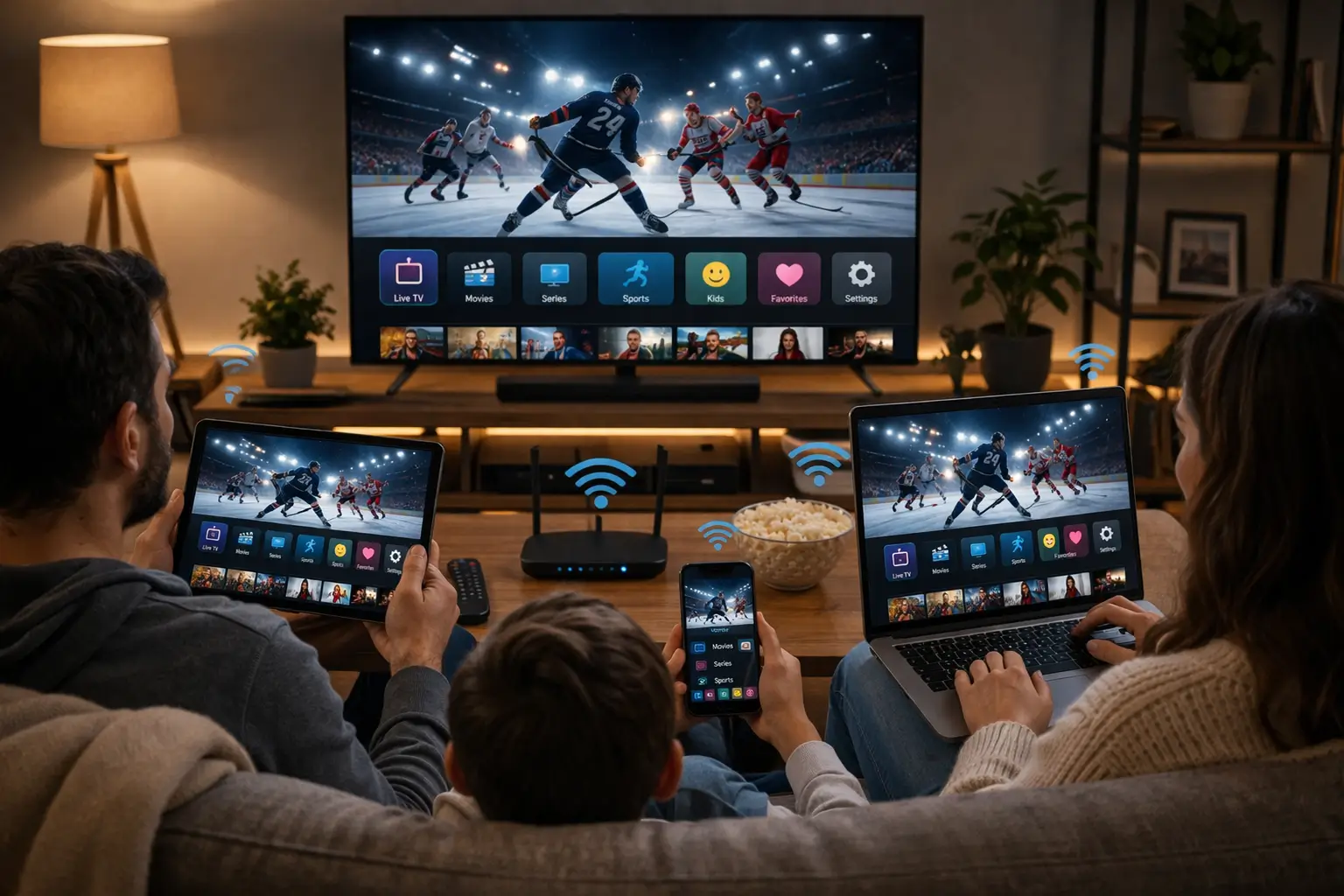
Learning how to set up IPTV is less about technical skill and more about making four small choices in the right order: the device, the player, the login format and the guide. This hub of ClearPick IPTV walks you through each one with the same buyer’s-guide approach we use across the site: clear criteria, tables you can check yourself against, a self-scoring sheet and no hidden steps. We sell our own packs, so the examples use the access details we send to our customers, but the method applies to almost any service that delivers Xtream Codes or M3U access.
Most first setups take a few minutes once your details are in hand. When something goes wrong, the cause is usually small: a typo in the server URL, a player that does not support the format you picked, a TV guide set to the wrong time zone, or a Wi-Fi signal too weak for the picture quality you selected. We flag each of those traps along the way, and point you to the detailed guide that fixes it.
The four setup guides in this section
Think of this hub as the map and the four guides as close-ups. Every card below zooms in on a single stage of the job. Read this overview first, then open the guide that matches the step you are on or the question you are stuck with.
Most readers move through the guides in the same order as the setup itself: first the login, either Xtream Codes or M3U, then the TV guide, then the question of screens. This hub follows that order too, so you can read top to bottom and stop as soon as your TV is playing.
How to set up IPTV: the four decisions that matter
Before you open any app, settle these four points. Treat them as a short scoring sheet. If you can answer all four with confidence, you are ready to start, and the rest of the setup is mostly typing.
1. Your device
Supported: Samsung and LG sets, Android TV or Google TV boxes, the Fire TV Stick, Apple TV, iPhone, iPad, Android handsets and tablets, plus PC.
2. Your player
Pick one of six we point to (IPTV Smarters Pro, TiviMate, Smart IPTV, IBO Player, XCIPTV, GSE Smart IPTV) and install it through the official store.
3. Your login format
Three fields or one playlist address. They unlock identical content; your player decides which is less work.
4. Your connection
Budget 10 Mbps for an HD screen, 15 Mbps for Full HD, 25 Mbps for 4K, then total them for every screen running.
The order matters. The device limits which players you can install, the player decides which login formats you can use, and the connection decides which picture quality will stay smooth. Choosing in reverse, for example picking a player first because a friend likes it, then discovering it is not in your TV’s app store, is the most common way a quick setup turns into a long evening.
If your TV is older and its built-in store offers few players, adding a small box or stick through a spare HDMI input usually beats fighting the TV’s own store. Our hub on the best devices for IPTV compares the options, and the best IPTV apps hub compares the players on comfort and features.
What to have ready before you start
A setup goes faster when everything is in reach before you begin. Gather these items first, so you are not hunting for a remote or a password halfway through typing a server URL.
- The login e-mail, displayed on a second screen within arm’s reach of the sofa.
- The remote for the device you are setting up, with working batteries.
- Your Wi-Fi password, in case the device needs reconnecting, or an Ethernet cable if one can reach.
- The account details for your device’s official app store, so you can install the player.
- A few quiet minutes, without someone else streaming heavily on the same line.
If you have not ordered yet, settle the order first through the plans page: a single card or PayPal charge in Canadian dollars covers 1, 3, 6 or 12 months, and nothing rolls over afterwards. Your choice is between the Premium Pack, the VIP Premium Pack and the Ultimate 4K Pack; any of them can be set up with the steps on this page.
Xtream Codes or M3U: what to look for
Neither format wins in every situation. Each fits a different kind of player and a different kind of user. Use this comparison to choose yours, then follow the matching guide.
| Criterion | Xtream Codes | M3U link |
|---|---|---|
| Typed into the player | Three short fields: server URL, username, password | One long link pasted into a single field |
| Typing on a TV remote | Moderate: three short entries | Tedious by hand; much easier if the player lets you add it from a phone or computer |
| TV guide (EPG) | Usually loads automatically from the same server | Often needs a separate guide address |
| Movies and series | Shown in their own menus in most players | Depends on the player; some mix everything into one long list |
| Good fit for | Players with an “Xtream Codes” or “Xtream API” login screen | Players that accept only a playlist link, or people who manage several playlists |
If you are unsure, start with Xtream Codes. It is shorter to type, it keeps live channels, movies and series in separate menus, and the guide tends to appear without extra steps. The walkthrough for Xtream Codes setup pictures each field in turn. If your player only offers a playlist option, follow the guide to setting up IPTV with an M3U link instead; it also explains how to add a separate guide address when the player asks for one.
Deep dive: why the same access comes in two formats
Both formats point to the same catalogue on the same servers. Xtream Codes is a login method: the player hands your three details to the server, receives the live line-up, the film and episode libraries plus guide data, then files each into its own menu. An M3U link is a playlist address: the player reads one long list of entries and has to work out the structure itself. That is why Xtream Codes usually looks tidier, and why some M3U players need the guide address entered separately.
How to set up IPTV step by step
Here is the full sequence from order to first channel. Each step is short; the order is what saves you time.
- Order. Settle on a pack and a duration, and complete the single payment.
- Find the login e-mail. It normally lands within minutes; the junk and promotions folders are the first places to search if it seems late.
- Install the player. Use the official store on the device, then launch the app once so its welcome screens and permission requests are out of the way.
- Enter your details. Pick the Xtream Codes login if the player offers one, and copy the server URL, username and password exactly as written. Otherwise, paste your M3U link.
- Let the content load. A big catalogue needs a moment to arrive the first time; keep the app in front until its loading bar is done.
- Compare guide and clock. Bring up the program grid and see whether what is listed as “now” really is on now. If they are shifted, adjust the time zone or offset in the player settings.
- Test one channel in each quality. Try an HD channel first, then a 4K channel if your pack and connection allow it. This tells you right away whether your speed is enough.
- Set favourites. Pin the channels you watch most so you are not scrolling a huge list every evening.
Tip: keep your access e-mail somewhere safe, such as a dedicated folder or a note on your phone. A new TV, an app reset or a move all send you back to those same details, and a saved copy spares you a round trip to support.
A few players eventually request a licence from their publisher, priced on that publisher’s official website. ClearPick IPTV has no tie to any of these publishers, so we cannot sell, activate or extend those licences for you. That is worth knowing before you settle on a player, because changing players later means entering your details again.
Entering your details without typos
Most failed logins come down to one character. A server URL with a missing letter, a username with a capital that should be lower case, a password with a space copied from the end of the e-mail. The player cannot tell you which one is wrong; it simply refuses to connect. A careful routine avoids almost all of it.
The shape of most Xtream Codes screens. You invent the label; the three remaining fields come straight from the e-mail.

A typing routine that works
- Reproduce the server URL character for character, colon, slashes and any trailing number included.
- Respect capitals in the username and password; they are often case-sensitive.
- Strip stray blanks that sneak in before or after a value.
- Read each field back on screen before pressing the login button.
- If a field refuses to accept a character, check the remote’s keyboard mode.
On phones, tablets and computers you can copy and paste, which removes most typing errors. On a TV, slow down: two careful minutes beat twenty minutes of guessing.
If the login still fails after a careful re-type, try the other format: paste the M3U link into a player that accepts playlists, or vice versa. If both fail, send support three things: the device model, the player name and a picture of the error. With those, the cause is usually obvious at a glance.
One more trick helps on TVs: set up the same login on a phone first. If it works there in a minute, you know the details are right, and any failure on the TV must be a typing slip or a player that does not suit that device. That single test cuts the search in half before you even pick up the remote.
How to set up IPTV on each type of device
The steps are the same everywhere, but where you find the player and how you type the details differ from one device family to the next. Use this table as a quick orientation before you dive into the detailed guides.
| Device | Where to get the player | Typing | Best tip |
|---|---|---|---|
| Samsung or LG smart TV | Built-in store on the set | Remote only, slow | Check each character before confirming |
| Android TV or Google TV box | Official store, opened on the box itself | Remote, or voice on some models | Use Ethernet for 4K |
| Fire TV Stick | The official store on the stick | Remote only | Keep the stick close to the router or use 5 GHz |
| Apple TV | The official app store | Remote, or the phone as keyboard | Read the app description for login types |
| iPhone, iPad, Android phone or tablet | The official app store | Copy and paste | Test your access here first |
| PC | The computer’s official app store | Copy and paste | Handy for M3U links |
Samsung and LG smart TVs
Open the TV’s official app store and look for a player that offers an Xtream Codes or playlist login. The choice is narrower than on Android-based devices, so check the app description for the login type before installing. Typing on a remote is slow; take your time.
Android TV, Google TV and Fire TV Stick
These devices usually give you the widest choice of players. Install from the official store on the device itself. For 4K, a cable to the router, or failing that a strong 5 GHz link with the box near it, is what keeps the picture steady.
Apple TV, iPhone and iPad
Search the official app store for a player with the login type you want. Some players on Apple devices accept only playlist links, so read the login options in the app description before installing.
Android phones, tablets and PC
These are handy for testing your access before you set up the main TV. They also make it easy to copy and paste a long M3U link without pressing a remote button over and over. Each device family has its own guide in our devices hub, including IPTV on Firestick and IPTV on Samsung and LG smart TVs.
Choosing a player you will keep
You will stare at this app’s menus most evenings, so choose it on purpose. All six players we point to work with our access; the differences lie in layout, guide display, profile support and whether a publisher licence is involved. We do not rank them, because the right one depends on your device and your habits.
Four things to check in any player
First, the login types it accepts: Xtream Codes, M3U or both. Second, how it shows the TV guide, since a clear grid makes a big live line-up much easier to browse. Third, whether it supports several profiles or favourites lists, which matters when several people share one TV. Fourth, whether the publisher asks for a licence; check the current price on the app’s official website before you commit to it.
Once you have picked a player, stick with it until the setup works end to end. Switching apps halfway through multiplies the variables and makes problems harder to trace. Our detailed reviews of IPTV Smarters Pro and TiviMate walk through setup in two of the most widely used players.
If several people share the main TV, involve them before you settle on a player. The person who sets it up is not always the one who uses it most, and a layout that feels obvious to one viewer can confuse another. Try the player together for an evening, check that everyone can find live channels, series and the guide, and only then pin favourites and hide the categories nobody opens.
Getting the TV guide right
Without the TV guide, or EPG, a big line-up is just a scroll; with it, you can see at a glance what is on. With Xtream Codes it usually loads by itself; with an M3U link it may need a separate address. Either way, the most common issue is not a missing guide but a guide set to the wrong time.
Canada spans six time zones
From Newfoundland to British Columbia, the clock changes several times across the country. If the guide shows programs an hour or more out of step, the player’s time zone or offset setting needs adjusting. Most players have this in their settings menu, under the guide or the time section.
Our guide to setting up the IPTV TV guide covers loading, refreshing and correcting the offset player by player.
The guide may still be loading after the first sync, or the player may need a refresh.
Then: refresh the EPG in the player settingsThe player is using a different time zone from yours.
Then: adjust the time zone or offsetNot every channel carries guide data in every player.
Then: check the M3U guide address if you use oneA clock change in spring or autumn often causes this.
Then: re-check the offset after each clock changeA tidy guide also changes how you watch. Once the times line up, you can browse by what is on now rather than by channel number, set favourites from the grid and spot an evening program before it starts. Households that skip this step tend to rely on scrolling the full channel list, which on a large pack quickly becomes the least pleasant part of the evening. Ten minutes spent on the guide on day one repays itself every night after.
Bandwidth and picture quality
Picture quality is the main factor that decides how much speed you need. Use these figures to estimate what your household requires before you pick a quality in the player. They are per screen in use, and they add up.
Speed to plan for, per screen in use
| Picture quality | Speed per screen | What to look for |
|---|---|---|
| HD | 10 Mbps | Comfortable for phones, tablets and smaller TVs, and a safe fallback on weak Wi-Fi |
| Full HD | 15 Mbps | A sensible default for most living-room TVs |
| 4K | 25 Mbps | Needs a 4K screen, HDMI 2.0 or better and a stable connection, ideally wired |
Remember that these figures add up. A 4K film in the den and a video meeting upstairs draw on the same line together. Run a speed test at your usual viewing hour, from the TV room, and leave headroom above the figure you need. If your result sits close to the limit, start in HD or Full HD and move up once the picture is stable. Our guide to 4K IPTV explains what your screen and cable need for a true 4K picture.
Deep dive: router placement and Wi-Fi bands
Wi-Fi is the weakest link in most home setups. On 5 GHz you get speed over short distances, while thick walls weaken it; 2.4 GHz travels further, at lower speed, and shares the air with many household gadgets. When the router sits in the TV room or next door, 5 GHz is normally the right pick. For a distant bedroom, 2.4 GHz may hold better, at HD quality. If a cable can reach the main TV, use it: an Ethernet connection removes most of the variables that cause pauses at busy hours.
Not ordered yet
Choose a pack, pay once, and your login e-mail follows shortly after.
One connection, several devices
The rule is short: one stream at a time per pack. Put the login on the den TV, the guest room box and your tablet if it suits you; the limit only bites when two of them try to play together, which a standard pack does not allow.
Homes where two viewers regularly overlap should raise it through our contact page; the team sets out what an extra screen involves and what it costs. The multiple screens guide covers day-to-day scheduling for busy households.
Watch out: your credentials are for your own household. Handing them to another home collides with the single-stream limit, so somebody’s picture cuts out. It also means someone else holds the details to your plan. Keep the access e-mail private.
Your first-evening checks
Once the first channel plays, a few quick checks confirm that the whole setup works, not just one corner of it. Run them in this order on the first evening, and you will catch almost every problem while the access e-mail is still open in front of you.
- Right after login
Let the sync finish
Leave the player open until channels, movies and series have all loaded.
- First channel
Play live, then on demand
Open one live channel, one series episode and one movie to confirm all three menus work.
- Guide
Match the clock
Compare the guide with your watch and adjust the offset if needed.
- Quality
Step up carefully
Try Full HD, then 4K if your screen and line allow, and watch for pauses.
- Second device
Install, one at a time
Stop the TV, then sign in on a handset or tablet to prove the login travels.
A setup is finished when live, series, movies and the guide all work, not when the first channel plays.
When setup does not work
Most setup problems fall into a few familiar patterns. Here is the first thing to try for each, before you write to support. If the first fix does not work, our troubleshooting guides go further.
A typo is the usual cause. Re-type the server URL, username and password, watching for spaces and capitals.
Then: try the other format, Xtream Codes or M3URestart the player and the device, then try a different channel.
Then: read our guide to IPTV not workingDrop to HD and test again. If it smooths out, your line or Wi-Fi is the limit.
Then: move to Ethernet or 5 GHzUpdate the player from the official store and restart the router.
Then: check the freezing guideOur troubleshooting hub covers each case in depth: the IPTV not working checklist, fixing IPTV buffering and fixing IPTV freezing. Still stuck? Reach the team through e-mail or on WhatsApp (+33 6 44 65 43 13), English or French, with the name of your device and player and a photo of any error message.
Three homes, three setups
The same steps produce quite different setups depending on the home. These three households are invented, not customers, but each one shows how the four decisions play out when the device, the line and the people in the room change.
A condo in Calgary with one smart TV
A couple with a recent LG set in the living room and the router on the shelf beneath it. They browse the TV’s own store, find a player that offers an Xtream Codes screen, and type the three fields with the remote, checking each one twice. The guide loads by itself; they nudge the offset to Mountain time and pin a dozen favourites. With a cable reaching the TV, Full HD plays smoothly from the first evening, and they leave 4K for later.
A family home in Moncton with a box and two tablets
The main TV runs through an Android TV box on a cable; the children use tablets in their rooms. The parents install the same player on all three, enter the login once on each, and agree a simple rule for who watches when, since one stream plays at a time. When evenings start to overlap, they write to support about an extra screen instead of sharing the login with grandparents across town.
A student flat in Saskatoon with a stick and a laptop
A Fire TV Stick on an older TV in a shared flat, with the router two rooms away. The first try in 4K pauses, so the student drops to HD on the 2.4 GHz band, which holds steady. The laptop is used to paste the M3U link into a second player as a backup. Later, moving the router to the hallway lets the stick use 5 GHz and step up to Full HD.
| Home | Device | Login | Starting quality | Key fix |
|---|---|---|---|---|
| Calgary condo | LG smart TV, cabled | Xtream Codes | Full HD | Guide offset set to local time |
| Moncton family | Android TV box plus tablets | Xtream Codes on each | Full HD on the TV | Viewing schedule, extra screen asked about |
| Saskatoon flat | Fire TV Stick, Wi-Fi | Xtream Codes, M3U as backup | HD, then Full HD | Router moved for 5 GHz |
None of the three needed anything clever. Each one made the four decisions in order, started at a quality the line could carry and fixed one weak link at a time.
How to set up IPTV: a self-scoring sheet
Give yourself 0, 1 or 2 points on each line below. Eight points or more means your setup is solid. A zero anywhere tells you exactly which guide to read next.
| Line | 0 points | 1 point | 2 points |
|---|---|---|---|
| Device | Not in the supported list | Supported, but few players in its store | Supported, with your chosen player installed |
| Player | From a link or file | From the official store, still unfamiliar | From the official store, comfortable to use |
| Login | Fails | Works after several tries | Works first time, all menus load |
| Guide | Empty | Loaded, times shifted | Loaded and aligned with your clock |
| Speed | Below the figure for your quality | Just enough, no headroom | Comfortable headroom at peak hours |
If you scored low on speed, start with HD rather than 4K and move up once the picture is stable. If you scored low on the player, pick one of the six players named above and stick with it until the setup works. If the guide is the weak line, the TV guide setup page fixes it in a few steps.
Score again after each fix rather than at the very end. Watching the total climb from one line to the next shows you that the setup is improving, and it stops you from changing three things at once and losing track of which change actually helped. A setup that reaches eight points on a Tuesday evening is ready for a busy Saturday.
Setup habits to keep and to avoid
A few habits separate setups that stay smooth for months from those that need attention every week. None of them is technical.
Habits to keep
- Install players only from the official app store
- Save the access e-mail in a dedicated folder
- Update the player when updates appear
- Restart the router and device now and then
- Re-check the guide after each clock change
Habits to avoid
- Installing apps from links or files someone sends you
- Switching players every time something looks odd
- Choosing 4K on a line with no headroom
- Sharing credentials outside your household
- Waiting weeks before asking support about a problem
After the first evening: keeping things tidy
A setup that works on day one can drift over the weeks: a player update changes a menu, the clocks change, a new device joins the Wi-Fi. A short routine every few weeks keeps everything as smooth as it was on the first night, and takes less time than one evening of troubleshooting.
- Accept player updates from the official store when they appear, then reopen the app once to let it settle.
- Restart the router and the main streaming device every few weeks, ideally at a quiet hour.
- Look at the guide after each spring and autumn clock change and correct the offset if it slipped.
- Prune favourites now and then, so the channels you really watch stay at the top.
- Remove your login from any device you sell, give away or stop using.
- Note your plan’s end date, since nothing renews, and reorder a few days before it if you want to continue.
If something that used to work stops working after a change in the house, think about what changed first: a new router, a new console on the same Wi-Fi, a moved TV. The answer is usually there. When it is not, the troubleshooting hub walks through the checks in a sensible order, and support is a message away.
Setup words worth knowing
Setup screens and access e-mails use a few short technical terms. Knowing what each means makes the process quicker and your questions to support clearer.
- Xtream Codes
- Three-part sign-in: server address, user name, password.
- M3U link
- One long playlist address, pasted where a player expects a list rather than fields.
- EPG
- The electronic program guide, showing what is on now and next for each live channel.
- Server URL
- Where the player goes to fetch content; copy it from the e-mail without changing a character.
- Player
- The app on your device that reads your access and plays live channels, series and movies.
- Sync
- The first load of channels and libraries inside the player after you log in.
- Offset
- A setting that slides guide times forward or back to your local clock.
- Simultaneous connection
- How many streams may play at once on a login. Ours: 1 per pack.
Where to go next
Pick the guide that matches your next step, or go back to the plans if you have not ordered yet.
Stuck at any step
Tell us the device, the player and what the screen says. Replies come every day, in English or French.
FAQ
How long does it take to set up IPTV?
Usually a few minutes once the login e-mail is in. The slowest part tends to be the player’s first catalogue load, so leave it running.
Do I need to pay for a player licence?
It depends on the player. Where a licence applies, its publisher sets the price on its official website; we have no role in selling it.
Can I install my subscription on more than one device?
Yes, on as many of your own devices as you like. Only one of them can stream at any given moment.
Which is easier, Xtream Codes or M3U?
For most people, Xtream Codes. You type three short details instead of one long link, and the TV guide usually loads by itself.
Which player should I choose?
One that is in your device’s official app store and accepts the login format you want. IPTV Smarters Pro, TiviMate, Smart IPTV, IBO Player, XCIPTV and GSE Smart IPTV all work.
Why does my TV guide show the wrong times?
The player is set to a different time zone. Adjust the time zone or offset in the player settings, and re-check after each clock change.
What speed do I need?
Plan 10 Mbps for HD, 15 Mbps for Full HD and 25 Mbps for 4K on each active screen, and total them.
Does my subscription renew automatically?
No. Each order is a single charge for its duration, and it simply stops at the end. Current prices are on the plans page.
What if my login keeps failing?
Re-type each detail carefully, watching for spaces and capitals, then try the other format. If it still fails, contact support with a photo of the error.
Who can help if I get stuck?
Our team, every day, by e-mail or WhatsApp (+33 6 44 65 43 13), in either English or French. A screenshot speeds things up.