IBO Player is a common answer when someone asks how to watch IPTV straight on a Samsung or LG television without adding a box. Instead of asking you to spell out a server address with arrow keys, it shows two identifiers on screen and lets you manage your playlist from a phone or a computer keyboard. This review explains how that activation works, what the player does well, where it is limited, how its licence fits in, and who it suits. It also covers the housekeeping that MAC-based players need and that most guides skip.
Where we stand: ClearPick IPTV sells three packs of its own, and they work in IBO Player through the M3U link or Xtream Codes details we e-mail. We are independent from the player’s publisher, we do not sell its licence, and we earn nothing from it. The scores below are our editorial opinion, built on the same six criteria we apply to every player in our best IPTV apps hub.
IBO Player in brief: what it is and what it is not
IBO Player is a player, not a service. It contains no channels, series or movies. It reads a playlist that you attach to your TV through the publisher’s website, then presents that content in menus designed for a remote control. When people say “IBO Player has stopped working”, the cause is usually either the playlist they attached, the activation status of the TV, or the network the TV sits on. Knowing those three layers makes every later step easier.
Built for TV screens
Menus and navigation are designed for a remote and a couch, not for touch.
Managed from a phone
You add, rename or remove playlists on the publisher’s website, away from the TV.
Tied to each TV
Activation follows the TV’s MAC address, so every television is handled separately.
Licence after a period
The publisher asks for a per-device activation once its initial period ends.
If a page offers you IBO Player “with channels included”, it is blending two separate products. The player comes from the publisher; your content comes from a subscription you choose and can check. Keep the two apart and you will always know who to ask when something needs fixing. On legality, keep a neutral view: the technology is legal; whether a service is legal depends on the broadcasting rights it holds, so check before subscribing.
How IBO Player activation works
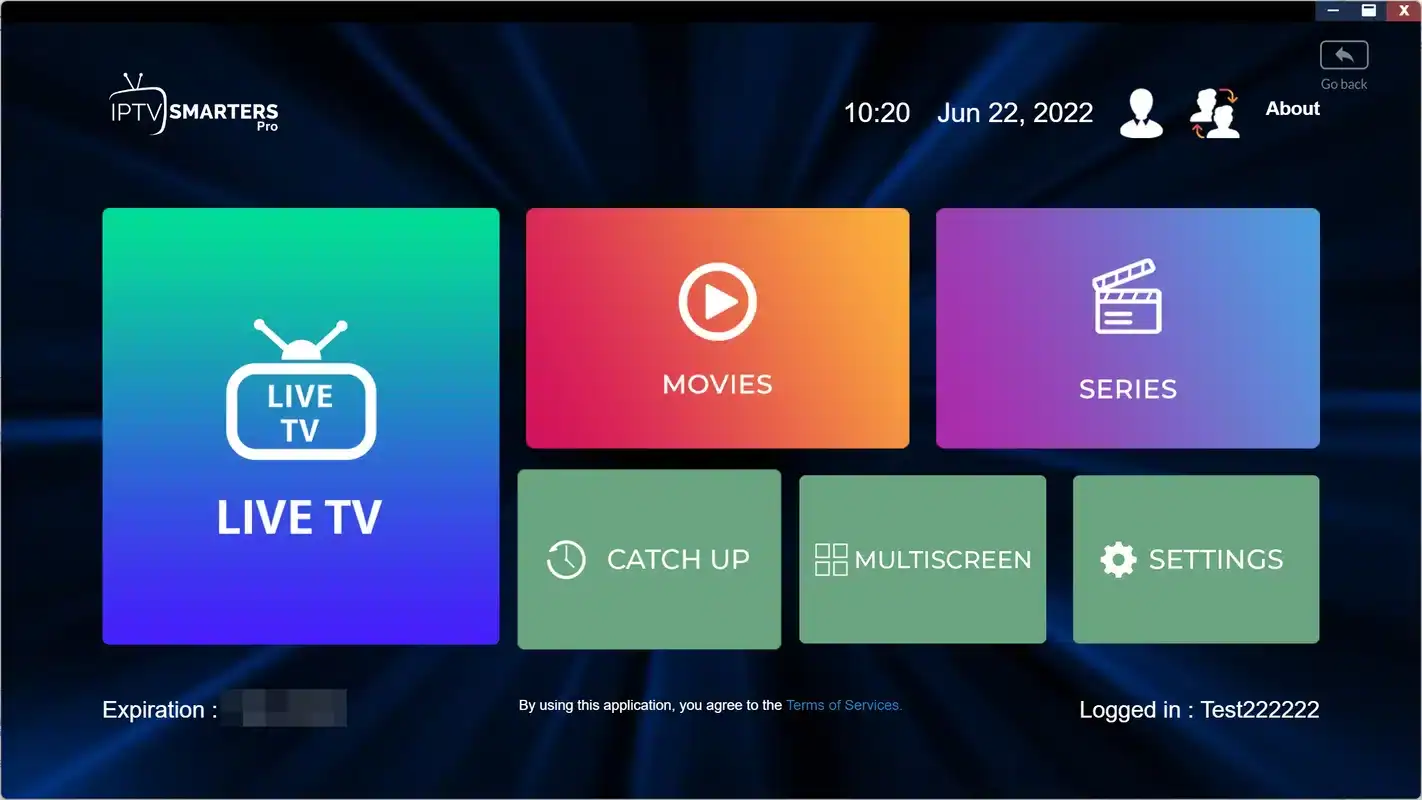
Most players ask for your login on the device itself. IBO Player turns that around. When you open it, it shows your TV’s MAC address and a device key. You then open the publisher’s official website on another device, enter those two identifiers and add your playlist there. The next time the player opens on the TV, it fetches that playlist and loads your channels, series and movies.
The appeal is obvious on a television. Typing a long server address with a remote is slow and easy to get wrong, one character at a time. With this method you paste your details on a phone or a real keyboard, and the TV simply receives them. You can also manage several playlists, rename them or remove them without touching the remote, which is handy if someone at home prefers not to deal with menus.
The trade-off is that your playlist lives on the publisher’s side, linked to the TV’s MAC address. That has consequences for privacy, for replacing a TV and for keeping track of several sets, and we cover each of them further down. None of them is a reason to avoid the player; they are simply habits to adopt from the first evening.
What the first IBO Player screen shows
The very first time you open the app, it does not show channels. It shows a short information screen with the identifiers you need for the website step. Everything depends on copying those identifiers exactly, so take a moment here rather than rushing to the next step.
The layout varies with the version, but the two identifiers are always the starting point.
A MAC address is a string of letters and digits separated by colons. A single misread character, such as a zero taken for the letter O, sends your playlist to a device that is not yours, and the TV stays empty. The safest habit is to take a photo of the screen with your phone and read from the photo while you type on the website. Keep that photo in a note named after the room the TV is in; you will need it again if you ever change playlist or call for help.
Buyer’s tip: if the identifiers are hard to read from the couch, walk up to the screen before taking the photo. A blurry picture of a MAC address is the most common reason a first activation fails.
Our IBO Player scorecard
Here is our editorial scorecard on the six criteria we use for every player, plus two extra lines that matter specifically for MAC-based apps. These are our opinions, based on ordinary evening use with an Xtream Codes or M3U subscription, not user ratings.
| Criterion | Our view | Note |
|---|---|---|
| Device support | Good | Strongest on Samsung and LG; other platforms depend on the store |
| Login type | Good | Accepts an M3U link or Xtream Codes details on the publisher’s site |
| Programme guide | Fair | Readable, less detailed than guide-first players |
| Library | Good | Covers, summaries and resume points for movies and series |
| Settings | Fair | Covers the essentials; fewer playback options than Android players |
| Licence model | Mixed | Activation licence per device after an initial period |
| Remote comfort | Very good | No long typing on the TV |
| Housekeeping needed | Moderate | Track MAC addresses and remove old playlists |
The pattern is clear. IBO Player scores well wherever a smart TV owner usually struggles, typing and setup, and less well where Android players shine, guide depth and detailed playback settings. For a living room TV that people mostly use to watch rather than to tinker, that balance is often the right one.
Two scores deserve a closer look. “Mixed” on the licence line is not a criticism of the price, which we do not discuss because it belongs to the publisher; it reflects the fact that the cost grows with the number of televisions, which buyers often forget. “Moderate” on housekeeping means you will spend a few minutes now and then keeping notes and removing old playlists. Neither is a deal-breaker, but both are worth knowing before you build your evenings around this player.
Strengths and limits of IBO Player
No player is perfect, and it is better to know the trade-offs before you settle in. The table above gives the scores; this section explains what they feel like in daily use.
Where it shines
- Runs directly on many Samsung and LG TVs, so no extra box is needed
- Playlists are added and edited from a phone keyboard
- Several playlists can be kept and renamed on the publisher’s site
- Clean library pages with covers and resume points
- Simple menus for people who just want to press play
Where it falls short
- Each TV needs its own activation after the initial period
- An extra step on a website, which some people find confusing at first
- Mistakes happen if you lose track of which MAC belongs to which TV
- The guide is useful but less rich than the grid in TiviMate
- Smart TV hardware can feel slower than a dedicated box on large lists
The main limit is the licence model. A home with three televisions means three activations, and that can change the sums compared with a single box that serves several rooms. The second limit is the hardware itself: the processor inside a television is built to run the TV, not to sort through very large channel lists, so loading can be slower than on an Android TV box. If live TV is your main interest and you have a spare HDMI port, compare this review with our TiviMate review before deciding.
Before you install IBO Player: a compatibility check
A few minutes of checking before installation saves an evening of frustration. The player only makes sense if your TV lists it, if the TV’s network connection is solid and if you are comfortable with the website step.
Check these five things first
Each item takes a minute. If one fails, sort it out before installing, or read about alternatives in our guide to IPTV on Samsung and LG smart TVs.
- IBO Player appears in your TV’s official app store.
- The TV’s own software is up to date.
- The TV reaches your router by cable, or by a strong 5 GHz Wi-Fi signal.
- You have a phone or computer to use the publisher’s official website.
- Your access e-mail is at hand, with the M3U link or Xtream Codes details.
On Samsung, the store is the Apps section of the Smart Hub; on LG, it is the Content Store or the Apps area, depending on the model. If IBO Player is not listed on your TV, do not look for it elsewhere. Choose another supported player that your store offers, such as Smart IPTV or IPTV Smarters Pro on some models. Installing apps from outside the official store bypasses the protections built into the TV and is never needed for a legitimate setup.
One more check is worth doing if your TV is several years old: open two or three other apps from its store and see how quickly menus respond. If the TV already feels slow in simple apps, a large IPTV playlist will feel slower still. That does not rule out IBO Player, but it may mean keeping your channel list short with hidden groups from the first evening.
How to set up IBO Player on a Samsung or LG TV
With the checks done, setup is a short routine. Keep your access e-mail open on the phone you will use for the website step, so you can copy rather than retype.
- Install and open the app. Search for IBO Player in your TV’s official store, install it and open it.
- Record the identifiers. Photograph the MAC address and device key shown on screen, and label the photo with the room name.
- Open the official website. On your phone or computer, go to the publisher’s official website and find the page for managing a device.
- Sign in with the MAC and key. Enter both identifiers exactly as they appear in your photo.
- Add your playlist. Paste the M3U link, or enter the server URL, username and password from your access e-mail. Give the playlist a clear name such as “Living room”.
- Restart the player. Close IBO Player fully on the TV and open it again. Your playlist should load.
- Let the first load finish. Give the TV time to read channels, the guide and the library before you judge speed.
If the playlist does not appear after a restart, check the two identifiers first. In almost every case we see, one character differs between the TV and the website. Our checklist for IPTV not working lists the other causes in the order worth checking.
Adding your playlist: M3U link or Xtream Codes
The publisher’s website usually lets you attach your subscription in one of two forms. Both work with our packs, and your access e-mail contains what you need for either. The difference is mostly about how many fields you fill in and how the guide arrives.
| Field on the website | M3U route | Xtream Codes route |
|---|---|---|
| Playlist name | Your choice, such as the room | Your choice, such as the room |
| Playlist address | One M3U link, pasted whole | Not used |
| Server URL | Not used | From your access e-mail |
| Username and password | Already inside the link | Two separate fields |
| Guide data | Sometimes needs a guide address | Usually loads on its own |
When both are offered, we lean towards Xtream Codes because the guide tends to arrive without an extra field. The M3U route works well too, and some people prefer pasting a single line. Whichever you choose, paste rather than type, and check that no space has crept in at the start or end. Our guides to setting up IPTV with Xtream Codes and setting up IPTV with an M3U link explain each field in more depth.
The IBO Player licence, explained without jargon
IBO Player is made by an independent publisher, and that publisher asks for an activation licence after an initial period. The licence is paid to the publisher, not to us, and it is entirely separate from your IPTV subscription. We are independent from app publishers, so check the current price on the app’s official website, and pay only on that official site.
- Initial period
Use it as normal
Add your playlist, watch for several evenings and judge the menus, guide and library on your own TV.
- Before it ends
Decide calmly
If the player suits your home, read the publisher’s current terms. If not, try another player your store lists.
- Activation
Pay on the official site
Activate the specific TV, identified by its MAC address. Keep the confirmation with your MAC note.
- More TVs
One activation each
Every additional television has its own MAC address and needs its own activation.
Count your screens before paying
Because activation follows each TV, the total depends on how many televisions you plan to use. Write down every set in the house, decide which ones really need IPTV, and only then look at the publisher’s terms. A TV that is used once a month might be better served by a phone or a box you already own.
Before activating, confirm that the player loads your playlist well on that TV. It is better to see your channels, the guide and a few movies working first, then decide. And remember that any “licence” offered by a stranger, a reseller in a chat or a link sent by message is not the publisher’s official offer. Close it and go to the official website yourself.
Want a hand with the website step
Tell us your TV model and what the screen shows. We reply 7 days a week by e-mail and WhatsApp.
Privacy and good habits with MAC-based players
When you add a playlist on the publisher’s site, your access details are stored there so the TV can fetch them. That is simply how MAC-based players work. It does mean a little more care than with a player where the login stays on the device, and the habits below cover nearly everything.
Protect your identifiers: never enter your MAC address, device key or login on a site that is not the publisher’s official website. Keep your device key to yourself, remove playlists you no longer use, and never share your credentials with another household. Your pack includes 1 simultaneous connection; use your devices one at a time.
- Type the publisher’s address yourself instead of following links from messages.
- Store the MAC photos in a private note, not in a shared album.
- Use the parental code option on the publisher’s site to protect adult categories.
- Delete the old playlist when you change subscription or move the TV.
- Note the date you activated each TV, alongside its MAC address.
These habits also make support easier. When you write to us about a TV that will not load, a note with the room, the MAC address and the playlist name lets us point to the problem in one reply instead of three.
Managing several TVs with IBO Player
A single television is easy to manage. Two or three take a little organisation, because each one has its own MAC address, its own activation and possibly its own playlist name. A simple record keeps it all straight.
| Room | What to record | Why it helps |
|---|---|---|
| Living room | MAC address, playlist name, activation status | The TV used most; fixes here matter first |
| Bedroom | MAC address, playlist name, parental code status | Different viewers may need different protections |
| Basement or cottage | MAC address, whether it is activated at all | Occasional screens are where licences are often wasted |
Remember that adding more televisions does not add more simultaneous streams. Each pack includes 1 simultaneous connection, so with the same credentials on three TVs, only one can play at a time. If two rooms often watch at once, contact our support for the conditions and price of extra screens, and read our guide to IPTV on multiple screens for the full picture.
Rename each one on the publisher’s site after the room it serves, so you never edit the wrong set.
Then: update your MAC recordAsk whether a phone or tablet could cover those evenings instead of activating another set.
Then: check our device guidesSet the parental code for that TV’s playlist and keep the code to adults only.
Then: test a locked categoryIBO Player settings and daily habits
IBO Player has fewer playback options than Android players, so most of the comfort comes from the TV’s own settings and a few routines. These take a minute each and prevent the small annoyances that make people give up on a TV app too early.
Cable when possible
Use the TV’s Ethernet port when the router is within reach. It removes most pauses at busy hours.
No eco cut-offs
Turn off eco or standby modes that drop the network when the screen is idle.
Favourites first
Add the channels you watch to favourites so you never scroll the full list.
Guide on time
Check that the TV’s clock and time zone match your province so listings line up.
Full restarts
When the player feels sluggish, unplug the TV briefly instead of using the standby button.
Hide what you skip
Hide groups you never watch to speed up loading on modest TV hardware.
Speed matters too. Plan for 10 Mbps per screen in HD, 15 Mbps in Full HD and 25 Mbps in 4K, and remember that a TV in a far corner of the house on 2.4 GHz Wi-Fi may receive much less than your plan promises. If the living room is far from the router, a cable or a better access point does more for picture stability than any setting inside the app. Our guide to 4K IPTV explains what a 4K setup needs from the TV and the line.
Troubleshooting IBO Player
Most IBO Player problems fall into a handful of patterns, and each has a quick first check. Work through them in order before reinstalling anything; reinstalling rarely fixes a mismatched MAC address or an expired activation.
Compare the MAC address and key on the TV with what you entered on the website, character by character.
Then: restart the player fullyThe initial period may have ended for that TV. Check its status on the publisher’s official website.
Then: decide whether to activate that setCheck the TV’s clock and time zone, then reload the playlist from the publisher’s site.
Then: read our TV guide setup pageTest on a cable or on 5 GHz Wi-Fi close to the router before changing anything in the app.
Then: see our buffering guideMake sure no other device is using your connection, then confirm that your access is still active.
Then: contact support with your MAC noteHide unused groups and restart the TV from the power outlet rather than standby.
Then: compare with a box if it persistsDeep dive: when the TV itself is the bottleneck
Smart TVs age faster than streaming boxes for one simple reason: their processors are chosen to run the television, and the apps get whatever is left. On an older set, a very large playlist can take a long time to sort, menus can lag and channel changes can feel heavy, even on a perfect connection. If you have done the checks above and the TV still struggles, the most effective fix is often a dedicated Android TV box plugged into an HDMI port. It moves the work to hardware built for it, and you can keep IBO Player for a lighter TV elsewhere in the house. Our guide to the Android TV box covers what to look for.
For deeper fixes, our guides to fixing IPTV buffering and setting up the IPTV TV guide cover the network and guide sides in detail.
Getting the most from the IBO Player library
Live TV gets most of the attention, but many smart TV owners end up using IBO Player mostly for series and movies on quiet evenings. The library pages are one of its stronger points: each title has a cover and a short summary, series are split into seasons and episodes, and the player remembers where you stopped on that television. A few habits make a large catalogue feel manageable.
Library habits that pay off
Search instead of scrolling: typing three or four letters with the remote is still faster than paging through thousands of covers. Add the shows you follow to favourites so they open first. When a title starts slowly, wait a few seconds rather than pressing again, because repeated presses queue several requests and make the wait longer. And if your home watches in more than one language, check the audio and subtitle options on a title before you settle in for a whole season.
Remember that resume points live on each TV. If you start an episode in the living room and continue in the bedroom on another television, the second set may not know where you stopped. That is normal for a player tied to each device, and it is one more reason to give each room a clear playlist name. The size of the catalogue depends on your pack: the VIP Premium Pack, for example, lists 61,000+ series and 155,000+ movies, while the Premium Pack lists 24,000+ series and 100,000+ movies. A larger library takes longer to load on modest TV hardware, so hiding groups you never open matters more as the catalogue grows.
IBO Player and your home network
A smart TV is often the device furthest from the router, tucked into a corner of the living room or a basement. That makes the network the most common hidden cause of pauses in IBO Player, far ahead of the app itself. Before you blame the player, check what the TV actually receives.
Speed to plan for, per screen
Those figures add up across the house. If the TV plays 4K while someone else streams Full HD on another device, the line needs about 40 Mbps of steady capacity, before video calls and game updates join in. Steadiness counts as much as speed: a line that reaches a high figure in a test but dips every few minutes still causes pauses on a busy evening.
Three changes fix most network problems on a television. A network cable from the router to the TV removes Wi-Fi from the equation entirely. If a cable is impossible, the 5 GHz band near the router usually carries a steadier signal than 2.4 GHz across several walls. And turning off any power-saving option that cuts the network when the screen is idle stops the player from losing its connection between programmes.
Replacing or resetting a TV that uses IBO Player
Because everything is tied to the MAC address, a new television is a new device as far as the player is concerned. The old playlist does not follow you, and the old activation does not transfer on its own. A short routine handles the change cleanly.

Moving to a new television
Do these steps in order, and keep the old set’s note until the new one is fully working.
- Install IBO Player on the new TV from its official store.
- Photograph the new MAC address and device key.
- Add your playlist to the new MAC on the publisher’s official website.
- Remove the playlist from the old MAC once the new TV plays.
- Check the publisher’s current terms for activating the new set.
The same routine applies after a factory reset on the same TV if the identifiers shown on screen change. Compare the new screen with your note; if the MAC address is identical, the playlist should reappear after a restart. If you are giving the old TV away, removing your playlist from its MAC is not optional. Otherwise the next owner’s TV could still be linked to your access details.
IBO Player compared with other smart TV options
On a Samsung or LG television, IBO Player is rarely the only choice. Here is how it sits next to the other players that often appear in TV stores, based on our editorial view. Store listings vary by model and region, so confirm on your own set.
| Point | IBO Player | Smart IPTV | IPTV Smarters Pro on TV |
|---|---|---|---|
| How you log in | Playlist added on publisher’s site | Playlist added on publisher’s site | Details typed on the TV |
| Typing with the remote | Very little | Very little | Some |
| Menus | Clean and modern | Basic | Familiar from phones and boxes |
| Licence model | Per-device activation after a period | Check the publisher’s terms | Check the publisher’s terms |
| Best for | Library and simple viewing on the TV | Long-standing, minimal setups | Homes that use the same app everywhere |
If the same family also watches on phones and an Apple TV, using IPTV Smarters Pro everywhere can be simpler than learning two layouts, and our IPTV Smarters Pro review covers that route. If the TV mostly plays live channels and you are happy to add a box, a guide-first player on Android usually feels quicker.
Terms you will meet with IBO Player
A few words come up again and again on the publisher’s site, in the app and in our replies. Knowing them makes setup and troubleshooting much smoother.
- MAC address
- The unique identifier of your TV’s network card. IBO Player uses it to link a playlist to one specific television.
- Device key
- A second code shown next to the MAC address, used with it to sign in on the publisher’s site. Keep it private.
- Activation
- The per-device licence the publisher asks for after its initial period, paid on its official website.
- Playlist
- Your subscription as the player sees it: an M3U link or a set of Xtream Codes details, with a name you choose.
- Reload
- Restarting the player so it fetches the latest playlist from the publisher’s side.
- Parental code
- A code set on the publisher’s site that locks chosen categories on the TV.
When you write to support about IBO Player, using these words precisely saves a round of questions. “The playlist is not showing on the living room MAC” tells us far more than “the app is broken”, and it usually leads straight to the fix.
Who IBO Player suits, and our packs
IBO Player suits households that watch on Samsung or LG TVs, want to avoid extra boxes, and like managing everything from a phone. It suits less well if you want a player with no activation step at all, a guide-first experience on an Android box, or one app across every device in the house. In those cases, our TiviMate review, our XCIPTV review and the IPTV Smarters Pro review are the next pages to read.
Choose IBO Player for the TV you already own, not for a feature list. Its real strength is sparing you the remote-control typing.
Our packs work in IBO Player with the M3U link or Xtream Codes details we e-mail within minutes. The catalogue includes French-language and international content; for a specific language, ask support before ordering. Each pack is a one-time payment for 1, 3, 6 or 12 months, in Canadian dollars by card or PayPal, with no automatic renewal and no contract.
VIP Premium Pack
- 27,000+ channels
- 61,000+ series
- 155,000+ movies
- HD, Full HD and 4K
Ultimate 4K Pack
- 57,000+ 4K channels
- 47,000+ series
- 179,000+ movies
- 20 servers in Europe
Ready to pick a pack for your TV
See current prices for every pack and duration on one page.
FAQ
Does IBO Player come with channels?
No. It is a player only. You add your own subscription on the publisher’s website, and the player displays it.
Is IBO Player legal?
The technology is legal; whether a service is legal depends on the broadcasting rights it holds, so check before subscribing.
Do I pay the IBO Player licence to you?
No. The activation licence is paid to the app’s publisher on its official website. It is separate from your IPTV pack.
Do I need one licence per TV?
The activation is tied to each device’s MAC address, so each TV needs its own. Check the publisher’s official website for the current terms.
Why does my playlist not appear?
Confirm that the MAC address and key on the website match the TV exactly, then restart the player fully. If it still fails, write to our support with your MAC note.
Can I watch on two TVs at the same time?
Each pack includes 1 simultaneous connection, so one TV at a time. For more screens at once, ask support for the conditions and price.
Which login should I add on the website?
Either works. Xtream Codes usually brings the guide in on its own; an M3U link is a single line to paste. Both are in your access e-mail.
What happens if I replace my TV?
The new TV has a new MAC address. Add your playlist to it on the publisher’s site and remove the playlist from the old one.
What speed do I need?
Plan for 10 Mbps per screen in HD, 15 Mbps in Full HD and 25 Mbps in 4K, ideally over a cable to the TV.
How do I reach support?
By e-mail or WhatsApp at +33 6 44 65 43 13, 7 days a week, in English or French. Include your TV model and what the screen shows.