TiviMate is the player that guide lovers tend to end up with. It looks and feels like the menu of a cable box: a full-screen programme grid, quick channel changes, channel numbers and neat groups you can reorder until the list matches your evenings. This review covers what it does well, where it is limited, how its premium version fits in, how to set it up on an Android TV box or a Fire TV device, which settings are worth changing, and how to solve the problems people meet most often.
Where we stand: ClearPick IPTV sells three packs of its own, and they load in TiviMate through the Xtream Codes details we e-mail within minutes. We are independent from the player’s publisher, we do not sell its premium version and we earn nothing from it. The opinions below are ours, built on the same criteria we use in our best IPTV apps hub, and you can check every one of them on your own TV.
What TiviMate is built for
Every player makes choices about what matters most. TiviMate chooses live television, watched from a couch, with a remote in hand. Everything else, from the library to the settings, is arranged around that one idea. If it matches the way you watch, the app feels natural from the first evening; if it does not, no amount of configuration will change its character.
Remote first
Navigation is designed for the arrow keys and the centre button, not for touch or a mouse.
Guide first
The programme grid is the heart of the app, not an extra hidden in a menu.
Fast switching
Up and down on the remote change channel straight away, like a traditional TV box.
Your own order
Groups can be renamed, reordered or hidden until the list matches your habits.
That focus is also why TiviMate is so often recommended to people moving away from a cable box. They already know how to read a grid, they think in channel numbers and they want the TV to open on the last channel they watched. TiviMate gives them exactly that, with your IPTV subscription supplying the content. Like every player, it contains no channels of its own. On legality, the technology is legal; whether a service is legal depends on the broadcasting rights it holds, so check before subscribing.
The TiviMate guide grid, explained
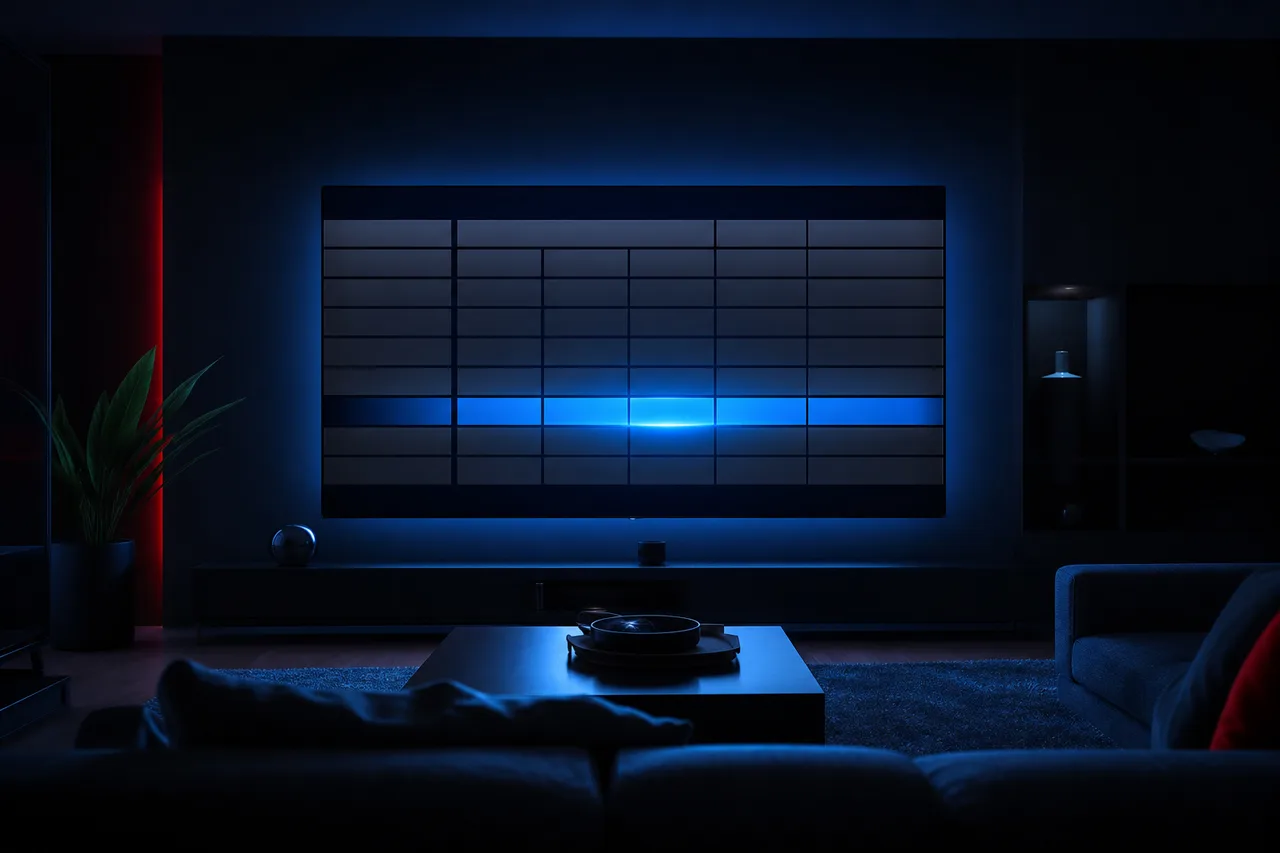
The programme guide is the star of the app, and it rewards a few minutes of attention. Channels run down the left, time runs across the top, and the current channel keeps playing in a small window while you browse. You can scroll hours ahead without the picture stopping, which is the detail that wins most people over.
An illustration of the guide’s layout. Colours and exact positions depend on the version and your settings.
Small touches add to the effect. When you change channel, a banner shows the current programme. A mini guide lets you check what comes next without leaving the picture. Groups appear as tabs or a side list, so you can jump from news to films to children’s channels in one press. On a large list, those groups are what keep the guide usable: a grid of thousands of channels is overwhelming, while a grid of the twenty you watch is a pleasure.
The guide only works if it receives listings and shows them at the right hour. With an Xtream Codes login, TiviMate usually loads the guide on its own. If you use an M3U link, you may need to add a guide address. In either case, the time must match your province; we cover that further down, because an offset is the most common guide complaint we hear from Canadian viewers.
Where TiviMate runs, and where it does not
TiviMate is a TV-first app, and its reach reflects that. Before you fall for the guide, check that your device can run it. Store listings vary by region and model, so the table describes the general picture; your own store has the final word.
| Device | TiviMate | What to do instead |
|---|---|---|
| Android TV or Google TV box | Generally listed | Install from the official store |
| Fire TV Stick or Fire TV device | Where the store lists it | If missing, try IPTV Smarters Pro or XCIPTV |
| Android phone or tablet | Not designed for it | XCIPTV or IPTV Smarters Pro |
| Apple TV, iPhone, iPad | Not offered | IPTV Smarters Pro or GSE Smart IPTV |
| Samsung or LG smart TV | Not offered | IBO Player, Smart IPTV, or add an Android box |
| PC | Not designed for it | IPTV Smarters Pro |
If your household watches on many kinds of devices, you will need a second player elsewhere, and that is perfectly normal. The same credentials work in several players, one stream at a time. Our reviews of IPTV Smarters Pro and XCIPTV cover the usual companions. Every player should come from your device’s official app store; if TiviMate is not listed on yours, choose another supported player rather than installing it from elsewhere.
What TiviMate does well
Beyond the guide, TiviMate handles the everyday details of live television better than most players. These are the strengths that keep people using it month after month.
Channel switching. Up and down on the remote change channel without a menu in between, and a press on the centre button brings up the channel list. On a capable box with a cable connection, it feels as quick as the traditional TV experience it imitates.
Group management. Long-press a group to hide it, rename it or move it. A catalogue of tens of thousands of channels shrinks to the handful your home actually watches, in the order you choose. This single feature does more for daily comfort than anything else in the app.
Opening on the last channel. TiviMate can start straight on whatever you watched last, so turning on the TV feels like turning on a television rather than launching an app. For older relatives, that alone removes most of the confusion.
Playback options. The settings include buffer size and, on devices that support it, frame rate matching, which helps films and fast sport look smoother. A choice of decoder lets you work around a channel that misbehaves on one setting.
TiviMate is at its best when you stop noticing it. The TV turns on, the last channel plays and the guide is one press away.
Where TiviMate is limited
No player is perfect, and TiviMate’s limits follow directly from its focus. Knowing them in advance tells you whether it should be your only player or the specialist on one TV.
A strong match if you
- Watch mostly live TV on one main screen
- Use an Android TV, Google TV or Fire TV device
- Miss the grid and channel numbers of a cable box
- Like arranging channels in your own order
A weaker match if you
- Spend most evenings on series and films
- Need the same app on phones, Apple devices or smart TVs
- Want every feature without a premium purchase
- Prefer a touch interface
Movies and series are present but feel secondary. Covers and summaries are there, but browsing is slower than in players that put the library first, and search is more basic than the guide. If your evenings are mostly about catching up on series, you may find yourself switching to another player for that part. Several of the most liked features also sit in the premium version, so the basic version can feel bare to someone who has read glowing comments about the full one.
Availability is the other limit. On Fire TV devices, whether the app appears depends on the store in your region. If it is missing, the right answer is a different player from the official store, not a file from elsewhere.
None of these limits is a flaw in the usual sense. They are the price of a clear focus. A player that tried to be just as good on a phone, a television and a computer would have to soften the very guide that makes TiviMate worth choosing. Accept the trade-off knowingly, and use another app where TiviMate does not reach.
TiviMate for households leaving cable
A large share of TiviMate users arrive from a traditional cable box, and the app makes that move gentle. Much of what they relied on is still there, in a similar place. A few things are different, though, and knowing them in advance avoids the feeling that something is broken when it is simply new.
| Habit from a cable box | In TiviMate | What to know |
|---|---|---|
| Channel numbers | Yes | Numbers follow the order of your groups and favourites |
| Full-screen grid guide | Yes | Listings come from your subscription and must match your time zone |
| Turn on, last channel plays | Yes | Enable the start-up option in the settings |
| Several TVs playing at once | Not on 1 connection | Each pack includes 1 simultaneous connection; ask support for more |
| Box supplied with the service | No | You choose your own Android TV box or Fire TV device |
| Monthly bill that renews | No | Our packs are paid once for 1, 3, 6 or 12 months, with no automatic renewal |
The biggest change is that the picture now depends on your internet connection and your home network rather than a dedicated cable. A box on a network cable near the router behaves most like the old setup. Our neutral comparison of IPTV vs cable covers the wider differences, from contracts to equipment, so you can judge the switch on your own habits.
Our TiviMate scorecard
Here is how we rate TiviMate on the criteria we use for every player, with two extra lines that matter for live TV. These are our editorial opinions from ordinary evening use, not user ratings.
| Criterion | Our view | Note |
|---|---|---|
| Device support | Fair | Excellent on Android TV boxes, absent from phones, Apple and smart TVs |
| Login type | Very good | Xtream Codes with guide loading on its own; M3U accepted |
| Programme guide | Excellent | Full-screen grid, browsing ahead while the picture keeps playing |
| Library | Fair | Present, but secondary to live TV |
| Settings | Very good | Buffer, decoder, frame rate matching where supported |
| Licence model | Clear | Basic version plus a premium tier from the publisher |
| Channel switching | Excellent | Instant with the arrow keys |
| Group management | Excellent | Rename, reorder and hide with a long press |
The shape of the scorecard is unusual: very high where live TV is concerned, middling everywhere else. That makes TiviMate an easy choice for some homes and the wrong one for others, with little middle ground. Weigh the guide and device lines most heavily, as we suggest for every player, and the answer for your home usually becomes obvious.
One way to read the scorecard is to imagine your typical evening and replay it in TiviMate. If it starts with the TV turning on to the news, involves flicking between a few channels and ends with checking what is on tomorrow, nearly every step lands on a line rated very good or excellent. If it starts with searching for the next episode of a series, most steps land on the “fair” lines, and a library-minded player will serve you better.
TiviMate basic and premium compared
TiviMate comes in a basic version and a premium version sold by its publisher. This table shows the general split. Feature lists change over time, so confirm the details on the publisher’s official website before you buy anything.
| Area | Basic version | Premium version |
|---|---|---|
| Playlists | One playlist | Several playlists |
| Programme guide | Full guide | Full guide with more customization |
| Favourites and groups | Basic | Extended management |
| Recording | Not included | Included, where the service allows it |
| Catch-up | Limited | Supported, where the service allows it |
The basic version is enough to watch live TV with a full guide, and it is the right place to start. Use it for a week, tidy your groups, and only then decide whether the premium features matter to you. If they do, remember that recording and catch-up depend on what the service provides as well as on the player, and that recording while watching something else needs more than one simultaneous connection. Ask our support what applies to your pack before buying premium for those features in particular.
A sensible approach is to note, during that first week, every moment you wished the app did something more. If the list stays empty, the basic version is all you need. If it fills with “I wish I could keep a second playlist” or “I wish I could record this”, you know exactly which premium feature you are paying for, and you can check it against the publisher’s current description before buying.
How TiviMate premium is bought and linked
The premium version is not bought inside the TV app itself. It is purchased through the publisher’s companion app on an Android phone, then linked to your TV device. That route surprises people the first time, so here it is in order.
Buy from the publisher only
We are independent from the publisher and do not sell TiviMate premium. Check the current price on the app’s official website, and buy only through the publisher’s companion app from your phone’s official store. A “premium code” or “unlocked version” offered by someone in a chat or a comment thread is not the publisher’s offer. Close the conversation and go to the official route yourself.
If you do not own an Android phone, read the publisher’s official website for the current options before assuming premium is out of reach; purchase routes can change, and the official site is the only reliable source for them. Our support team can explain how the linking step looks on your TV once you have bought it, but the purchase itself stays between you and the publisher.
Read the publisher’s terms on how many devices a premium purchase covers before you buy. A home with a box in the living room and a stick in the bedroom may want premium on both, or may be perfectly happy with premium on the main TV and the basic version elsewhere.
Before you install TiviMate
A few checks before installation make the first evening far smoother. TiviMate rewards good hardware and a steady connection more than most players, because it is designed to switch channels instantly and that only works when the stream arrives without hesitation.
Five checks first
Each one takes a minute. If your box is still on your shopping list, our guide to the Android TV box explains what to look for.
- TiviMate appears in your device’s official app store.
- The box or stick runs its latest software update.
- The device reaches the router by cable, or by 5 GHz Wi-Fi nearby.
- There is storage space left on the device.
- Your access e-mail is open on a phone for copying.
On a Fire TV Stick, storage is the usual constraint. Remove players and games you no longer use before installing, and keep the channel list short with hidden groups from day one. Our page on IPTV on Firestick has more tips for that device. On any device, close other players before signing in to TiviMate, since each pack includes 1 simultaneous connection and an app left playing in the background will hold it.
It also helps to decide, before you start, which television will be the “TiviMate screen”. The app shines on the set where live TV is watched most, usually the living room. Setting it up carefully there first, then copying the same group order to a second device later if you wish, is much easier than organizing two screens at once on the first evening.
Setting up TiviMate step by step
Have your access e-mail open on your phone. It contains the server URL, username and password, or an M3U link. The routine below uses Xtream Codes, the smoother route in TiviMate.
- Install the player. Open your device’s official app store, search for TiviMate and install it.
- Add a playlist. Open the app, choose to add a playlist and pick the Xtream Codes login.
- Enter your details. Type the server URL, then the username and password, exactly as they appear in your e-mail.
- Name the playlist. Choose a short name you will recognize, then confirm.
- Let the guide load. TiviMate loads channels and the programme guide; on a large list, the first load takes a moment.
- Tidy your groups. Long-press a group to hide, rename or move it, until the list matches what you watch.
- Check the clock. Open the guide and confirm that the programme on screen matches the listing.
Typing with a remote is the slowest part. Type slowly, compare each field with the e-mail before confirming and watch for characters that look alike, such as a zero and a capital O. If the login is refused, our guide to setting up IPTV with Xtream Codes lists the usual slips, and our checklist for when IPTV is not working covers the other causes.
Organizing TiviMate like a cable box
The difference between a cluttered TiviMate and a delightful one is an hour of organizing spread over a few evenings. Do it in stages, so you can see what you actually watch before deciding what to hide.
- Evening 1
Hide the obvious
Hide groups in languages or categories nobody at home watches. The guide gets shorter at once.
- Evening 2
Reorder groups
Move the groups you use most to the top, in the order you reach for them.
- Evening 3
Build favourites
Add your regular channels to favourites so they form one short list of their own.
- End of week
Finishing touches
Rename groups in words everyone understands and set the app to open on the last channel.
Bilingual households can use groups to separate French-language and international content from everything else, so each person finds their channels quickly. Our catalogue includes French-language and international content; for any specific language you need, ask support before ordering. The time spent here pays back every evening, and it makes the guide quicker too, because a shorter list loads and scrolls faster on any device.
TiviMate settings worth changing
A few changes in the settings make a visible difference. Make them during your first week, then leave them alone for several days so you can judge the result on real viewing rather than on a single channel.
| Setting | Suggested choice | Why |
|---|---|---|
| Guide update | Once a day | Fresh listings without slowing every launch |
| Buffer size | Medium | Raise it only if you see brief stutters |
| Frame rate matching | On, if your device supports it | Smoother films and fast sport |
| Decoder | Hardware first | Switch to software only for a channel that misbehaves |
| Start-up | Open on last channel | The TV feels like a TV, not an app |
| Parental control | Code on chosen groups | Locks groups on a shared screen |
Our tip: hide every group you do not watch before you judge speed. A shorter list makes the guide snappier, especially on a Fire TV Stick with limited storage. Then change one setting at a time, so you always know which change helped.
Settings are not a race. The defaults are sensible, and many people change only the guide update, the start-up channel and the parental code. Raise the buffer only after you have seen stutters on several channels, not after one bad evening; a larger buffer absorbs brief dips in the connection but makes every channel change a little slower, which works against TiviMate’s main strength. If you find yourself changing settings every night, the cause is probably the network rather than the app.
Want help tuning TiviMate
Tell us your box or stick and what you see on screen. We reply 7 days a week by e-mail and WhatsApp.
Recording, catch-up and your 1 connection
Recording is one of the features people most often buy TiviMate premium for, so it deserves a clear explanation before you spend anything. A recording is a stream like any other. If you record one channel while watching a different one, two streams are open at once.
Important: each of our packs includes 1 simultaneous connection, so watching one channel while recording another will not work unless support has granted extra screens on request. Some multi-view features open extra streams in the same way. Never share your login with another household to work around a limit.
Recording a channel while nobody watches uses one stream, as long as no other device plays at the same time.
Then: ask support what your pack allowsThat needs two simultaneous streams. Support can explain the conditions and price of an extra screen.
Then: read our multiple screens guideCatch-up depends on what the service provides, not only on the player. Ask before buying premium for it.
Then: contact support with your questionThe guide to IPTV on multiple screens explains how simultaneous connections work across a home. If you mostly want TiviMate for its guide and channel switching, the basic version on one connection may be all you need.
The practical habit is the same as for any player: one stream at a time. Before you start a recording, make sure nobody else in the house is watching on another device with the same credentials, and before someone else turns on a TV, check that no recording is running. A short note near the TV with that rule saves a lot of puzzled evenings.
Keeping the TiviMate guide accurate
A beautiful guide is useless if the programmes it lists start an hour early. Canada spans several time zones, and lining up listings with your clock is the single most common adjustment TiviMate users make.
Three checks for an accurate guide
Work through them in order. Most guides are fixed by the first or second.
- Check that the box’s own clock and time zone match your province.
- Compare a programme on screen with its listing and note any offset.
- Adjust the guide offset in TiviMate until the two match, then update the guide.
If the guide is empty rather than shifted, update it from the playlist settings. With Xtream Codes, listings usually arrive on their own after that. With an M3U link, you may need to add a guide address; ask support for it if your e-mail does not include one. Our page on setting up the IPTV TV guide explains the offset and the guide address in more detail.
Check the guide again after the clocks change in spring and autumn. A box whose time zone is set correctly follows the change on its own, but a manual offset in the player may need a small correction. It takes a minute and saves an evening of programmes that seem to start at the wrong time.
Troubleshooting TiviMate
Most TiviMate problems fall into a handful of patterns. Work through the table in order and change one thing at a time. Clearing the app’s data or reinstalling should be a last resort, because it wipes the group organization you spent evenings building.
| Symptom | Likely cause | What to try |
|---|---|---|
| Login refused | A typing slip in one field | Re-enter each field slowly, comparing with the e-mail |
| Guide empty | Guide not yet updated | Update the guide from the playlist settings |
| Guide shifted | Time zone or offset | Check the box’s clock, then the guide offset |
| Every channel pauses | Connection or Wi-Fi | Test on a cable or 5 GHz near the router |
| One channel stutters | Decoder or that stream | Switch decoder; report the channel to support |
| Plays, then stops | Another device using the connection | Close other players and devices, then retry |
Deep dive: what speed TiviMate really needs
The player itself needs very little; the stream needs the bandwidth. Plan for about 10 Mbps per screen in HD, 15 Mbps in Full HD and 25 Mbps in 4K. Those figures add up when other people stream at the same time, so a 4K channel on the living room box while someone else watches HD elsewhere calls for about 35 Mbps of steady capacity. If a 4K channel stutters while HD plays smoothly, the line or the Wi-Fi is the first thing to check, not the app. Our guides to fixing IPTV buffering and 4K IPTV cover the details.
If a problem survives these checks, write to our support with the device, the symptom and what you have already tried. That short description usually leads straight to the answer.
Pairing TiviMate with a second player
Because TiviMate is so focused on live TV, many homes pair it with a second player. That is not a failure of the app; it is using each tool for the job it does best. The same credentials work in both, as long as only one plays at a time.
Keep TiviMate for live TV and add IPTV Smarters Pro or XCIPTV for browsing series and films.
Then: close one before opening the otherTiviMate is not designed for them. XCIPTV is light and touch-friendly on Android.
Then: read our XCIPTV reviewUse a MAC-based player on that TV, or add an Android box to bring TiviMate there too.
Then: read our IBO Player reviewA second player also makes a useful diagnostic tool. If a channel misbehaves in TiviMate but plays smoothly in the other app on the same box, the cause lies in TiviMate’s settings, usually the decoder or buffer. If it misbehaves in both, look at the connection instead. Our IBO Player review covers the smart TV option mentioned above.
If you set up two players on the same box, give them clear roles and stick to them: TiviMate for live channels, the other app for films and series. Close one fully before opening the other, since an app sitting in the background can keep the connection open. Within a few days, everyone in the house will reach for the right app without thinking about it.
TiviMate terms in plain English
TiviMate’s settings use a few terms that can puzzle a newcomer. Here they are as they apply to this player.
- Playlist
- Your subscription as TiviMate sees it, added with Xtream Codes or an M3U link.
- Group
- A set of channels shown together in the guide. Hide, rename or move groups with a long press.
- Mini guide
- A small overlay showing what comes next, without leaving the picture.
- Frame rate matching
- An option that switches the TV’s refresh rate to match the content, on devices that support it.
- Guide offset
- A shift applied to listings so they match the clock in your province.
- Companion app
- The publisher’s phone app used to buy premium and link it to your TV device.
When you ask our support for help, these terms make the question precise. “The guide is shifted by one hour on the living room box” or “the sports group disappeared after I hid a group by mistake” can usually be answered in one message. A hidden group, by the way, is never deleted: it can be shown again from the group settings at any time.
Who TiviMate suits, and our packs
TiviMate suits people who watch mostly live TV on one main screen, using an Android TV box, a Google TV device or a Fire TV device where the store lists it. It is an especially good match if you are moving away from a cable box and want the same guide-first habit, with channel numbers and a grid you can read from across the room. If you also need a player on phones, Apple devices or smart TVs, pair it with a second app as described above.
When it comes to picking a pack, think about how much of your evening is live TV. TiviMate makes a large channel list pleasant to browse once it is organized, so homes that enjoy exploring channels get a lot from the VIP Premium Pack with its 27,000+ channels, while a home with a 4K TV and a fast line may look at the Ultimate 4K Pack. If you want to test the combination of box, player and connection first, start with a short duration; nothing renews automatically when it ends.
Our packs load cleanly in TiviMate through Xtream Codes, e-mailed within minutes. The catalogue includes French-language and international content; for a specific language, ask support before ordering. Each pack is a one-time payment for 1, 3, 6 or 12 months, in Canadian dollars by card or PayPal, with no contract and no automatic renewal.
VIP Premium Pack
- 27,000+ channels
- 61,000+ series
- 155,000+ movies
- HD, Full HD and 4K
Ultimate 4K Pack
- 57,000+ 4K channels
- 47,000+ series
- 179,000+ movies
- 20 servers in Europe
Choose the pack for your TiviMate screen
Compare packs and durations with current prices on one page.
FAQ
Does TiviMate include channels?
No. It is a player only. You add your own subscription and TiviMate displays it. Anyone selling TiviMate “with channels” is mixing two separate things.
Is TiviMate legal?
The technology is legal; whether a service is legal depends on the broadcasting rights it holds, so check before subscribing.
Can I use TiviMate on my phone?
It is designed for TV devices. On a phone or tablet, choose another supported player from your official app store, such as XCIPTV.
Is TiviMate available on Apple TV or Samsung TVs?
No. On those devices, use IPTV Smarters Pro, IBO Player or another supported player, or add an Android TV box.
Do I need the premium version?
Not to watch. The basic version plays live TV with a full guide. Premium helps if you want several playlists, recording or deeper customization.
Where do I buy TiviMate premium?
Through the publisher’s companion app on an Android phone, then linked to your TV device. Check the current price on the app’s official website.
Can I record while watching another channel?
That opens two streams, and each pack includes 1 simultaneous connection. Ask support about extra screens if you need it.
Why is my guide empty?
With Xtream Codes, the guide should load on its own. Update it from the playlist settings. If it stays empty, contact support.
What speed do I need for TiviMate in 4K?
Plan for about 25 Mbps for that screen. Full HD needs about 15 Mbps and HD about 10 Mbps.
How do I reach support?
By e-mail or WhatsApp at +33 6 44 65 43 13, 7 days a week, in English or French.