4K IPTV promises a sharper, more detailed picture than HD or Full HD, and on the right setup the difference is obvious from the first frame. The catch is that the promise depends on your whole chain of equipment, not only on the service. A 4K stream on an HD television looks like HD. A 4K television on a struggling Wi-Fi signal looks like a spinning wheel. This page walks through every link in that chain, so you can find out, before paying for anything, whether 4K will be worth it in your home.
A disclosure first: we sell a pack aimed squarely at 4K viewers, and we describe it further down in plain facts. Before you look at any 4K offer, ours included, go through the checks below. They take a few minutes with the remote and a speed test, and they can save you from paying for a picture your equipment is not ready to show.
What 4K IPTV actually means
4K, sometimes labelled Ultra HD or 2160p, is a display resolution with four times as many pixels as Full HD (1080p). More pixels means more detail packed into the same screen area. You notice it most on large televisions and when you sit relatively close: textures look crisper, small text is easier to read and edges look smoother. On a small screen seen from the far side of a room, the eye simply cannot resolve the extra detail, and the difference shrinks.
With IPTV, 4K is not a switch you flip in a menu. It is the end result of a 4K stream travelling over your connection, decoded by a device that can handle 4K and shown on a panel that has 4K pixels. If any one of those links falls short, the picture drops back to a lower quality, or it stalls while the player tries to keep up. That is why two people on the same service can describe the same 4K channel very differently: one has a chain that holds, the other has a weak link somewhere.
Three resolutions, one rule
HD (720p), Full HD (1080p) and 4K (2160p) each need more data per second than the one before. Your TV shows the lowest of three things: what the stream carries, what the device outputs and what the panel can display.
New to IPTV in general? The article What is IPTV? explains streams, player apps and access details from scratch, and the rest of this page assumes you know those words.
The four links in a 4K IPTV chain
Think of 4K as a relay race with four runners. The stream leaves the provider’s servers, crosses your internet connection, reaches your device and ends up on your screen. Each runner has to be fast enough, or the whole team slows down to the pace of the slowest one.
Here is the same idea as a checklist. Every line must be true for 4K to look the way it should. Miss one and you will not see 4K, however strong the other three are.
- A 4K TV. The specifications or the picture settings menu should say 4K or Ultra HD.
- At least 25 Mbps of steady speed for each screen playing in 4K, measured at the TV and on top of everything else running in your home.
- A 4K-capable device. Many recent Samsung and LG smart TVs, Android TV and Google TV boxes, Fire TV Stick models and Apple TV models decode 4K; check your exact model.
- A 4K stream. The service must provide 4K content, and you must pick the 4K version of a channel or title in your player.
- A cable that keeps up. If you use a separate box or stick, the HDMI connection must also carry 4K.
The fifth line is the one most guides forget. It sits outside the four main links, but it causes enough disappointing evenings to deserve its own check, covered in detail further down.
Checking that your TV is really 4K
This sounds obvious, yet it trips up more people than any other step. Televisions bought a few seasons apart can look almost identical on the wall, and labels such as “HD ready”, “Full HD” and “Ultra HD” are easy to mix up when you are reading a box from memory.
Three ways to confirm it
- Open the TV’s settings and look for a menu named picture, display or device information.
- Find the model number on the sticker at the back and compare it with the manufacturer’s specifications.
- Check the original box or manual for the words 4K or Ultra HD, not only “HD”.
Our page on IPTV on Samsung and LG smart TVs shows where these menus usually sit.
While you are in the settings, also note which HDMI ports the TV has and whether any are labelled for 4K or for a higher bandwidth. Some televisions accept 4K on only one or two of their ports, and plugging a 4K box into the wrong one is a common, silent reason for a picture that never quite looks sharp.
Finally, remember that a 4K TV can still show HD and Full HD streams perfectly well. It upscales them, stretching the image to fill the extra pixels. Upscaled pictures can look very good, but they are not true 4K, and it helps to know the difference before you judge a service.
Screen size, distance and whether you will notice
Even with a perfect chain, 4K is worth more in some rooms than in others. The two factors that matter are the size of the screen and how far away you sit. A large screen viewed from a sofa a few steps away shows off 4K beautifully. A small bedroom set across the room makes the extra detail almost invisible. Before paying attention to 4K at all, think about which of these rooms describes yours.
Large living-room screen
The ideal case. Detail, texture and sharp edges stand out, especially on films and nature footage.
Mid-size TV, family sofa
4K is visible, but a clean Full HD stream may satisfy most viewers and asks less of your line.
Bedroom or kitchen set
Small screens seen from afar gain little. Full HD or HD saves bandwidth for the rest of the home.
Phone or tablet
Pixels are already dense on a small display. HD usually looks excellent and leaves bandwidth for others.
Home theatre setup
Where 4K matters most. Pair a cabled connection with a capable box and check every HDMI link.
Desk monitor
You sit close, so detail shows, but check that the computer and browser or player can decode 4K smoothly.
The practical takeaway is that 4K is a room-by-room decision, not a household one. Many homes end up watching 4K on the main TV and Full HD or HD elsewhere, which also keeps the total speed needed under control when two screens are on.
A 4K readiness scorecard for your home
Before you pay for any 4K offer, give your own setup a score. It takes five minutes with the remote, the TV manual and a speed test, and it turns a vague feeling (“the TV is new, so it should work”) into a clear answer. Score each line 0 if the answer is no or unknown, 1 if it is partly true and 2 if it is clearly true.
| Check | What earns 2 points | What earns 0 |
|---|---|---|
| TV panel | Settings or specifications confirm 4K or Ultra HD | Unknown, or the label only says HD |
| Speed at the TV | Several evening tests above 25 Mbps per 4K screen | Results below 25 Mbps or swinging widely |
| Last metres | Network cable, or strong 5 GHz in the same room | Weak 2.4 GHz through walls or floors |
| Device | Model specifications list 4K output | Older model or no mention of 4K |
| HDMI link | 4K-rated cable in a 4K port, no adapters | Unknown cable, adapter or soundbar in between |
| Output setting | Device set to 4K or 2160p | Left on a lower or unknown setting |
A total of 10 to 12 means your home is ready, and a 4K catalogue will show what it can do. Between 6 and 9, look at the lines that lost points; most are cheap or quick to fix, such as a cable, a menu setting or moving the router. Below 6, you will get more enjoyment from a well-delivered Full HD stream for now, and you can revisit 4K once the weakest links are sorted.
Tip: keep the scorecard. When you replace your TV, box or internet plan, run it again. Many households become 4K-ready gradually, one upgrade at a time, and the scorecard shows you when the last link falls into place.
Internet speed for 4K IPTV
Speed is where most 4K problems begin. The figure on your internet bill is a maximum shared by everyone in the home, not a lane reserved for the television. What counts is the steady speed that actually reaches the TV or box while the rest of the household is doing whatever it normally does on a weeknight.
Steady speed to plan for, per screen playing
These figures add up. If one person watches in 4K while someone else streams Full HD on a tablet, you need both figures combined, plus a margin for phones, video calls and games. The table shows how quickly the total grows. Note that each of our packs includes 1 simultaneous connection, so any line with two or more screens playing at once needs extra screens arranged through support, who explain the conditions and the price.
| What is playing at the same time | Speed to add up | Total to plan for |
|---|---|---|
| One 4K TV | 25 Mbps | 25 Mbps |
| One 4K TV and one HD phone | 25 + 10 Mbps | 35 Mbps |
| One 4K TV and one Full HD tablet | 25 + 15 Mbps | 40 Mbps |
| Two 4K TVs | 25 + 25 Mbps | 50 Mbps |
| Two 4K TVs and one Full HD screen | 25 + 25 + 15 Mbps | 65 Mbps |
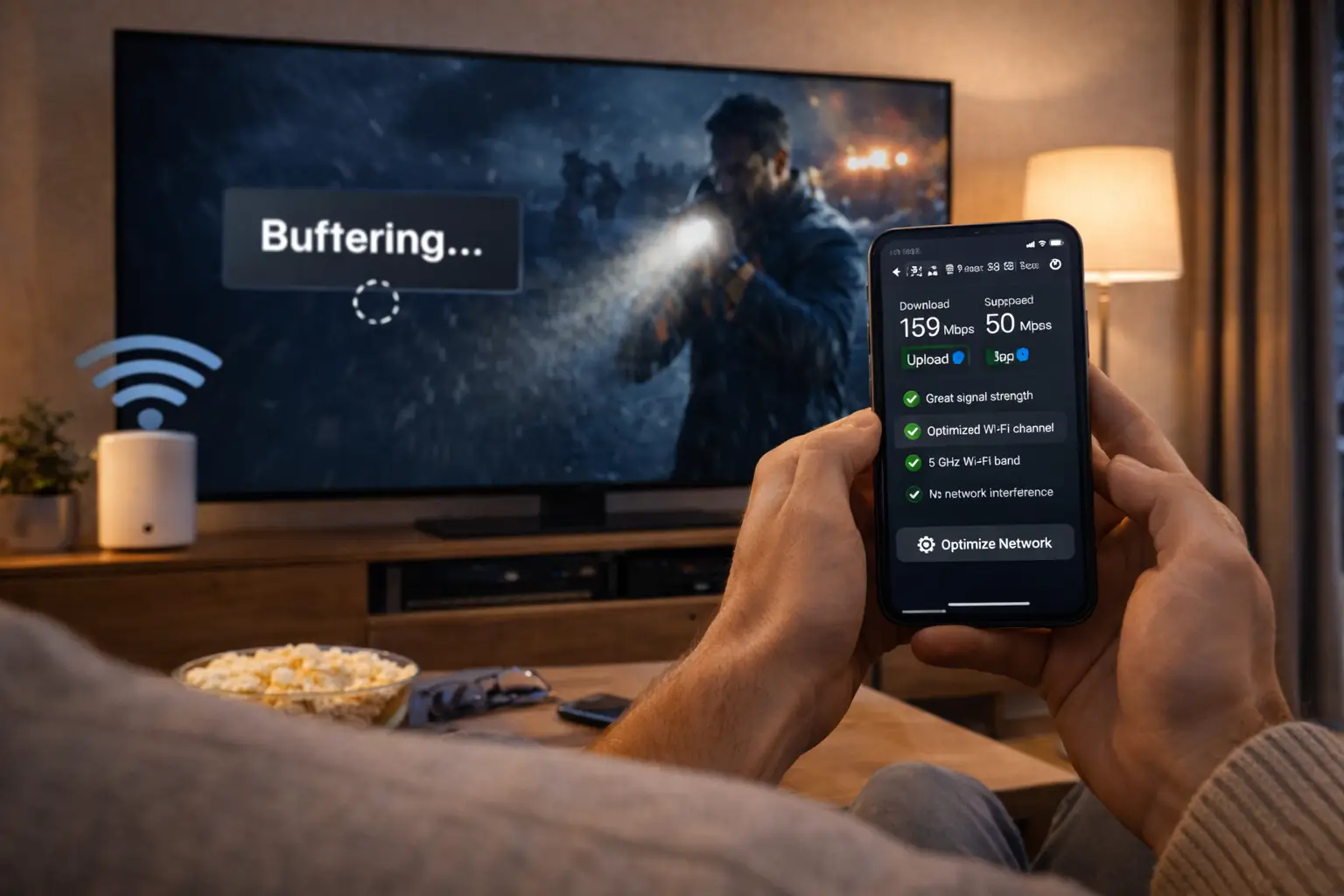
To measure what you really have, run a speed test on the TV or box itself, not on a phone next to the router, and do it at the busiest time of evening. Run it two or three times a few minutes apart. If the results swing a lot, the problem is stability rather than raw speed, and that is the next thing to fix.
A line that holds 30 Mbps all evening serves 4K better than one that peaks far higher and then dips every few minutes.
Cable, 5 GHz or 2.4 GHz: getting the signal to the TV
How the data travels the last few metres from your router to the TV often decides whether 4K holds. A network cable gives the steadiest result because nothing in the room can interfere with it. Wi-Fi can work well too, but it is sensitive to distance, walls, floors and neighbours’ networks on the same channels.
| Connection | Strengths | Weak points | Best for |
|---|---|---|---|
| Network cable | Steady speed, no interference | Needs a cable run from the router | Main 4K TV or home theatre |
| Wi-Fi 5 GHz | Fast at short range, less crowded | Weakens through walls and floors | TVs in the same room or next room |
| Wi-Fi 2.4 GHz | Reaches further through the house | Slower and more crowded | HD screens far from the router |
| Mesh or extender | Brings a stronger signal to distant rooms | Quality depends on placement | Large homes and basements |
If a cable is not practical, bring the router and the TV closer together, keep the router out of cabinets and away from thick walls, and connect the device to the 5 GHz band when it supports it. A strong, stable signal near the TV matters more than a high number on the router box. Our guide to fixing IPTV buffering covers router placement and restarts in more depth.
Quick test: if 4K stutters over Wi-Fi, borrow a long network cable for one evening and connect the box directly. If the stutter disappears, you have found your weak link, and you know the service itself can carry the stream.
Choosing a device for 4K IPTV
Your television’s built-in apps may be enough, especially on recent models. Many people still prefer a separate box or stick, because it is easier to update, often runs player apps more smoothly and can be moved to another TV later. What matters for 4K is that the exact model you own decodes 4K and outputs it to the TV.
| Device type | What to check for 4K | Good to know |
|---|---|---|
| Samsung or LG smart TV | 4K panel and a player in the TV’s official store | No extra hardware, but app choice depends on the TV system |
| Android TV or Google TV box | 4K output listed in the box’s specifications | Wide choice of players; recent models handle large catalogues well |
| Fire TV Stick | Your model must support 4K output | Compact; check the model name before relying on it for 4K |
| Apple TV | A 4K model, not an older HD one | Smooth playback; players come from its official store |
| PC | A 4K monitor and enough power to decode smoothly | Handy for testing; less comfortable for sofa viewing |
Players such as IPTV Smarters Pro, TiviMate, Smart IPTV, IBO Player, XCIPTV and GSE Smart IPTV all come from your device’s official app store. Some publishers charge for a licence; check the current price on the app’s official website. We are independent from app publishers. For device-specific detail, see our pages on the Android TV box, the Fire TV Stick and Apple TV and iPhone, or the overview of the best devices for IPTV.
HDMI ports, cables and the last metre
When a 4K box sits next to a 4K TV on a fast line and the picture still looks no sharper than Full HD, the culprit is often the short cable between them. HDMI cables and ports come in versions, and older ones may not carry a 4K signal at a smooth frame rate. HDMI 2.0 is generally the point where comfortable 4K begins, and HDMI 2.1 adds headroom on newer equipment.
The last-metre checklist
- Use the HDMI cable that came with a recent 4K device, or one labelled for 4K.
- Plug into a TV port marked for 4K or higher bandwidth, if the TV labels them.
- Avoid cheap adapters and long passive extensions between box and TV.
- If a soundbar sits in between, check that it passes 4K through.
- After any change, restart the device so it detects the new connection.
Soundbars and receivers deserve a special mention. When the box plugs into a soundbar that then connects to the TV, the soundbar becomes part of the video chain. If it does not pass 4K through, the TV receives a lower resolution, even though every other link is ready. Plugging the box straight into the TV for one test evening is the simplest way to rule this out.
Display settings that quietly hide 4K
Boxes and sticks do not always switch to 4K on their own. Some start at a lower output resolution until you change it, and some fall back to a safe setting after an update or a power cut. A few minutes in the settings menu can turn a soft picture into a sharp one without touching anything else.
- Open the device’s display settings. Look for a menu named display, video output or resolution.
- Set the output to 4K or 2160p. If it offers “auto”, check what it has actually chosen.
- Check the TV’s input settings. Some televisions need an enhanced or high-bandwidth mode switched on for the HDMI port in use.
- Pick the 4K version in the player. Many catalogues list separate versions of a channel or title; choose the one labelled 4K.
- Watch for a minute. Look at detailed textures, such as fabric or foliage, and small on-screen text.
Deep dive: frame rate and motion settings
Besides resolution, many devices let you match the output frame rate to the content. When this option is off, some programmes show slight judder on slow camera pans. When it is on, the screen may go black for a moment as it switches. Neither setting changes whether you see 4K, but matching the frame rate can make motion look smoother on films. TVs also have motion-smoothing modes that some viewers love and others find artificial; try both and keep whichever looks natural to you.
Deep dive: picture modes and why “vivid” can mislead
Shop-floor picture modes push brightness and sharpness to stand out under bright lights. At home, they can make edges look harsh and hide the subtle detail 4K is meant to show. A cinema, film or calibrated mode usually gives a more faithful picture. If 4K looks oddly grainy or over-sharpened, try a calmer picture mode before blaming the stream.
Setting up 4K IPTV step by step
Once the checks above are done, setting up 4K IPTV is the same routine as any other IPTV setup, with a few extra moments of attention at the start and end. Follow the order below; it front-loads the tests that most often save you an evening of frustration.
- Step 1
Confirm the TV
Check that the panel is 4K and note which HDMI ports support 4K.
- Step 2
Measure at the TV
Run a speed test on the device itself at a busy evening hour, two or three times.
- Step 3
Fix the last metres
Use a network cable if you can; otherwise improve the 5 GHz signal near the TV.
- Step 4
Install a player
Get it from the device’s official app store and open it once so it is ready.
- Step 5
Enter your access
Your details arrive by e-mail within minutes of payment, as Xtream Codes or an M3U link.
- Step 6
Select a 4K title
Choose a 4K channel or film, watch for a minute and check that the picture is sharp and steady.
Our setup pages walk through the player screens themselves, including where to type each part of your access details. If you plan to use 4K on one TV and lower quality elsewhere, read IPTV on multiple screens first, because it explains how the single connection in each pack works when several devices are installed.
Setup passes the four checks
Compare the packs and durations side by side, then pick the one that matches your screens.
Live 4K versus on-demand 4K
4K behaves slightly differently depending on whether you are watching live or on demand. Live streams arrive in real time, so the player has only a short buffer to absorb any wobble in your connection. On-demand titles can usually build a larger buffer before and during playback, which makes them more forgiving on a line that is fast but a little unsteady.
Live 4K
- The thrill of watching events as they happen, in full detail
- Quick channel switching once the stream starts
- Needs a steady line at every moment
- Best on a cabled connection or a strong 5 GHz signal
On-demand 4K
- More forgiving of small dips in speed
- Pause, resume and rewind whenever you like
- A good first test of whether your chain can carry 4K
- Start-up can take a moment longer while the buffer fills
A sensible approach is to test 4K first with an on-demand film. If that plays smoothly for several minutes, try a live 4K channel at a busy hour. If on-demand works but live stutters, your speed is probably adequate and stability is the weak link, which points back to Wi-Fi or other devices competing for the line.
It also helps to know that live channels are where the evening rush shows first. Between dinner and bedtime, more people in your home and in your neighbourhood are online, and your line has less spare capacity. If live 4K is smooth in the afternoon but wobbles at nine in the evening, that pattern points to shared capacity rather than to the stream or the device. In that case, a cable, a better router position or pausing other heavy use during the programme you care about makes a bigger difference than any player setting.
When 4K is worth it and when it is not yet
4K is a genuine upgrade when your setup supports it, but it is not the right priority for every home. Paying attention to 4K before the basics are solid tends to produce more frustration than delight. Use the scenarios below to decide where you stand today.
The stream can carry 4K, but your panel will only show its own resolution. Put your attention on stability and catalogue instead.
Then: compare the Premium and VIP Premium packs4K will pause while the player refills its buffer. Full HD will look better than a stuttering 4K picture.
Then: improve the connection before choosing 4KYou need 50 Mbps of steady speed and extra simultaneous screens, which are arranged on request.
Then: ask support about conditions and priceA large 4K TV on a cable or strong Wi-Fi is exactly what a 4K catalogue is made for.
Then: look at the Ultimate 4K PackIf you are still weighing IPTV against your current setup, the article IPTV vs cable compares the two on flexibility, equipment and commitment, which may matter more to your decision than resolution.
Common 4K mistakes to avoid
Most 4K disappointments are predictable, and most are cheap to avoid. Before you decide that 4K “does not work” for you, make sure none of these is hiding in your setup.
- Judging 4K from a speed test taken on a phone beside the router rather than on the TV.
- Leaving a new box on its default output resolution after setup.
- Routing the picture through a soundbar or receiver that does not pass 4K.
- Using the HDMI cable from an old DVD player for a new 4K device.
- Watching 4K on a busy evening while someone else streams and another person is on a video call.
- Selecting the standard version of a channel when a 4K version is listed separately.
- Expecting a small kitchen screen to show the same gain as a large living-room TV.
Every item on this list has the same fix: check the link, change one thing, test again. Changing several things at once makes it impossible to know which one helped.
Our Ultimate 4K Pack, described plainly
Because we sell a pack built around 4K, here are the facts and nothing more. The Ultimate 4K Pack lists 57,000+ 4K channels, 47,000+ series and 179,000+ movies, served from 20 servers in Europe. The catalogue includes French-language and international content. If you need a specific language, ask support before ordering, so you know what to expect.
Like our other packs, it includes 1 simultaneous connection. You can install the same credentials on several devices in your home and use them one at a time. You pay once, in Canadian dollars, by card or PayPal, for 1, 3, 6 or 12 months, with no automatic renewal and no contract. See current prices on the plans page.
If your setup does not pass the four checks yet, a pack offering HD, Full HD and 4K across a broad catalogue may suit you better for now. The VIP Premium Pack, for example, lists 27,000+ channels, 61,000+ series and 155,000+ movies in HD, Full HD and 4K, which leaves room to move up to 4K viewing later on the same pack once your TV or connection catches up.
Ultimate 4K Pack
- 57,000+ 4K channels
- 20 servers in Europe
- For 4K-ready setups
Fixing soft or stuttering 4K
When 4K disappoints, the symptom usually points to the link at fault. A soft but steady picture is a resolution problem somewhere in the chain. A sharp picture that keeps pausing is a speed or stability problem. A picture that freezes completely and does not recover is often a device or player issue. Match what you see to the cards below.
Steady but soft
Check the device’s output resolution, the HDMI port and cable, and that you picked the 4K version of the title.
Sharp but pausing
Test speed at the TV, switch to a cable or 5 GHz, and pause other heavy use while you watch.
Freezes and stays frozen
Restart the player and the device, clear the player’s cache if it offers one, then try again.
Smooth in HD, not in 4K
Your chain carries HD but not 4K. Check speed first, then the device’s ability to decode 4K.
Do not judge 4K on a weak connection. If the picture keeps pausing, the stream itself is often working and the bottleneck is your Wi-Fi or the number of devices online at once. Fix the connection first, then test again before drawing conclusions about any provider.
For step-by-step help, our guides to fixing IPTV buffering and fixing IPTV freezing go through each cause in order. If none of the fixes helps, write to our team with your device, connection type and the title you were watching, and they will help you narrow it down.
A worked example: from a soft picture to a sharp one
Here is how the checks on this page come together in practice. The household is illustrative, but the sequence is exactly the one our support team suggests when someone writes in to say their 4K picture “looks just like HD”.
A viewer has a new 4K television in the living room and an Android TV box connected through a soundbar. The router is in a home office one floor up. Films labelled 4K play without pausing, but the picture looks no sharper than the Full HD version of the same title. Speed is not the issue, because nothing stutters. So the investigation starts with resolution, one link at a time.
An illustrative settings screen: “auto” had settled on 1080p, which explains the soft picture.
The display menu shows the box outputting 1080p on “auto”. The viewer bypasses the soundbar for a test, plugging the box straight into a TV port labelled for 4K, and the setting now offers 2160p. With the output switched, the same film is visibly sharper. The soundbar turns out not to pass 4K through, so the viewer moves it to the TV’s audio output instead. Then, out of caution, they run a speed test on the box at nine in the evening: the figures dip below 25 Mbps over Wi-Fi from upstairs, which explains occasional pauses on live 4K channels. A powerline adapter or a mesh point near the TV is the next step.
Two lessons stand out. First, a steady but soft picture is almost never a speed problem; it is a resolution setting or a cable. Second, fixing one link often reveals the next one, which is why working down the chain in order saves time.
4K IPTV terms in plain English
4K brings its own vocabulary. You will meet these terms in TV menus, device specifications and player settings. Knowing them makes the checks on this page much quicker.
- 2160p
- Another name for 4K resolution on televisions, often shown in output settings.
- Upscaling
- When a 4K TV stretches an HD or Full HD picture to fill its pixels. It can look good, but it is not true 4K.
- Output resolution
- The resolution your box or stick sends to the TV, set in the device’s display menu.
- Decoding
- The device’s work of turning the incoming stream into a picture. Older devices may not decode 4K smoothly.
- HDMI 2.0 and 2.1
- Versions of the connection between device and TV. Newer versions carry more data for 4K at smooth frame rates.
- Buffer
- A short reserve of video the player keeps ready. When the line slows, the buffer empties and playback pauses.
- Frame rate matching
- A device setting that adjusts the output to the content’s frame rate for smoother motion.
Related guides for a 4K setup
A 4K decision touches devices, setup and troubleshooting as well as plans. These pages pick up where this one leaves off.
Not sure your setup is 4K-ready
Send support your TV model, device and connection type. They answer in English and French, seven days a week.
FAQ
What do I need for 4K IPTV?
A 4K TV, at least 25 Mbps of steady speed per screen playing in 4K, a 4K-capable device, an HDMI link that carries 4K and a service that provides 4K streams.
Can I watch 4K on an HD TV?
The stream will play, but the TV can only show its own resolution. You will see HD or Full HD, not 4K.
Is Wi-Fi good enough for 4K?
Often, if the device is on the 5 GHz band with a strong, stable signal near the TV. A network cable is the most reliable option when it is practical.
Why does my 4K stream buffer?
Usually because the connection cannot hold 25 Mbps at the TV while other devices are online. Test speed on the device itself and reduce other heavy use while you watch.
Why does 4K look no sharper than Full HD?
Check the device’s output resolution, the HDMI port and cable, any soundbar in between and whether you selected the 4K version of the title in your player.
How much speed do two 4K TVs need?
Plan for 50 Mbps of steady speed, plus a margin for other use. Each pack includes 1 simultaneous connection, so two screens at once need extra screens arranged through support.
Does the Ultimate 4K Pack work on several TVs?
You can install it on several devices and use them one at a time. It includes 1 simultaneous connection. For more screens at once, ask support about the conditions and the price.
Which player should I use for 4K?
Several work well, including TiviMate, IPTV Smarters Pro and IBO Player. The device matters more than the player, so start by checking your hardware.
Can I start with a short plan to test 4K?
Yes. You can choose 1, 3, 6 or 12 months, paid once with no automatic renewal. A first month gives you time to test 4K on busy evenings. See current prices on the plans page.