IPTV freezing is the moment the picture stops dead. A face hangs mid-expression, a ball hangs in mid-air, and sometimes the commentary carries on as if nothing happened. Unlike buffering, there is often no wheel to tell you the player is waiting, which makes freezing feel more mysterious and more broken than it usually is. In most homes it comes down to the device or the player rather than the internet line, and the causes can be ruled out one by one in an evening. This guide is part of the ClearPick IPTV troubleshooting section, and it gives you that elimination method in a fixed order.
A quick word on our position. We sell our own IPTV packs and we answer the support messages that come with them, so we see the same freezing stories again and again. The fixes below are the ones that work most often in real living rooms, ranked from the quickest to the most involved. We do not sell devices or player licences, so nothing here is steering you towards a purchase.
What IPTV freezing looks like
Freezing comes in several shapes, and each shape hints at a cause. Before you change anything, watch the next freeze closely and match it to one of these tiles. That observation alone often halves the list of suspects.
Still frame, sound continues
The video decoder has stalled while the much lighter audio carries on. Decoder settings and device load are the first suspects.
Freeze after a while
Smooth at first, then freezes after a long session. Heat and memory that fills over time fit this pattern.
Freeze only in 4K
Plays smoothly in Full HD, stalls in 4K. The device or the HDMI chain is at its limit.
Freeze on channel change
The new channel opens on a still image. Often a player cache or decoder issue rather than the stream.
Freeze, then a jump ahead
The picture stalls and then skips forward. Unsteady Wi-Fi is the usual cause of this one.
Whole device locks up
Even the remote stops responding. The device itself is overloaded and needs a full power-off.
Write down which tile fits, and roughly when in the evening it happened. If two tiles fit, note both. A stick that freezes in 4K after an hour of use, for instance, is giving you two clues at once: hardware near its limit and heat building up. That combination points to a very different fix from a box that freezes on every channel change from the first minute.
IPTV freezing or buffering: tell them apart
The repair depends on naming the symptom correctly, and these two are easy to confuse in the moment. The differences below hold on almost every device and player.
| Sign | Freezing | Buffering |
|---|---|---|
| Loading wheel or figure on screen | No | Yes |
| Sound can keep playing | Yes, often | No, it stops with the picture |
| Resumes by itself | Sometimes, often needs a channel change | Usually, after a pause |
| Changes with picture quality | Often, if the device is at its limit | Yes, strongly |
| Most common zone | Device and player | Home network |
If your screen shows the right-hand column, our guide to fixing IPTV buffering is the better starting point, since its causes live in your Wi-Fi and your line. If nothing plays at all, with an error box or an empty list, go to the IPTV not working checklist instead. If the left-hand column describes what you see, carry on here.
One overlap is worth knowing. A severe Wi-Fi dip can show up as a short freeze before the wheel appears, and the “freeze, then jump ahead” tile above is network-driven too. If your freezes always come with a jump or a wheel soon after, check your signal strength beside the TV before you dig into device settings.
Three questions that narrow it down
Before you touch a setting, answer three questions. Each one rules out a whole family of causes, and together they usually point at a single zone.
The fault probably sits with that stream, not your setup. Try the same channel on another device to confirm.
Then: note the channel and time for supportYour account and line are working. The device, its player or its link to the router is the problem.
Then: follow the diagnosis steps belowLook at the home network first. A failing router or a congested line can affect everything at once.
Then: restart the router and test speed beside each TVLive streams keep a smaller reserve, so short network dips show sooner. Movies and series can be fetched further ahead.
Then: check Wi-Fi steadiness, then decoder settingsThe device or the player is struggling with video itself, whatever the source.
Then: start with restart, cache and decoderA player or system update may have changed the decoder, the buffer or a display setting.
Then: review playback settings or try a second playerThe second-device test is the most useful of all. Play the same channel on a phone using the same credentials, ideally in the same room. If the phone plays smoothly while the TV freezes, you have cleared both your account and your internet line in one move, and every minute from now on can go to the TV and its player.
Step-by-step IPTV freezing diagnosis
Follow these steps in order and test the same channel after each one. Stop as soon as the freezing disappears; the last step you took is your answer, and knowing it helps you prevent a repeat.
- Close every other stream. Each pack includes 1 simultaneous connection. A second device playing on the same credentials can cut your stream in a way that looks like a freeze.
- Force-close the player. Use the device’s app settings to stop it completely, rather than returning to the home screen.
- Power the device off at the wall. Leave it unplugged for a short moment, then start it again. Standby does not clear memory the way a real power-off does.
- Clear the player’s cache. Use the device’s app settings or the player’s own menu. Clear the cache, not the data, so your login stays in place.
- Check the storage left on the device. If it is nearly full, remove apps you no longer use.
- Update the player and the system. Install updates from your device’s official app store and its system settings.
- Switch the decoder. Change from hardware to software decoding, or the reverse, in the player’s playback settings.
- Drop the quality one level. If 4K freezes and Full HD does not, the device or the HDMI chain is at its limit.
- Test on a cable or near the router. Rule out unsteady Wi-Fi as a hidden contributor.
- Try a second player. If another supported player on the same device runs smoothly, the first app is the problem.
Keep the order: the early steps cost seconds and fix a large share of freezes on their own. Skipping straight to a reinstall or a factory reset wipes your settings and your clues, and if the freeze comes back afterwards you will not know which change mattered. One change, one test, one note.
Most households stop at step three, four or seven. If you reach step ten and every supported player freezes on this device while a phone plays smoothly, the hardware itself is the most likely limit, and the sections on heat, 4K and device choice below will help you decide what to do.
Hardware or software decoding
The decoder is the part of the player that turns the compressed stream into pictures. Most players offer two ways to do it. Hardware decoding hands the job to the device’s dedicated video chip, which is efficient and usually smooth. Software decoding uses the device’s main processor instead, which is more flexible but heavier. Neither is always better: the right choice depends on your exact device and the streams you watch.
| Criterion | Hardware decoding | Software decoding |
|---|---|---|
| Load on the device | Light, uses the video chip | Heavier, uses the main processor |
| Smoothness on recent devices | Usually the smoothest option | Good, but can strain in 4K |
| Behaviour on older boxes and sticks | Can stumble on some stream formats | Sometimes rescues those streams |
| Heat produced | Lower | Higher on long sessions |
| When to try it | As the default on most devices | When hardware decoding freezes on particular channels |
The labels differ between players: look for “decoder”, “player type”, “video acceleration” or “hardware acceleration”.
Change only the decoder, then test the same channel for a good while. If the freeze disappears, keep that setting and note it somewhere, because a future player update may reset it. If nothing changes, switch back to the original setting before moving on, so you do not stack several changes on top of each other.
Some players also offer a choice of internal player engine, for example a “native” player and an alternative one. Treat that switch exactly like the decoder: change it, test, and keep it only if it helps. The guides to TiviMate and XCIPTV point to where these options usually sit in each app.
Deep dive: why the sound carries on without the picture
Audio and video travel together in the stream but are decoded separately. A second of sound is a small amount of data that any device handles with ease. A second of video, especially in Full HD or 4K, is many times heavier and must be turned into dozens of complete images. When the device is short of memory, too warm or using a decoder that does not suit the stream, the video side falls behind first while the audio keeps going. That is why a still frame with live sound is such a strong pointer to the device and its decoder rather than to your internet line, which would normally stop both at once.
Memory and background apps
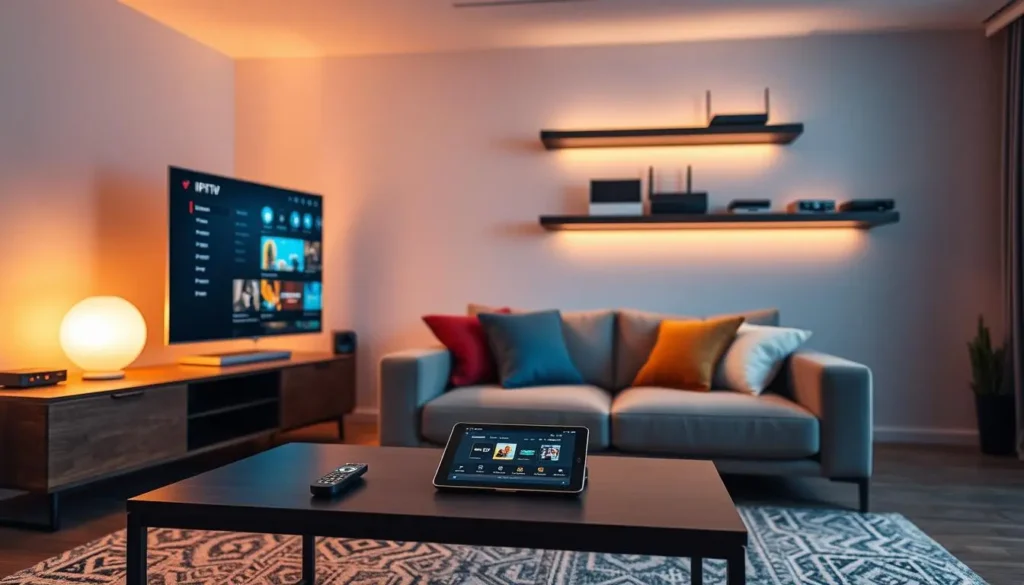
Televisions, boxes and sticks are small computers with modest memory. Every app you open keeps a little of that memory busy, and many of them carry on working in the background long after you have switched to something else. Over days of standby, the device has less and less room for the demanding job of decoding live video, and freezes start to appear.
Give the player room to work
The cure is simple and costs nothing: fewer apps running at once, and a real restart from time to time. If your device lets you see which apps are running, close the ones you are not using before a long evening of viewing.
- Power the device off at the wall once a week.
- Close games and other video apps before you start the player.
- Remove apps you have not opened in months.
- Turn off auto-start for apps that do not need it.
A useful test is to restart the device and open only the player, nothing else. If the freezes vanish for the first part of the evening and return later, memory that fills over time is a strong suspect, and a weekly restart routine will keep it under control. If they appear immediately even after a clean restart, memory is unlikely to be the cause, and the decoder or the hardware’s limits move up the list.
Storage, cache and the slow decline
Storage problems creep up quietly. Each app update, each cached poster image and each day of guide data takes a little space. Sticks in particular ship with limited storage, and once it is nearly full, the whole system slows down. Menus lag, channels take longer to open, and video starts to freeze.
Cache versus data
Clearing the cache removes temporary files such as images and stale guide fragments. Your login and settings stay in place. Clearing the data wipes the app back to its first-day state, including your account, which you would then need to enter again from your access e-mail. Start with the cache. Clear data only if the player still misbehaves and you have your details at hand.
On most Android-based devices, including Android TV boxes, Google TV devices and Fire TV Sticks, you find both options under the system settings, in the list of installed applications. Samsung and LG TVs handle storage differently and often clear app caches during a full power-off, which is another reason to unplug the set occasionally rather than relying on standby. Our device guides to the Firestick and the Android TV box show the menu paths in more detail.
Keep at least a comfortable margin of storage unused. A device running with almost no room to spare will freeze sooner or later, whatever player you choose and however fast your connection is.
Heat and placement
Heat is the most underrated cause of IPTV freezing. When a chip gets too warm, it slows itself down to protect itself, and video decoding is one of the first jobs to suffer. The classic pattern is a picture that plays smoothly at first and starts freezing after a long session, especially in 4K, which works the chip hardest.

Signs that heat is involved
Touch the stick or box after an hour of viewing. If it feels very warm, and the freezes tend to arrive later in the evening rather than at the start, give it more air before changing anything else.
- Use the HDMI extender so the stick hangs clear of the TV.
- Take boxes out of closed cabinets, or leave the door open.
- Keep devices off the top of other warm electronics.
- Do not stack a box on a games console or a receiver.
Smart TVs running a player directly have fewer heat issues, since their electronics are spread out inside the set, but they are not immune. A TV in a tight alcove with no airflow above it can run warm too. If your freezes follow the clock, being rare at the start of the evening and frequent by the end, improving airflow is a costless experiment worth running before anything else.
Ran the checks and still frozen
Send support your device, player, the freezing pattern and the steps you tried. We reply 7 days a week, in English and French.
4K, older hardware and the picture chain
4K asks the most of every link in the chain. The stream carries more data, the decoder works harder, the device runs warmer and the HDMI connection carries a heavier signal to the TV. A device that handles Full HD with ease can reach its limit in 4K, and the result is often freezing rather than buffering.
The weakest link sets the ceiling. An older stick on a 4K TV may decode Full HD perfectly and stumble on 4K. A 4K-capable box connected through an old HDMI cable or a port meant for lower resolutions may drop frames or blank out briefly. For 4K, use an HDMI cable and a TV input rated for it, typically HDMI 2.0 or newer, and check in the TV’s settings that the input is set to its enhanced or full-bandwidth mode if your set offers one.
The fastest test is the one you already know: drop to Full HD. If the freezes stop, the chain cannot carry 4K comfortably on this device. You then have a choice. Keep watching in Full HD, which on many screens is hard to tell apart at normal distance, or upgrade the weak link. Our guide to 4K IPTV explained walks through every link in detail, and the best devices for IPTV hub compares the families that handle 4K best.
The quiet role of Wi-Fi in freezing
Freezing is mostly a device story, but the network can play a supporting role. When Wi-Fi drops for a moment, some players hold the last frame instead of showing a wheel, then jump forward once data returns. On a device that is already working hard, a network dip can also tip the decoder into a stall it would otherwise have avoided.
Steady speed to plan for, per screen
The quickest way to rule the network in or out is a temporary cable. Plug the device into the router with an Ethernet cable, even if it means moving it for an evening, and watch the same channel. If the freezes vanish on the cable, your Wi-Fi is part of the story, and the placement advice in our IPTV buffering guide applies. If they continue on the cable, you can stop worrying about the network and focus fully on the device and player.
If a cable test is impossible, run a speed test on a phone beside the TV during your usual viewing hour. A result comfortably above the figure for your quality makes the network an unlikely culprit. A result that hovers near the line, or one that varies a lot from test to test, deserves attention before you start changing device settings.
Display settings that can mimic a freeze
Some freezes are not in the player at all, but in the handshake between the device and the TV. When the device changes resolution or frame rate to match what is playing, the TV has to resynchronise, and for a moment the screen can go still or black. On some combinations of device and TV, that moment is long enough to feel like a fault.
- Frame rate matching: some devices switch the TV’s refresh rate to match each programme. It gives smoother motion, but each switch causes a short pause.
- Resolution matching: switching between HD and 4K output can cause the same short pause.
- HDR switching: moving between HDR and standard pictures can make the TV blank briefly.
- Picture processing on the TV: heavy motion smoothing can make some content stutter.
- HDMI-CEC control: occasionally the TV and device disagree over inputs and the picture stalls.
If your freezes always last the same short moment and happen right at the start of a programme or on a channel change, try turning frame rate and resolution matching off in the device’s display settings, then test again. If the problem disappears, you can decide whether you prefer the smoother motion of matching with its short pauses, or a steady picture without them. Apple TV owners will find these options under the video and audio settings; our guide to IPTV on Apple TV and iPhone shows where they live.
Device-by-device IPTV freezing fixes
The general method works everywhere, but each device family has its own favourite way of freezing. If you know which family you own, you can jump straight to its most likely cause and save several steps.
| Device family | Most common freezing cause | First fix to try | Second fix |
|---|---|---|---|
| Fire TV Stick | Tight storage and heat behind the TV | Clear the player cache and use the HDMI extender | Remove unused apps, then restart at the wall |
| Android TV or Google TV box | Background apps and a decoder that does not suit some streams | Force-close other apps and switch the decoder | Move the box out of a closed cabinet |
| Samsung or LG smart TV | Long standby periods and an outdated system | Unplug the TV for a short moment, then update the system | Check the HDMI and picture processing settings |
| Apple TV | Frame rate and range matching on each programme | Turn matching off and test the same channel | Reinstall the player from the App Store |
| Phones, tablets and PC | Battery saving that limits background work | Plug in and keep the player in the foreground | Close other heavy apps |
Two families deserve an extra note. On sticks, storage and heat often work together: a nearly full stick wedged behind a warm TV is the most frequent freezing story we hear. Clearing space and giving it air fixes both at once. On smart TVs, people rarely power off the set completely, because standby is so convenient. A TV that has not been unplugged in months can carry stale memory and cached data that a simple power-off clears. If your set runs the player directly, the guide to IPTV on Samsung and LG smart TVs lists the menus where updates and storage live.
Whatever the family, keep a note of what worked. Device families behave consistently, so the fix that solved one freeze on your stick is very likely to solve the next one too.
When the player is the problem
Players are written by different publishers and updated on their own schedules. Occasionally a particular version of a particular player simply does not get along with a particular device. When that happens, no amount of restarting will help, and switching player is the honest fix.
Switching player makes sense when
- A second supported player runs smoothly on the same device
- The freeze began right after a player update
- Decoder and cache changes made no difference
- The same channel plays well on other devices
Switching will not help when
- Every player freezes on this device
- The freezes follow the time of evening, pointing to heat
- Phones freeze too, pointing to the network
- Only one channel freezes, on every device
The players our access works with are IPTV Smarters Pro, TiviMate, Smart IPTV, IBO Player, XCIPTV and GSE Smart IPTV. Install any of them from your device’s official app store and enter your details from the access e-mail. Some ask for a publisher licence after a while; check the current price on the app’s official website. We are independent from app publishers, so licence and version questions belong with the developer. The best IPTV app hub compares the players, and the IBO Player review covers a popular option on smart TVs.
Keeping a second player installed on your main device is a cheap insurance policy. When the first one misbehaves on a busy evening, you can switch in a minute instead of starting a long diagnosis.
A worked example: the box that froze after dinner
Here is the method applied to a typical case. A family has an Android TV box in a closed media cabinet under a 4K TV, connected by cable to the router. Films start smoothly, but around an hour in, the picture begins to freeze for a second or two while the sound keeps going.
- Observation
Name the pattern
Still frame with sound continuing, getting worse later in the evening. Two clues: decoder strain and possibly heat.
- Test one
Second device
A phone on Wi-Fi plays the same channel smoothly for a long stretch. Account and line are cleared.
- Test two
Clean restart
The box is unplugged for a moment and the cache cleared. The first hour is smooth again, but the freezes return later.
- Test three
Feel for heat
The box is very warm to the touch inside the closed cabinet. The cabinet door stays open for the next evening.
- Test four
Watch the clock
With the door open, freezes become rare but still appear in 4K late in the evening.
- Decision
Final adjustment
The box moves to an open shelf and the decoder stays on hardware. The freezes stop, even in 4K.
What made this diagnosis quick was the second-device test at the start and the habit of changing one thing per evening. The family never reinstalled anything and never touched the router. Had the freezes continued with the box in the open, the next step would have been to try software decoding, then a second player, and only after that to consider whether the box itself had reached its limits for 4K.
When a single channel freezes
Sometimes your setup is healthy and one stream is not. The fingerprint is clear: one channel freezes on every device you own, at the same moment, while other channels play perfectly. In that case, no restart or decoder change will help, because the problem is not in your home.
Do not reset everything for one channel: if a single channel freezes everywhere while the rest of the line-up plays smoothly, a factory reset, a new router or a new device will change nothing. Note the channel name, the time and the devices you tested, and send them to support. That information lets the team check the right stream straight away.
A related case is a channel that freezes only at certain moments, such as the start of a big live event. Here, the cause can be a mix of heavy demand and your own network’s evening load. Test the same channel on a cable, at a lower quality. If it steadies, treat it as a network question and follow the buffering guide. If it still freezes on a cable in HD while other channels are smooth, report it.
When you write to support, include whether movies and series are affected or only live channels, since they often come from different sources. That one detail saves a round of questions.
IPTV freezing prevention scorecard
Once you have found the cause, the goal is to keep freezes from coming back. Score your setup: two points if the statement is fully true, one if it is partly true, zero if it is not. The lowest line is where your next freeze is most likely to start.
| Statement | Full marks | Why it prevents freezes |
|---|---|---|
| One stream at a time on my credentials | Everyone at home knows the rule | Clashes cut streams in ways that look like freezes |
| The device gets a real restart weekly | Powered off at the wall, not just standby | Clears memory that builds up over days |
| Storage has a healthy margin | Unused apps removed, cache cleared when menus lag | Full storage slows decoding |
| The device has airflow | Stick on an extender, box out of closed cabinets | Heat makes chips slow themselves down |
| Player and system are current | Updated from the official app store | Updates fix playback bugs |
| The decoder setting is the one that works here | Tested and noted after any player update | The wrong decoder is a common silent cause |
| A second player is installed | Logged in and ready on the main device | Turns a long diagnosis into a quick switch |
- My decoder setting is written down.
- My access e-mail is saved where I can find it.
- My device sits in the open, with space around it.
- I know which quality to fall back on if 4K stalls.
- I have a phone with a supported player for quick comparison tests.
Rescore after any change in your setup: a new device, a player update, a move to a different room or a new piece of furniture around the TV. Freezes often return because the conditions changed, not because something broke.
Freezing vocabulary
A few terms come up again and again in player menus and support replies. Knowing them makes settings easier to find and answers easier to follow.
- Decoder
- The part of the player that turns the compressed stream into pictures, either on the video chip or the main processor.
- Hardware acceleration
- Another name for hardware decoding, where the device’s video chip does the heavy work.
- Cache
- Temporary files a player keeps to load faster. Clearing it is safe and keeps your login.
- Thermal throttling
- A chip slowing itself down when it gets too warm, often causing freezes in long sessions.
- Frame rate matching
- A device setting that switches the TV’s refresh rate to suit each programme, with a short pause at each switch.
- HDMI 2.0
- A version of the HDMI standard commonly used for 4K at high frame rates. Cable and port both matter.
- Force stop
- Closing an app completely from the device’s settings, so it restarts cleanly next time.
Packs, quality and your device
Every pack we sell streams in HD, Full HD and 4K, so you can always drop the quality to test a struggling device or to keep watching while you sort out the hardware. If your main screen relies on an older stick or box, a pack watched mostly in Full HD may serve you better than a 4K-focused one.
VIP Premium Pack
- 27,000+ channels
- 61,000+ series, 155,000+ movies
- HD, Full HD and 4K
Ultimate 4K Pack
- 57,000+ 4K channels
- 47,000+ series, 179,000+ movies
- 20 servers in Europe
The catalogue includes French-language and international content; for any specific language, ask support before ordering. Plans run for 1, 3, 6 or 12 months, paid once in Canadian dollars by card or PayPal, with no automatic renewal. See current prices on the plans page.
Related guides
Freezing often sits next to other questions about devices, players and networks. These pages pick up where this one leaves off.
Describe the freeze, we will narrow it down
Tell us your device, player and when the picture stops. Support answers in English and French, 7 days a week.
FAQ
Why does the sound keep playing when the picture freezes?
Audio needs far less processing than video. When the device or decoder struggles, the picture stops first. Try switching between hardware and software decoding.
Why does IPTV freezing only happen on my TV?
If the same channel plays on your phone, the TV, its player or its link is the cause. Restart it fully, clear the cache, update, and test on a cable.
Can overheating cause freezing?
Yes. A warm chip slows itself down. If freezes appear later in the evening rather than at the start, give the device more air or use the HDMI extender.
Should I use hardware or software decoding?
Start with hardware decoding, which is usually smoothest. If particular channels freeze, try software decoding and keep whichever works on your device.
Will a different player fix freezing?
Sometimes. If another supported player runs smoothly on the same device, switch. Install it from your device’s official app store.
Does freezing mean something is wrong with my subscription?
Not usually. If several channels freeze on one device but not another, the issue is local. If one channel freezes everywhere, report it to support.
Why does 4K freeze when Full HD plays smoothly?
4K works the device and the HDMI link hardest. Check that the cable and TV input are rated for 4K, or keep watching in Full HD on that device.
Will clearing the cache log me out?
No. Clearing the cache removes temporary files only. Clearing the data would remove your login, so keep your access e-mail at hand if you go that far.
Why does the picture pause when a programme starts?
Your device may be switching the TV’s frame rate or resolution to match the content. Turn matching off in the display settings and test again.
What should I tell support about freezing?
Your device, player and decoder setting, which channels freeze, whether movies are affected, when it happens, and the steps you already tried.