IPTV buffering is the most familiar interruption in streaming: the picture stops, a wheel spins, the programme carries on, and a few minutes later the whole thing repeats. It is irritating precisely because it seems random. It is not. Buffering follows a simple rule about how fast data reaches your player compared with how fast the player spends it, and once you see the rule, every fix on this page makes sense. This guide belongs to the ClearPick IPTV troubleshooting section and treats the problem the way we treat any buying decision: measure first, score your setup, then change one thing at a time.
We sell our own IPTV packs, so we have a stake in your picture being steady, but we have no interest in sending you to buy a new router or a faster internet plan if a cable or a setting change will do. The order of this guide reflects that. It starts with the cheapest checks and ends with the ones that cost money, so you can stop the moment the wheel goes away.
What IPTV buffering actually is
A player never shows you video the instant it arrives. It collects a few seconds ahead of what you are watching and keeps them in memory. That reserve is the buffer. While new data comes in at least as fast as the player uses it, the reserve stays topped up and you never notice it exists.
Picture a sink with the tap running and the plug half out. If the tap delivers as much water as drains away, the level holds. If the tap slows down for a moment, the level drops, but the sink still has water. If the tap stays slow, the sink empties, and that is the moment the wheel appears. The player stops, waits until the reserve has refilled enough to be safe, and starts again.
Two consequences follow from this picture. First, buffering is about the slowest moment, not the average. A connection that averages plenty but dips sharply every few minutes will still empty the reserve. Second, the cure is either a stronger tap (more steady speed), a smaller drain (a lower picture quality), or a bigger sink (a larger buffer setting). Every fix in this guide is one of those three.
Is it really buffering
Before you spend an evening on your network, make sure you are fixing the right problem. Buffering, freezing and a failed connection can look alike for a second, but they behave differently once you watch closely.
Buffering
A wheel or a loading figure appears, sound and picture stop together, and playback resumes by itself after a pause.
Freezing
The picture locks on one frame with no wheel, often while sound carries on. That is usually a device issue.
Not playing at all
An error box, a refused login or an empty list. That is an access issue, not a speed issue.
If the second tile matches your screen, our guide to fixing IPTV freezing will serve you better, because its causes sit inside the device and the player. If the third tile matches, start with the IPTV not working checklist, which works through login details, server URL, the end of a term and the connection limit. If the first tile is your story, read on.
One mixed case deserves a mention. On some devices, a severe network dip shows up as a short freeze followed by a wheel. When that happens, treat it as buffering first. Fix the network side, and if the freezes remain once the wheel has gone, move on to the device checks.
Speed per screen: the first IPTV buffering check
Every picture quality has a steady speed it needs to run without draining the reserve. These are the figures to plan around for each screen that is playing.
Steady speed needed per screen
The key word is steady. A speed test captures a few seconds. Your film runs for two hours. What matters is the speed your TV can count on through the quietest and the busiest minutes of the evening, so leave yourself a margin above the figure rather than aiming to scrape past it.
The second key idea is that the figures add up with everything else your household does at the same time. Your line is shared between the TV, the phones on Wi-Fi, a laptop on a video call, a console patching itself and a cloud backup you forgot about. The stream only gets what is left. Each of our packs includes 1 simultaneous connection, so normally only one IPTV stream plays at a time; the other traffic in the home is what usually competes with it. If your household wants several IPTV screens at once, read IPTV on multiple screens and ask support about extra screens before planning your bandwidth.
| What is running in the home | Speed to plan for | Comfort level |
|---|---|---|
| TV in HD, nothing else heavy | 10 Mbps | Easy on most lines, even on fair Wi-Fi |
| TV in Full HD, phones browsing | 15 Mbps plus a margin | Comfortable on a good signal |
| TV in 4K, nothing else heavy | 25 Mbps | Needs a strong link to the TV |
| TV in 4K, laptop streaming Full HD video | 40 Mbps | Demanding: cable recommended |
| TV in Full HD, laptop on an HD video call | 25 Mbps | Manageable on 5 GHz near the router |
| TV in 4K, console update, video call | Well above 40 Mbps | Pause the update during viewing |
Read the last column honestly. If your home regularly sits in the bottom rows, you are asking the line for a lot at once, and the cheapest fix is often to shift the heavy jobs, such as updates and backups, to the night or the morning.
Measuring your speed the right way
Most people measure once, next to the router, in the middle of the afternoon, and conclude that their speed is excellent. Then the wheel appears at nine in the evening in the living room. The measurement was correct; it just answered the wrong question. Here is a method that answers the right one.
- Measure where you watch. Stand or sit beside the TV with a phone on the same Wi-Fi network the TV uses. If the TV is wired, use a laptop on a cable in the same spot.
- Measure when you watch. Run the test at your usual viewing time, not when the house is empty.
- Measure more than once. Repeat on three different evenings, including a weekend one. Keep the lowest result as your planning figure.
- Measure near the router too. A big gap between the router result and the TV result means the signal fades on its way, not that the line is slow.
- Compare with your needs. Set your lowest TV-side figure against the table above, including the other activity in your home.
- Write the numbers down. You will need them again after any change you make, and support will find them useful.
The two-number diagnosis: if the router-side figure is healthy but the TV-side figure is low, your problem is inside the house: Wi-Fi reach, walls, interference or placement. If both figures are low at night but healthy in the morning, the problem is congestion on the line at busy hours. Those two outcomes lead to completely different fixes, which is why the second measurement matters so much.
Some smart TVs and boxes include their own network test in the settings menu. It is worth running as a cross-check, because it measures through the device’s own antenna, which may be weaker than your phone’s. A TV that reports much less than the phone held beside it is telling you that its built-in radio is the weak link, and a cable or an external device may help more than any router change.
Wi-Fi or Ethernet for steady streams
Wi-Fi is the most common hidden cause of buffering in homes with perfectly good internet lines. It is not that Wi-Fi is slow; on a good day it can be very fast. The issue is that it fluctuates with distance, walls, floors, mirrors, fish tanks, neighbouring networks and even a microwave running in the kitchen. Streaming tolerates a modest steady speed far better than a high speed that keeps dipping.
| Criterion | Wi-Fi | Ethernet cable |
|---|---|---|
| Steady through the evening | Varies with distance and interference | Yes, barely affected by the room |
| Comfortable for 4K far from the router | Rarely | Yes |
| Needs any work to set up | No, just a password | Yes, a cable run or a powerline pair |
| Affected by neighbours’ networks | Yes, especially on 2.4 GHz | No |
| Typical buffering cause | Signal dips at busy times | A damaged or loose cable, rarely |

When a cable is worth the effort
If your main TV is in the same room as the router, or one wall away, a cable is the single most effective cure for buffering. Most boxes and smart TVs have an Ethernet port; many sticks accept an official adapter. Our guide to IPTV on an Android TV box explains why a wired box is our usual suggestion for a main 4K screen.
- Plug the cable in before the device starts, so it picks the wired link.
- Turn the device’s Wi-Fi off once the cable works.
- Use a flat cable along a skirting board if drilling is out.
When the router lives two floors away, a cable may be impractical, and that is a perfectly reasonable starting point. The next section covers the Wi-Fi improvements that get you closest to a wired experience without opening walls.
Getting more from Wi-Fi when a cable is impossible
You do not need a technical background to make Wi-Fi steadier. Most of the gains come from placement and from choosing the right band. Work through these ideas in the order shown; the first ones cost nothing.
Pick the right band
5 GHz is faster and less crowded but fades through walls. 2.4 GHz reaches further but is busier and slower. Near the router, choose 5 GHz.
Raise and centre the router
A router on the floor behind a cabinet loses reach. Put it at shelf height, in the open, as central as the line allows.
Move the stick off the TV
A stick pressed against the metal back of a TV hears very little. The HDMI extender in the box moves it into clearer air.
Add a mesh point
A mesh unit near the TV shortens the wireless leg. Many mesh units also have a port for a short cable to the TV.
Try powerline
A powerline pair carries the network through your electrical wiring. Results vary from house to house, so test before you rely on it.
Mind interference
Microwaves, baby monitors and cordless phones can disturb 2.4 GHz. Keep the router away from them.
After each change, rerun the TV-side speed test from the method above and compare it with your notes. Some homes gain a great deal from simply moving the router off the floor. Others need a mesh point because a concrete floor or a foil-backed insulation layer blocks the signal. Your measurements will tell you which kind of home you live in.
A word on the router’s own settings: some routers let you name the 2.4 GHz and 5 GHz bands separately. Giving them different names lets you choose 5 GHz deliberately on the TV, instead of letting the device drift to the slower band when the signal wobbles. Your router maker’s instructions explain how to do this for your model.
Evening IPTV buffering and busy hours
A very common pattern is a picture that runs smoothly all afternoon and starts to buffer once dinner is over. That timing is a clue in itself. Evenings are when everyone at home is online, and when your neighbours are too, so both the inside of your house and the line outside it are under more pressure.
The congestion is on the line, outside your home. You cannot fix it with placement, only by asking less of the line at those hours.
Then: watch in Full HD or HD during the busiest stretchYour own household is competing with the TV. Phones, laptops, consoles and backups all draw from the same Wi-Fi.
Then: schedule updates and backups for the nightEveryone wants the same moment. Live content cannot be watched ahead, so dips show sooner than on films.
Then: start the stream a few minutes early on a cableMore people are home, and more devices stream at the same hour.
Then: test speed on a Saturday evening and plan around that figureIf the evening slowdown is on your line itself and it happens every night, your internet provider’s support is the right contact, since only they can look at the line. Bring your notes: three evening figures and three morning figures beside the router make a much stronger case than a general complaint.
In the meantime, lowering the quality during the busiest window is not a defeat. A steady Full HD picture is a better evening than a 4K picture interrupted every few minutes, and on a typical living-room screen at normal viewing distance, the difference is smaller than people expect.
The player buffer setting
Some players let you choose how many seconds of video they keep in reserve. A larger reserve rides out short dips: the picture keeps going while the connection recovers. The trade-off is a slightly longer wait when you change channel or start a programme, because the player fills more of the reserve before it begins.
Shock absorber, not engine
A bigger buffer smooths the bumps on a road that is mostly good. It cannot turn a road that is too narrow into a wide one. If your steady speed beside the TV sits below what your chosen quality needs, the reserve will still run dry. It will just take a little longer to happen.
In practice, raise the setting one step, watch for an evening, and stop as soon as the picture holds. Going straight to the maximum makes channel changes sluggish and, on devices with little memory, can create problems of its own. Players such as TiviMate and IPTV Smarters Pro place this option among their playback settings; the exact label changes between versions, so look for words like “buffer size”, “buffer length” or “network caching”. Our setup reviews of TiviMate and IPTV Smarters Pro show where the playback menus sit.
Deep dive: why live channels buffer sooner than movies
A film or an episode is a finished file, so the player can fetch it well ahead of where you are watching and build a generous reserve. A live channel is produced as it goes, which means the player can only stay a few seconds behind the broadcast. Its reserve is naturally smaller, so the same network dip that a film shrugs off can drain a live stream. That is why some households notice buffering on live content but never on movies, and why a steadier link helps live viewing most of all.
Check any licence or premium tier of a player on the app’s official website, where the current price is listed. We are independent from app publishers, so changes to a player’s menus or licence terms are theirs to explain.
How to fix IPTV buffering step by step
Here is the full sequence, from the instant and costless to the more involved. Test the same channel after each step so you know which change made the difference, and stop as soon as the wheel is gone.
- Close other streams and heavy jobs. Make sure no other device plays on your credentials, and pause cloud backups, console updates and large file transfers.
- Restart the router and the device. Unplug both, plug the router in first, and wait until its lights are steady before starting the TV or box.
- Test the speed beside the TV. Use the method above and compare with the figure for your quality.
- Drop the quality one level. If the wheel disappears, bandwidth is confirmed. Stay there for now while you improve the link.
- Move to 5 GHz or a cable. Switch the device to the faster band if it is near the router, or connect it with a cable.
- Improve placement. Raise the router, use the stick’s HDMI extender, or add a mesh point near the screen.
- Raise the player buffer one step. Only once the link itself is as good as you can make it.
- Update the player. Install the latest version from your device’s official app store.
- Try a second channel and a second device. If one channel buffers everywhere while others do not, note its name and the time for support.
Most households find their answer by step four or five. If you reach the end with buffering still present on every channel and every device, while your measured speed is comfortably above what the quality needs, the cause may not be bandwidth after all, and it is time to bring support in with your notes.
Send us your speed notes
Tell us your device, the TV-side and router-side figures, and when the wheel appears. We reply 7 days a week in English and French.
Picture quality as your buffering lever
Quality is the one lever you can pull instantly from the sofa, and it has a dramatic effect. Stepping down from 4K to Full HD cuts the need per screen from 25 Mbps to 15 Mbps. Stepping down again to HD brings it to 10 Mbps. No router, cable or setting gives you that much headroom that quickly.
Some players and channels offer an automatic quality option that adapts to your connection. When it exists, it can smooth out a variable link. When it does not, choose a fixed quality that your lowest evening measurement supports comfortably. On a smaller screen, or from across a large room, Full HD often looks so close to 4K that the steadier picture is the better trade.
That does not mean you should give up on 4K. It means 4K deserves a link built for it. If you want the sharpest picture on a large screen, our guide to 4K IPTV explained covers the full picture chain, from the stream to the HDMI cable. The Ultimate 4K Pack is built around 57,000+ 4K channels, with 47,000+ series and 179,000+ movies, delivered from 20 servers in Europe. Test the 25 Mbps figure beside your screen before you choose it.
Devices that make buffering worse
Not every buffering problem lives in the router. Some devices have weaker radios, smaller memory or an awkward position behind the screen, and that changes how much of your connection actually reaches the player.
The usual device factors
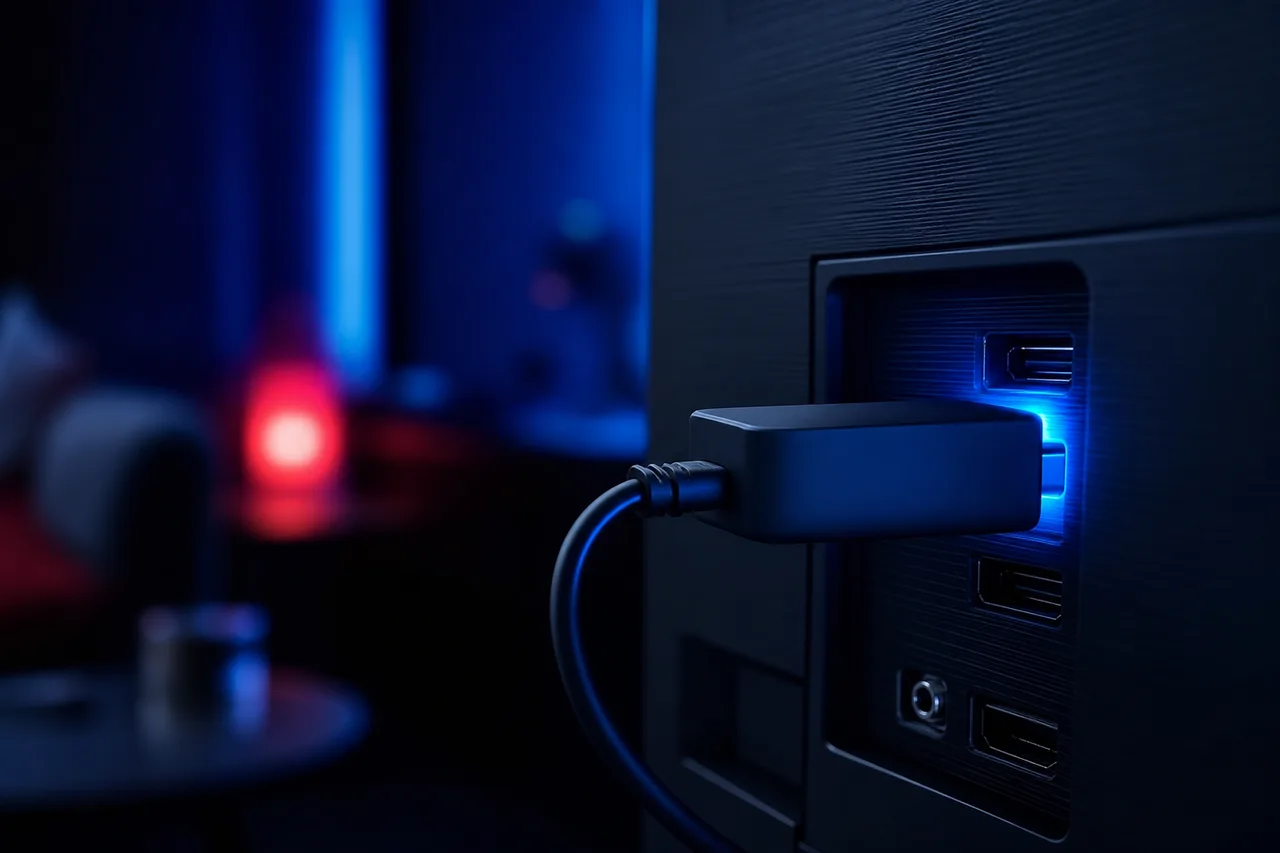
A streaming stick is a clever piece of engineering squeezed into a tiny case. That case leaves little room for an antenna, and it often ends up wedged behind the television, where the signal is weakest. Our IPTV on Firestick guide covers the stick-specific settings in full.
- Older devices may only use the slower 2.4 GHz band.
- Built-in TV radios are often weaker than a phone’s.
- Storage close to full slows everything, including the buffer.
- Eco modes on some TVs cut the network when idle.
A simple comparison tells you whether the device is part of the problem. Run the speed test on your phone beside the TV, then run the device’s own network test if it has one. If the device reports much less than the phone in the same spot, its radio is the bottleneck. A cable, a mesh point with a port near the TV, or a different device with a better radio will help more than any setting.
Smart TVs bring their own quirks. Some Samsung and LG models include power-saving options that slow or pause the network when the set has been idle. Turning those off, and keeping the TV’s system up to date, removes a sneaky source of dips. The guide to IPTV on Samsung and LG smart TVs shows where these settings usually live.
Mistakes that keep the wheel spinning
Buffering invites quick fixes, and some popular ones do more harm than good. Here is how the helpful habits compare with the ones to drop.
Habits that cure buffering
- Measuring beside the TV at viewing time
- Changing one thing, then retesting
- Using a cable wherever one can reach
- Lowering quality during the busiest window
- Scheduling updates and backups for the night
- Raising the buffer one step at a time
Habits that make it worse
- Buying a faster internet plan before testing Wi-Fi
- Setting the buffer to its maximum straight away
- Leaving a stick pressed against the TV’s back
- Running two streams on one connection
- Installing “speed booster” apps
- Judging a fix after ten quiet minutes
Steer clear of shortcuts: forum threads sometimes recommend unofficial player builds or network tools that promise to “unlock” faster streaming. They add delay, raise security risks and often make buffering worse. Keep the official app store version of your player, improve your home network instead, and if buffering persists on every channel and every device despite good measurements, bring your notes to support.
The faster internet plan deserves a special mention because it is the most expensive mistake on the list. If your TV-side speed is far below your router-side speed, the bottleneck is inside your home, and a faster line changes almost nothing at the screen. Measure first. Upgrade only when both figures, at the router and at the TV, fall short at viewing time.
IPTV buffering scorecard
Score your setup line by line: two points if the statement is fully true, one if it is partly true, zero if it is not. The lowest lines are where buffering will start on your next busy evening.
| Statement | What full marks look like |
|---|---|
| My TV-side speed covers my chosen quality at night | The lowest of three evening tests clears the figure with room to spare |
| My TV uses the best available link | A cable, or 5 GHz with a strong signal in the room |
| No other stream runs on my credentials | Everyone at home knows one stream plays at a time |
| Heavy jobs avoid viewing hours | Backups and updates are set for the night or morning |
| My device is placed for reception | Sticks on an extender, boxes in the open, not in a closed cabinet |
| My player is current and its buffer is tuned | Updated from the official store, buffer raised just enough |
| I know my fallback quality | I switch to Full HD or HD during the busiest hour without thinking |
- Speed notes saved from three evenings and one morning.
- Router at shelf height, in the open.
- Stick moved onto its HDMI extender.
- Device Wi-Fi set to 5 GHz near the router.
- Console and computer updates scheduled overnight.
- Player buffer raised by one step and tested for an evening.
Rescore whenever something changes: a new router, a new TV, a moved sofa, a teenager with a new console. Buffering often returns not because something broke but because the home changed around a setup that used to be enough.
Words worth knowing
Network advice is full of jargon. You do not need all of it, but a handful of terms will help you read router menus, follow support’s suggestions and describe your problem precisely.
- Buffer
- The few seconds of video a player keeps in reserve so short dips go unnoticed.
- Bandwidth
- How much data your connection can carry at once, measured in Mbps.
- Bitrate
- How much data a stream uses per second. Higher picture quality means a higher bitrate.
- Congestion
- A slowdown when many users share the same line or network at the same time, typical of evenings.
- Latency
- The delay before data starts arriving. High latency makes channel changes feel slow.
- Jitter
- Variation in how evenly data arrives. High jitter drains the buffer even when average speed looks good.
- Mesh
- A set of Wi-Fi units spread around the home so every room has a nearby access point.
- Powerline
- Adapters that carry the network through your home’s electrical wiring.
When you contact support, using these terms is not required. A plain description such as “the wheel appears every few minutes on the living-room TV, mostly after eight in the evening” is perfectly clear. The glossary simply helps you understand the answers you get back.
A worked example: the Thursday night wheel
Here is how the method plays out in a real-looking home. A couple live in a two-storey house with the router in an upstairs study. The living-room TV downstairs uses a streaming stick on Wi-Fi. Films on weekend afternoons play smoothly, but on weeknights the wheel appears every ten minutes or so, usually during live channels.
- Evening one
Confirm the symptom
A wheel, sound and picture stopping together, then playback resuming by itself. That is buffering, so the network comes first.
- Evening one
Two measurements
Beside the router the phone shows plenty. Beside the TV, at the same moment, it shows barely more than the Full HD figure.
- Evening two
Look for competition
A laptop upstairs runs a cloud backup every evening, and a tablet streams video in the kitchen during dinner.
- Evening two
Quick wins
The backup moves to the night, the stick goes onto its HDMI extender and joins the 5 GHz band. The TV-side figure rises clearly.
- Evening three
Test at the busy hour
Live channels in Full HD now play through the evening. 4K still wobbles during the busiest stretch.
- Following week
Decide on the last step
A mesh point on the living-room shelf brings the TV-side figure above the 4K need with margin. The player buffer stays one step above default.
Notice the order. The couple spent nothing on the first two evenings and fixed most of the problem with a schedule change and a cable that came in the box. Only the last improvement, for steady 4K at the busiest hour, required a purchase, and by then their notes showed exactly why it was needed. Had their router-side figure also dropped at night, the story would have ended differently: a quality step-down at peak hours and a call to their internet provider with the measurements in hand.
Your home will produce different numbers, but the shape of the story is nearly always the same. Measure in two places, remove the competition, improve the link, and only then reach for a buffer setting or a new piece of hardware.
Choosing a pack with buffering in mind
Every pack we sell streams in HD, Full HD and 4K, so you can always step down a level when the line is busy. The choice between them is mainly about the catalogue and your screen, but your connection should have a say too. A household whose evening measurements barely clear Full HD will get more from the Premium Pack or the VIP Premium Pack, watched in Full HD, than from a 4K-focused pack it cannot fully use.
The Premium Pack includes 20,000+ channels, 24,000+ series and 100,000+ movies. The VIP Premium Pack widens that to 27,000+ channels, 61,000+ series and 155,000+ movies. Both cover HD, Full HD and 4K. The catalogue includes French-language and international content; for any specific language, ask support before ordering.
If you are unsure how your connection will cope, a short plan is the honest way to find out. Plans run for 1, 3, 6 or 12 months, paid once in Canadian dollars, with no automatic renewal. The 1-month IPTV subscription lets you test on your own screens at your own busy hours. See current prices on the plans page.
Related guides
Buffering rarely travels alone. These pages cover the problems and decisions that most often come up alongside it.
Want a second opinion on your setup
Share your device, room and speed figures. Support answers by e-mail and WhatsApp, in English and French.
FAQ
Why does IPTV buffering get worse in the evening?
More people are online at home and on your line at that time. Compare an evening speed test with a morning one, both beside the TV, to confirm it.
Will a faster internet plan stop buffering?
Only if the line itself is the bottleneck. If the speed beside the TV is far below the speed beside the router, the problem is Wi-Fi inside your home.
Does a bigger player buffer always help?
It smooths short dips, but it cannot fix a connection that is consistently too slow. Raise it one step at a time and stop when the picture holds.
Why does only one channel buffer?
That points to the stream rather than your network. Note the channel name and the time, and send them to support by e-mail or WhatsApp.
Is a cable really better than Wi-Fi?
For streaming, yes in most homes. A cable is steadier, and steadiness matters more than peak speed for a stream that runs for hours.
Should I use the 2.4 GHz or the 5 GHz band?
Use 5 GHz when the device is reasonably close to the router, since it is faster and less crowded. Keep 2.4 GHz for devices that are far away.
Does watching in HD instead of 4K help?
Yes. HD needs 10 Mbps per screen against 25 Mbps for 4K, so stepping down is the fastest way to confirm and work around a bandwidth limit.
Why do live channels buffer when movies do not?
Movies are finished files that the player can fetch well ahead. Live channels can only be held a few seconds behind, so their reserve is smaller.
Can another device on my account cause buffering?
Yes. Each pack includes 1 simultaneous connection, and a second stream also competes for bandwidth. Close the player on every other device.
What should I send to support about buffering?
Your device and player, your speed figures beside the TV and the router, the times the wheel appears, and the steps you have already tried.