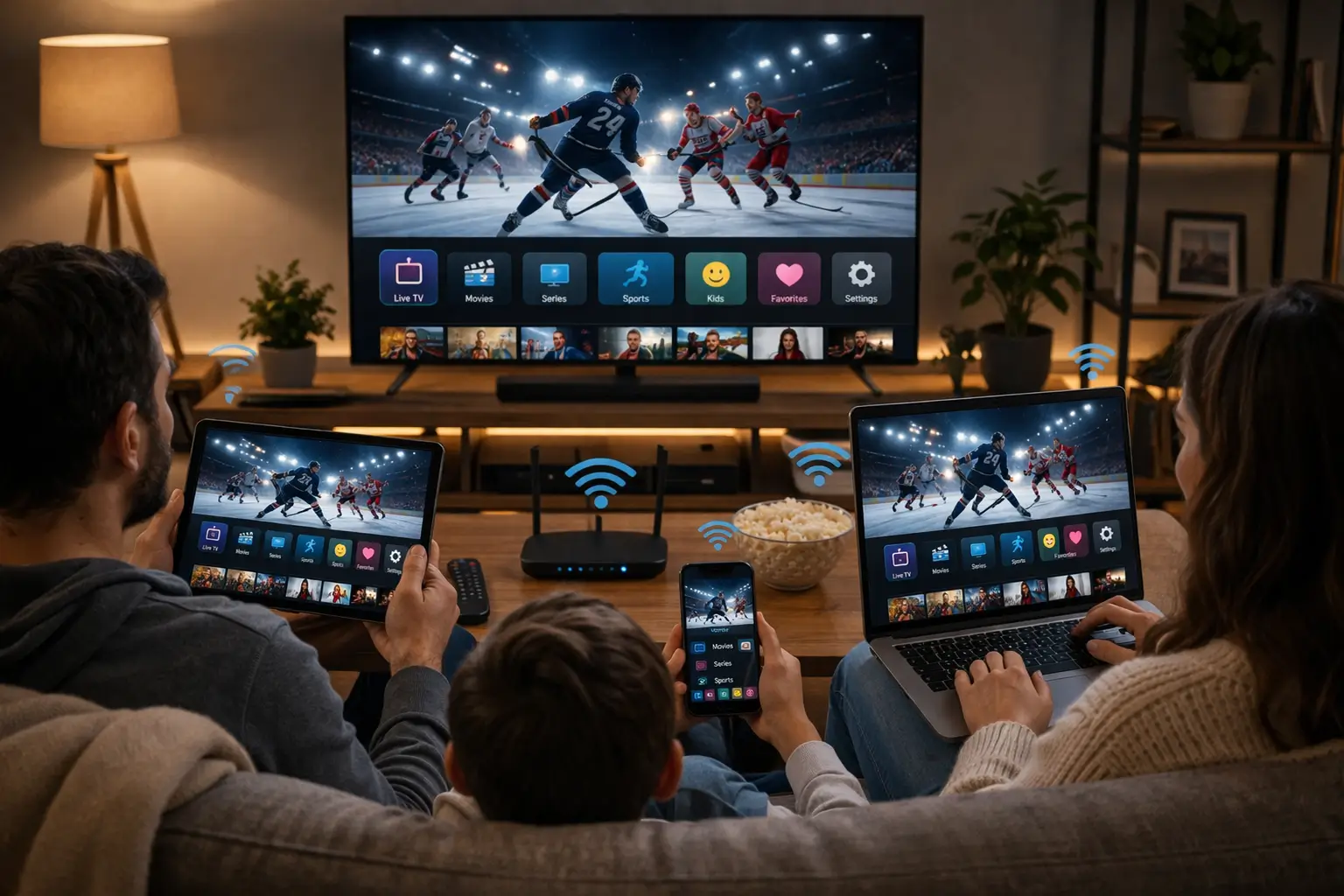
Searching for IPTV multiple screens usually means one of two things. Either you want your subscription available on every device in the house, or you want several people to watch different things at the same moment. Those are two very different needs, and only the first is covered by a standard pack. This guide draws the line plainly, shows you how to set up one account across several devices, helps you work out your household’s real peak, and explains how to ask support for extra simultaneous screens if you need them.
We sell our packs ourselves, so we would rather you understand the connection rule before you order than discover it on a busy evening with two people reaching for the remote. Everything on this page follows our usual buyer’s-guide method: define the criterion, check your own situation against it, then decide. It is part of our setup section, which covers each stage from order to first channel.
Two meanings of IPTV multiple screens
Most confusion about screens comes from treating “installed on” and “playing on” as the same thing. They are not, and the difference decides whether a standard pack fits your home. Read the two columns below and see which one sounds like your household.
Installed on several screens
- Your login sits on the TV, a stick, a tablet and a phone
- Whoever wants to watch picks up the nearest device
- Only one of them plays at a time
- Covered by every standard pack
Playing on several screens at once
- Two or more devices stream at the same moment
- Different people watch different things in different rooms
- Needs extra simultaneous screens
- Arranged with support on request, not built into a pack
If you recognise yourself in the first column, you can stop worrying: install your access everywhere you like and follow the setup section further down. If the second column describes a normal evening in your home, keep reading, because the rest of this guide is about planning for it properly.
Many households sit somewhere in between. They watch on one screen most nights, but once or twice a week someone wants a different programme in another room. For them, the right answer depends on how much those occasional clashes matter, and that is a decision only you can make. We give you the tools to make it below.
What one connection per pack really means
A connection is a live stream in progress. Each pack includes one, which means one device can be playing content at any given moment. It says nothing about how many devices hold your login. Your credentials can be saved on a smart TV, a streaming stick, a tablet and a phone, and all of them will work, as long as only one is playing.
When a second device starts playing while the first is still streaming, the two compete for a single connection. One of them stops, or refuses to start, or shows an error about the account being in use. That is not a fault in the service or the player. It is the limit of the pack doing exactly what it is designed to do.
Think of it like a single key that opens one door at a time. You can keep copies of the key on every hook in the house, but the door only lets one person through at once. If you want two doors open at the same time, you ask for a second one, and that is precisely what the request to support is for.
The rule applies whatever format you use. Xtream Codes details and the M3U link from the same e-mail open the same access, so entering both on different devices does not create a second connection. The same goes for adding the same login twice in one player. The count is made on streams, not on entries.
Installed everywhere vs. playing everywhere
Use this table to check which situations a standard pack covers and which ones need a request to support. It is built from the scenarios households describe to us most often.
| Scenario | Covered by a standard pack | What to do |
|---|---|---|
| Living-room TV, bedroom stick and a phone, used one at a time | Yes | Install the same credentials on each device |
| Switching from the TV to a tablet halfway through the evening | Yes | Stop playback on the TV first, then start on the tablet |
| Watching on your phone while away, with nobody playing at home | Yes | Close the player at home before you leave |
| One person watching while another browses the guide on a second device | Yes | Browsing menus is allowed as long as the second device does not start playback |
| Two people at home watching different things at the same time | No | Ask support for extra simultaneous screens |
| Lending your login to a relative in another home | No | Not permitted, whatever the number of screens |
The fourth row surprises people in a good way. Opening the player and looking at menus or the guide on a second device does not usually count as a stream. The connection is used when video actually plays. That said, some players start a preview automatically when you highlight a channel, which does count. If your player does this, switch the preview off in its settings on secondary devices.
Mapping your household’s real peak
The question that decides everything is not “how many devices do we own?” but “how many screens play at the same moment on our busiest evening?” Those two numbers are often far apart. A home with six devices may never have more than one playing at once, while a home with two TVs may have both on every night.
- After school
Children’s screen
Is a tablet or a bedroom TV playing while the adults are still out or busy?
- Dinner
Background viewing
Does a kitchen screen run the news while someone else watches in the living room?
- Evening
Main viewing
Does everyone watch together, or do people split into separate rooms?
- Late
Second shift
Does one person keep watching in bed while another finishes a film downstairs?
- Weekend
Big events
Do weekend afternoons bring guests, games or a second screen in the basement?
Walk through your week with that timeline in mind and write down, for each slot, how many screens are playing at the same moment. Your peak is the highest number on the list. If it is one, a standard pack fits as it is. If it is two or more on a regular basis, you have a real need for extra simultaneous screens and should plan for it before you order.
A quick peak worksheet
List every person in the home. Next to each name, write the device they use and the moments they usually watch. Circle any moment where two or more names overlap. The number of names in your biggest circle is your peak. Keep this worksheet: it is exactly what support needs if you ask for more screens.
Household scenarios, from solo to full house
Every home is different, but a handful of patterns cover most of the households that write to us. Find the one closest to yours and read the advice that goes with it. None of these scenarios involves a hidden rule: each pack includes one simultaneous connection, and anything beyond that is arranged with support.
One connection matches the way you watch. Install the login on the TV and your phone, and use whichever is closer.
Then: pick your pack on catalogue and qualityMost evenings involve one screen. Occasional clashes can often be solved by taking turns or watching on the main TV.
Then: decide whether occasional clashes matterA tablet playing in a bedroom while the adults watch downstairs is a regular two-screen moment.
Then: count your peak and ask supportInstall the login in both places. As long as nobody plays at home while you watch at the cottage, one connection covers it.
Then: close the player before you leavePeople who live under the same roof form one household, but separate schedules mean frequent overlaps.
Then: count the overlaps honestly before orderingOne big screen for everyone fits a single connection. A second screen in another room does not.
Then: keep the event on one TV, or ask supportThe cottage case deserves a word of caution. It works neatly when the household is in one place at a time. It stops working the moment a family member stays home and starts watching while you are away, because two screens in two places then compete for one connection. Plan for that before the long weekend rather than during it.
How to ask for IPTV multiple screens
Extra simultaneous screens are available on request only. They are not sold as a separate pack on the site, and their conditions are set by support case by case. We do not publish a price, a maximum or a ready-made multi-screen bundle, because the answer depends on your situation. Here is how to prepare your request so support can answer in a single exchange.
- Count your real peak. Use the timeline and worksheet above. The number of screens playing at the same moment on your busiest evening is what matters, not how many devices you own.
- Check your bandwidth. Add up the speed each screen needs at the quality you plan to use, then run a speed test in the rooms where you watch.
- List your devices and players. Note which device and which player each screen will use, for example “living-room TV with IBO Player, bedroom stick with TiviMate”.
- Write to support. Use our contact page, e-mail or WhatsApp. Mention your current pack, or the pack you plan to order, and your peak number of screens.
- Read the conditions and price. Support replies with what applies to your request. Nothing changes on your account until you agree.
- Follow the setup instructions you receive. Then install the details on each device as described further down this page.
Ask before you order if screens matter: if you already know your household needs two screens at once, write to support before choosing a pack. You will know the conditions up front and can order with the full picture, rather than adjusting afterwards.
What to put in your screens request
Support works 7 days a week by e-mail and WhatsApp, in English and French. A complete first message saves a round of questions. This is the information that makes a screens request easy to answer, laid out the way we would like to receive it.
The details support needs for a screens request. Never include your password; the order e-mail address is enough to find your account.
Write the message in English or French, whichever you prefer; both are answered by the same team. If you use WhatsApp, a photo of your filled-in worksheet works just as well as typing everything out.
Two details are often left out and lead to follow-up questions. The first is the quality per screen, because a household planning two 4K screens has different bandwidth needs from one planning a 4K TV and an HD tablet. The second is whether the screens are all at the same address. Extra screens are for one household, so mention clearly that every screen is in your home.
Two screens on a normal evening
Send support your peak, your devices and your pack. You get the conditions and the price before anything changes.
Bandwidth for IPTV multiple screens: speeds add up
Every active screen draws its own stream, and the streams do not share bandwidth politely. The figures per screen are 10 Mbps in HD, 15 Mbps in Full HD and 25 Mbps in 4K, and they stack. If your connection cannot carry the total, the screens start to buffer, usually the one furthest from the router first.
Steady speed per screen
| Screens playing at once | Speeds added | Steady speed to plan for |
|---|---|---|
| Two HD screens | 10 + 10 | 20 Mbps |
| One Full HD and one HD | 15 + 10 | 25 Mbps |
| Two Full HD screens | 15 + 15 | 30 Mbps |
| One 4K and one HD | 25 + 10 | 35 Mbps |
| One 4K and one Full HD | 25 + 15 | 40 Mbps |
| Three Full HD screens | 15 + 15 + 15 | 45 Mbps |
| Two 4K screens | 25 + 25 | 50 Mbps |
Other traffic in the home comes on top of these totals: video calls, game updates, cloud photo backups, someone streaming music in the kitchen. Plan with some headroom rather than to the exact figure. And measure what reaches each room, not the speed printed on your internet plan, because walls, floors and distance all take their share.
If a screen starts to buffer when a second one joins, lower the quality on the smaller screen first. A phone or a kitchen tablet rarely needs Full HD, let alone 4K, and dropping it to HD often releases enough bandwidth for the main TV to stay sharp. Our buffering guide covers the rest of the network checks.
Quality per screen: matching resolution to the room
Not every screen in the house deserves the same picture. A 4K stream on a phone held at arm’s length looks no better than Full HD, yet it uses far more bandwidth. When several screens share one connection to the internet, choosing the right quality for each room is the cheapest upgrade you can make. Most players let you pick a quality per channel or per profile, and some channel lists offer the same channel in several qualities.
Main living-room TV
Large screen, viewed from the sofa. The one place where 4K earns its 25 Mbps, provided the TV and device support it.
Bedroom or basement TV
Mid-size screen, often on Wi-Fi. Full HD at 15 Mbps is usually the sweet spot.
Kitchen tablet
Small screen, background viewing. HD at 10 Mbps is plenty and leaves room for the others.
Phone on the go
Mobile data or a weaker signal. HD keeps playback steady and spares your data allowance.
Run the arithmetic for your own home with these choices. A 4K living room, a Full HD bedroom and an HD tablet add up to 50 Mbps if all three play at once. Drop the bedroom to HD and the total falls to 45 Mbps. Those small adjustments often decide whether a request for extra screens works smoothly on your existing internet plan or calls for a better router placement first.
If you are considering the Ultimate 4K Pack for a multi-screen home, check the 4K chain on the main screen before anything else: a 4K TV, a device that outputs 4K, a cable or strong 5 GHz signal, and the bandwidth left over for everyone else. Our 4K IPTV explainer walks through each link in that chain.
Wi-Fi, mesh and cables in a multi-room home
Bandwidth is only half the story. Two screens on a fast plan can still struggle if the Wi-Fi signal in the bedroom is weak. Multi-room viewing puts the spotlight on the parts of your network you never think about when only one TV is in use.

Give the main screen a cable
If one screen plays 4K, run an Ethernet cable to it if you possibly can. A wired screen takes its share of bandwidth without competing for airtime, which leaves the Wi-Fi to the others.
For the remaining screens, the 5 GHz band is faster and less crowded than 2.4 GHz, though it carries less far through walls. A mesh system or a well-placed access point helps when a second screen sits at the far end of the house or in a basement.
Test in each room
Run a speed test on the device itself, or on a phone held next to it, in every room where a screen will play.
Router in the middle
A router tucked in a cupboard at one end of the house starves the far rooms. Move it towards the centre if you can.
Cable the heaviest screen
The 4K TV gains most from Ethernet. It also leaves more airtime for the screens that must stay on Wi-Fi.
Test at peak time
A test at noon tells you little about the evening. Measure when the household and the neighbourhood are busiest.
Setting up the same account on each device
The setup is identical on every device. Once it works on one, repeating it elsewhere takes minutes. The table below maps our supported device families to the players commonly found in their official stores; availability can vary by store and over time, so check yours.
| Device | Players to look for | Our guide |
|---|---|---|
| Samsung or LG smart TV | IBO Player, Smart IPTV | IPTV on Samsung and LG smart TVs |
| Android TV or Google TV box | TiviMate, IPTV Smarters Pro, XCIPTV | IPTV on an Android TV box |
| Fire TV Stick | TiviMate, IPTV Smarters Pro, XCIPTV | IPTV on Firestick |
| Apple TV, iPhone, iPad | GSE Smart IPTV and other App Store players | IPTV on Apple TV and iPhone |
| Android phone, tablet or PC | IPTV Smarters Pro, GSE Smart IPTV, XCIPTV | Best IPTV apps |
- Install the player from each device’s official app store, and check any licence price on the app’s official website.
- Use the same login format on every device where possible, for example Xtream Codes everywhere.
- Keep the M3U link as a fallback for players that accept only a playlist.
- Give each profile a clear name, such as “Living room” or “Kids’ tablet”.
- Set each device’s clock and time zone so the programme guide lines up everywhere.
- Store your access e-mail in one safe place so every setup uses the same details.
A good order of work when you set up several devices in one go: start with the main TV, get it playing and the guide lined up, then move on to the secondary screens one by one. Test each new device by playing a channel while every other device is stopped. If something goes wrong on the third device, you will know the first two were working before you started and can focus on the newcomer alone.
We are independent from app publishers, so any player licence is between you and the app’s developer. A player licence does not change how many screens your subscription allows. That is set only by your pack and by any extra screens arranged with support.
Switching screens cleanly
With one connection, the hand-off between devices is where most clashes happen. Someone starts a film in the bedroom while the living-room TV is still paused on a channel, and one of the two stops. A clean switch takes a few seconds and removes almost all of those moments.
- Stop playback on the first device. Press stop or back until you leave the channel, rather than leaving it paused.
- Close the player if it keeps playing in the background. Some players hold the stream open for a short while after you leave the screen.
- Start on the second device. Open the player and choose your channel or title.
- If you get an “in use” error, wait a moment. The first stream may still be closing. Try again rather than reinstalling anything.
Deep dive: why a paused or hidden player still counts
A stream is a continuous request for video. Pausing a live channel on many players keeps that request open so you can resume instantly, which means the connection is still in use. Pressing the home button on a TV or a stick often leaves the player running behind the home screen, again with the stream open. Picture-in-picture modes on phones and tablets do the same. The only reliable way to release the connection is to stop playback, or to close the player completely from the device’s app settings.
A useful house rule in one-connection homes is “the main TV has priority”. Whoever wants to watch on a secondary device checks first that the living-room screen is off. It sounds simple, and it is, but it removes most of the evening interruptions without any technical change at all.
If clashes keep happening even with clean switches, check whether a device you forgot about is still playing: a tablet left on the charger with a channel open, a phone in a bag with picture-in-picture running, a bedroom TV that went to standby with the player active. Our IPTV not working checklist covers the “account in use” family of errors in more detail.
Naming and tracking your devices
A household with five devices and one login benefits from a little organisation. When something goes wrong, knowing which device is which, and what each one runs, turns a vague complaint into a quick fix.
A simple device list
Keep a short list with the access e-mail: device, room, player, login format and usual quality. It takes five minutes to write and saves you every time you renew, change a setting or write to support.
- Living-room TV: player, Xtream Codes, 4K
- Bedroom stick: player, Xtream Codes, Full HD
- Kitchen tablet: player, M3U link, HD
- Your phone: player, Xtream Codes, HD
The list pays off most at renewal time. Nothing renews automatically on our packs, so if you order again you will update the details on each device. With a list in hand, you will not forget the bedroom stick and spend the next weekend wondering why it shows an error.
A worked example: a family of four in Laval
Here is a scenario we use to show how the planning steps fit together. Picture two adults and two teenagers in Laval. They own a living-room TV with an Android TV box, a bedroom TV, two phones and a tablet. Before ordering, one parent fills in the peak worksheet from earlier on this page.
Most evenings, the family watches together on the living-room TV. Two or three nights a week, one teenager watches on the tablet upstairs while the others watch downstairs. On weekend afternoons, the other teenager sometimes watches on a phone while a parent watches a film on the bedroom TV. The peak, then, is two screens at once, a few times a week, never three.
The family’s notes before writing to support
Peak: two screens at once, a few evenings a week. Screens: living-room TV in 4K on a cable, tablet upstairs in HD on 5 GHz Wi-Fi. Speed measured upstairs at peak time: comfortably above the total. Planned pack: Ultimate 4K. Everyone lives at the same address.
With those notes, the parent writes one message to support through the contact page and receives the conditions and price for a second simultaneous screen. The family can then decide calmly: accept the extra screen, or keep one connection and agree on simple house rules for the evenings that clash. Either choice is reasonable. What matters is that it is made before the first busy evening, with the facts in hand.
- Peak counted on real evenings, not guessed
- Quality chosen per screen, with the total checked
- Upstairs speed measured at peak time
- Question sent to support before ordering
- Device list kept with the access e-mail
One household only
Your credentials belong to the people you live with. That rule is not about screens; it applies even if you would only ever watch one at a time. Sharing a login with friends or relatives in another home is not allowed, even if you take turns.
Do not share outside your home: passing your login to someone in another household breaks our terms, and in practice it creates exactly the clashes described on this page, because both homes compete for one connection. If someone outside your home wants access, they need their own pack.
Install it on every screen you own, watch on one at a time, and keep it under your own roof. That is the whole rule.
What counts as a household is simple in practice: the people who live at your address. A student living away for the term, a parent in a separate home or a friend down the street are each outside it, however close you are. If they want to watch, the right route is their own pack, chosen for their own devices and habits.
The household rule also protects you. A login spread across several homes is a login you no longer control. When something stops working, you cannot tell whether the fault is yours or whether someone across town has just pressed play.
Common IPTV multiple screens mistakes
Most of the trouble around screens comes from a handful of avoidable mistakes. We see them often enough to list them, along with the fix for each.
Counting devices, not streams
Owning five devices says nothing about your peak. Count the screens that play at the same moment.
Adding the login twice
A second entry for the same access in a player does not add a connection. It only adds confusion.
Leaving a player paused
A paused live channel usually keeps the stream open. Stop playback before switching devices.
Ignoring the total speed
Two 4K screens need both figures combined, plus headroom for the rest of the house.
Asking after ordering
If two screens matter, ask support before you choose. You will order with the full picture.
Lending to another home
Not allowed, and it brings nothing but clashes. Each household needs its own pack.
Choosing a pack when screens matter
The number of simultaneous screens does not depend on which pack you pick. Every pack includes one connection, and extra screens are always handled by support on request. Choose the pack for its catalogue and picture quality, then sort out screens separately.
VIP Premium Pack
- 27,000+ channels
- 61,000+ series
- 155,000+ movies
- HD, Full HD and 4K
Ultimate 4K Pack
- 57,000+ 4K channels
- 47,000+ series
- 179,000+ movies
- 20 servers in Europe
If 4K is the reason you are planning extra screens, look closely at bandwidth first: each 4K screen needs 25 Mbps on its own, before anything else in the house. The catalogue includes French-language and international content; for a specific language, ask support before ordering. Durations are 1, 3, 6 or 12 months, paid once in Canadian dollars by card or PayPal, with no automatic renewal. See current prices on the plans page, or line the packs up in our plan comparison.
Pack first, screens second
Pick the catalogue that suits your household, then ask support if you need more than one screen at a time.
Screen words worth knowing
A short glossary of the terms used on this page and in support replies about screens.
- Connection
- A stream in progress. Each pack includes one simultaneous connection.
- Simultaneous screens
- Several devices playing at the same moment. Beyond one, arranged with support on request.
- Credentials
- Your Xtream Codes details or M3U link, from your access e-mail.
- Peak
- The highest number of screens playing at the same moment on your busiest evening.
- Household
- The people who live under your roof. Credentials stay within it.
- Profile
- A named entry in a player, such as “Living room”, holding your login on that device.
- Headroom
- Spare bandwidth above your screens’ total, for the rest of the home’s traffic.
Related guides
These pages cover the steps around a multi-device setup, from the login itself to the network that carries it.
FAQ
How many devices can I install my subscription on?
You can install the same credentials on several of your own devices. Only one of them should play at a time, because each pack includes one simultaneous connection.
Can two people in my home watch at the same time?
Not with a standard pack. Ask support for extra simultaneous screens; they will give you the conditions and the price.
Is there a pack with several screens built in?
No. Every pack includes one connection. Extra screens are arranged with support on request.
What happens if two devices play at once?
The two streams compete for one connection, and one of them stops or refuses to start. Stop playback on the first device and try again.
Does watching on several screens need a faster connection?
Yes. Speeds add up: 10 Mbps per HD screen, 15 Mbps per Full HD screen and 25 Mbps per 4K screen, plus the rest of the home’s traffic.
Can I share my login with family in another city?
No. Credentials are for one household. Family members elsewhere need their own pack.
Does browsing the guide on a second device use the connection?
Browsing menus usually does not, but playback does. Some players start a preview when you highlight a channel; switch that off on secondary devices.
Can I use my login at the cottage?
Yes, as long as nobody is playing at home at the same time. Close the player at home before you leave.
Should I ask about extra screens before or after ordering?
Before, if you already know you need them. You will have the conditions and price in hand when you choose your pack.
Does the Ultimate 4K Pack include more screens than the others?
No. All three packs include one simultaneous connection. The packs differ by catalogue and picture options, not by the number of screens.
What should I send support when asking for extra screens?
Your current or planned pack, your peak number of screens at once, the device and player for each screen, the quality you plan to use and the e-mail address you ordered with.
Will a different player give me more screens?
No. The number of simultaneous screens is set by your pack and any extra screens arranged with support, never by the player.