IPTV Smarters Pro is often the first player people install, and it earns that place by being easy to understand. You sign in, you see large tiles for live TV, movies and series, and you are watching shortly afterwards. This review looks at what it does well, where it falls short, how to set it up on each kind of device, which settings to change, how to fix the usual problems and who it suits best. The verdict is built on criteria you can check yourself, and we point out the weak spots as plainly as the good ones.
Where we stand: ClearPick IPTV sells three packs of its own, and they work with this player through Xtream Codes or an M3U link e-mailed within minutes. We are independent from the player’s publisher, we do not sell any of its paid features and we earn nothing from it. Our best IPTV apps hub compares it with the other players we support using the same six criteria.
Why IPTV Smarters Pro is so often the first player
Most people meet IPTV Smarters Pro because it is the player that appears on the most devices they own. A home with an Android phone, an iPad, a Fire TV Stick and a laptop can usually find a version on each one, and seeing roughly the same menus everywhere removes a lot of explaining. That reach is its defining feature, more than any single option inside the app.
Wide reach
Versions for Android, Fire TV, Apple devices, some Samsung and LG TVs, and PC.
Easy sign-in
An Xtream Codes login brings in channels, guide, movies and series together.
Family-friendly
Large tiles, parental controls and a search bar that works across the catalogue.
Library-minded
Covers, summaries and resume points make series and movies easy to browse.
It is worth repeating the basic point: IPTV Smarters Pro is a player, not a service. It contains no channels, movies or series of its own. You add a subscription and the player displays it. If a page offers the app “with channels included”, it is mixing two separate products, and that is a reason for caution rather than a bargain. On legality, the technology is legal; whether a service is legal depends on the broadcasting rights it holds, so check before subscribing.
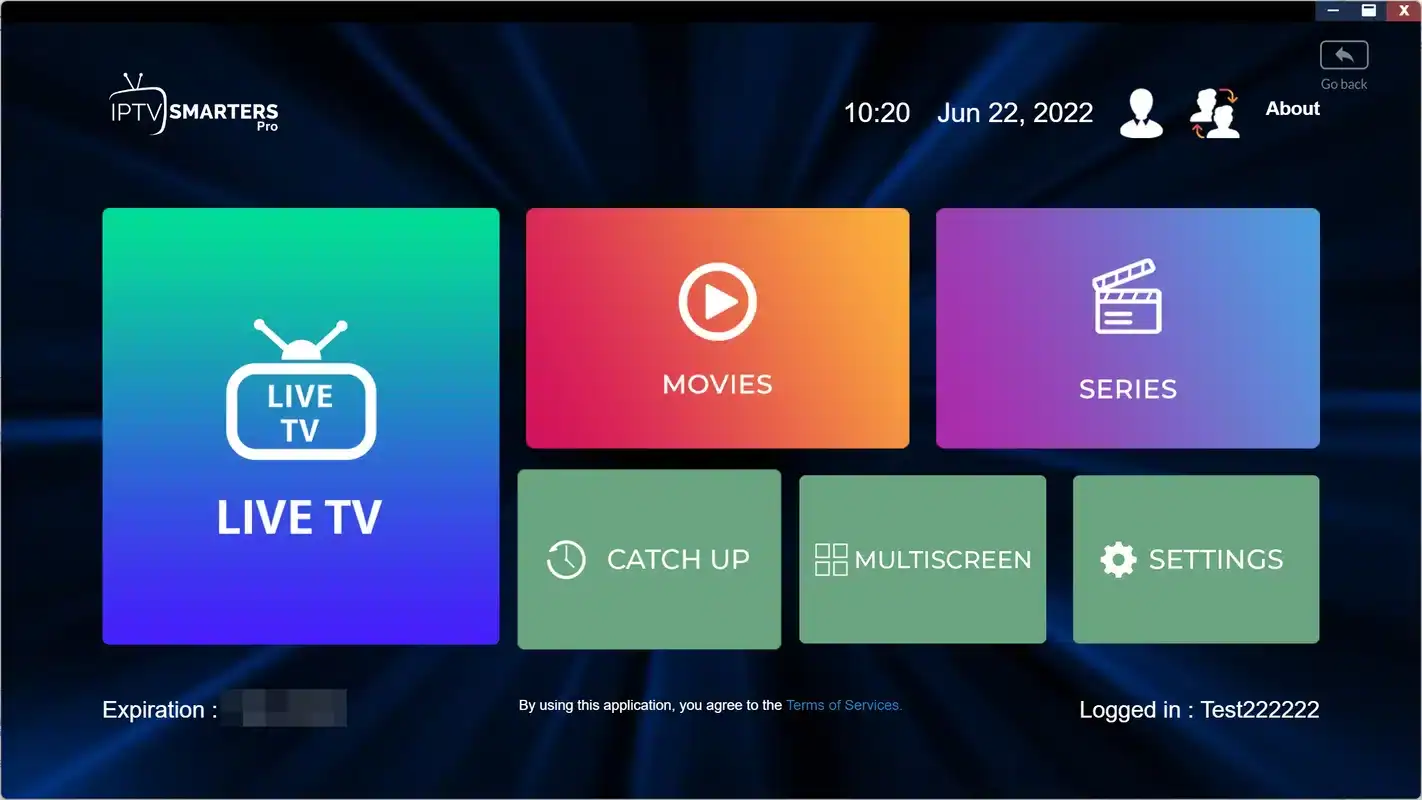
A tour of the IPTV Smarters Pro home screen
After sign-in, the home screen is built around a few large tiles. That simplicity is the reason beginners settle in quickly: there is no wall of menus, just a choice between watching live channels, browsing films or picking up a series. Account details and settings sit in smaller buttons around the edge.
The exact layout changes slightly between platforms and versions, but the main tiles stay recognizable.
Inside Live TV, channel groups sit in a list on one side and channels on the other, with a small preview of the current channel. Movies and series open into grids of covers sorted by category. The search bar, usually at the top of each section, looks across the whole catalogue rather than one group, which matters a great deal once your library runs to tens of thousands of titles. Spend five minutes on this tour during your first evening; knowing where things live is half of what makes a player feel fast.
Where IPTV Smarters Pro runs
Reach is the main reason to choose this player, but “available on many platforms” does not mean “identical on every platform”. The table below shows the device families where a version usually exists and what tends to differ. Store listings change by region and model, so search your own device’s official store before relying on it.
| Device family | Usually listed | What to expect |
|---|---|---|
| Android phones and tablets | Yes | Touch-friendly, quick to set up, good as a second screen |
| Android TV and Google TV boxes | Yes | Smooth on capable hardware; remote navigation |
| Fire TV Stick | Yes | Works well; keep storage clear on smaller sticks |
| iPhone, iPad and Apple TV | Yes | Look for the version your Apple store lists; features may differ |
| Samsung and LG smart TVs | Some models | Check your TV’s store; menus can feel heavier on older sets |
| PC | Yes | Handy for checking a login away from the TV |
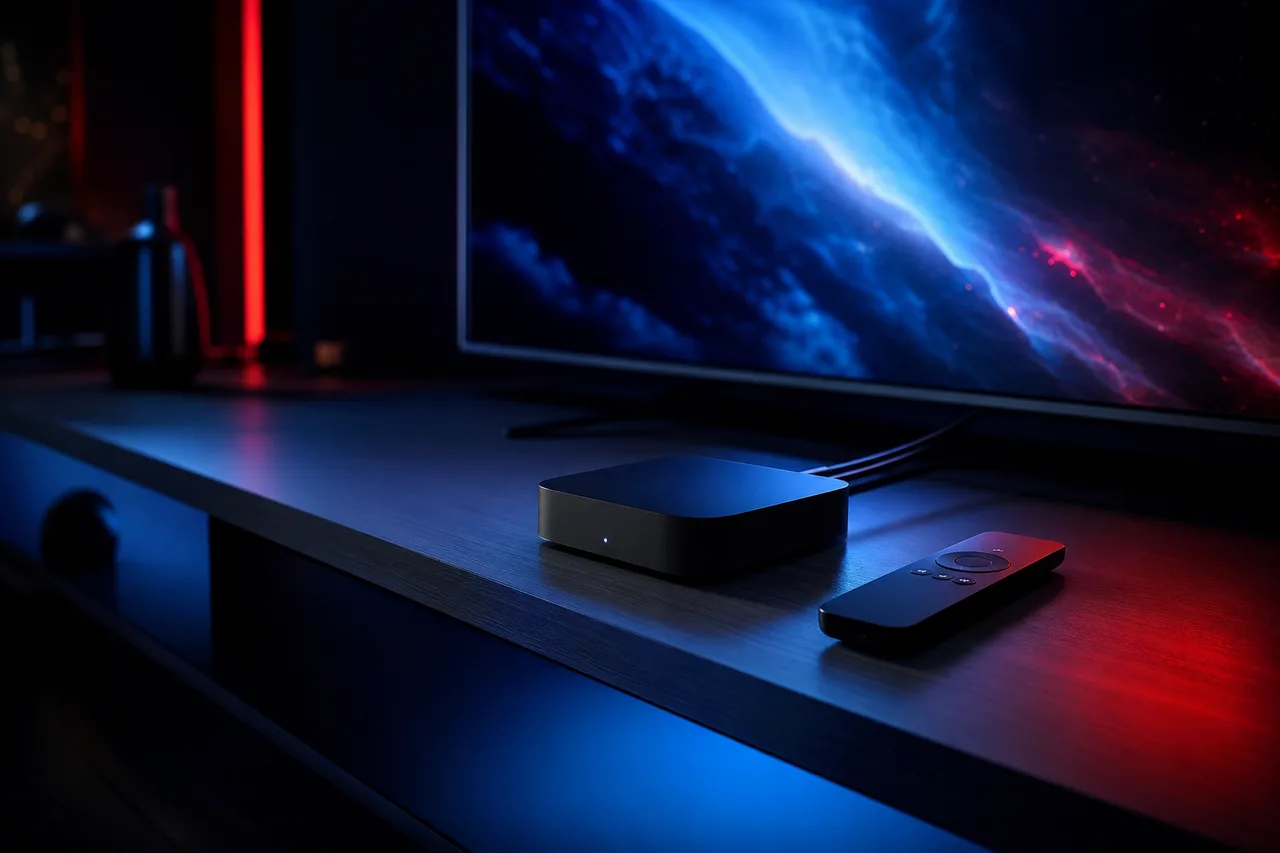
One app, several screens
The real comfort of this player is moving between devices without relearning menus. A parent who sets it up on the living room box can help a teenager on a phone, because the tiles and settings sit in similar places.
Some versions appear under slightly different names in different stores, and paid features differ by platform. If you are on Apple devices, our guide to IPTV on Apple TV and iPhone covers the device side, including how AirPlay fits in.
What IPTV Smarters Pro does well
Beyond its reach, the player does several everyday things cleanly. None of them is spectacular on its own; together, they make it the app we most often suggest to people who say “I just want it to work”.
The Xtream Codes login. You enter a server URL, a username and a password, and the player pulls in channels, the programme guide, series and movies with covers and descriptions. There is no playlist file to manage and no separate guide address to find. For a first-time IPTV user, that single step is a relief.
Profiles. The app can store more than one login, each with its own name. That is useful if you keep a second subscription for a cottage or if you want to test a new access without deleting the old one. Profiles are not extra screens, though; we come back to that below.
Parental controls and search. Categories can be locked behind a code, which is reassuring on a family tablet. The search bar finds a title across the whole catalogue in a few letters, which matters more than any menu once a library is large.
The library. Movies show a cover and a short summary; series open into seasons and episodes, and the player remembers where you stopped on that device. For homes that watch more series than live TV, this is where IPTV Smarters Pro feels strongest.
IPTV Smarters Pro rarely wows anyone on the first evening. It wins by still being easy to use on the hundredth.
Where IPTV Smarters Pro falls short
No player is perfect, and it is better to know the trade-offs before you build your evenings around one. These limits do not stop you from watching, but they decide whether this should be your only player or one of two.
Good fit if you
- Watch on a mix of phones, sticks, boxes and Apple devices
- Spend more time on series and movies than on live zapping
- Want simple controls for children or older relatives
- Prefer a login that brings everything in at once
Think twice if you
- Live in the programme guide and switch channels constantly
- Want advanced recording and catch-up management
- Use an older smart TV where long lists scroll slowly
- Expect every feature to sit in the same place on every device
The guide is functional but less detailed than in specialist players: you can see what is on and what comes next, but browsing hours ahead across many channels is slower than in a grid-first app. The interface varies a little between platforms, so a feature you used on a phone may sit somewhere else on a TV, or be missing. Recording is not a strength. Large catalogues can take a while to load on modest devices, and on older smart TVs, scrolling through long channel lists can feel heavy. If live TV is the heart of your evenings, read our TiviMate review before deciding.
None of these limits is unusual for an all-round player. An app designed to look familiar on a phone, a stick and a television has to make compromises somewhere, and IPTV Smarters Pro chooses simplicity over depth. Knowing that in advance turns the limits into a planning question rather than a disappointment: you either accept the simpler guide, or you add a second player where live TV matters most.
IPTV Smarters Pro on sticks, boxes and phones
The same player behaves a little differently depending on the hardware underneath it. A few device-specific habits make a noticeable difference, and they are easy to miss if you only ever use the app on one screen.
Storage is limited. Keep only the players you use, hide unused categories and restart the stick from the power plug now and then.
Then: read our Firestick guidePlug in a network cable if the router is close. Boxes with a cable are where this player feels quickest.
Then: set the hardware decoderChoose the mobile layout, use it as a second screen and remember to close it before someone starts the TV.
Then: keep the e-mail on this device for copyingExpect slower scrolling through long lists. Keep favourites short and hide everything you skip.
Then: compare with a box if it dragsThe common thread is that this player is only as quick as the device it runs on. On a capable box with a cable, it is brisk; on an entry-level stick on weak Wi-Fi, even the best settings will not make it feel instant. Before blaming the app, check the device and the network. Our hub on the best devices for IPTV compares hardware if you are thinking of an upgrade, and our page on IPTV on Firestick covers the stick in detail.
Our IPTV Smarters Pro scorecard
Here is how we rate the player on the criteria we use for every app, with two extra lines that matter for mixed households. The scores are our editorial opinion from ordinary evening use, not user ratings.
| Criterion | Our view | Note |
|---|---|---|
| Ease of setup | Very good | Clear login screen and a guided first launch |
| Device coverage | Very good | Phones, tablets, boxes, sticks, Apple devices, some TVs, PC |
| Programme guide | Fair | Readable but basic next to guide-first players |
| Live TV switching | Good | Quick on boxes, slower on older TVs |
| Movies and series | Good | Covers, summaries, seasons and resume points |
| Customization | Fair | Favourites and hidden categories, few layout options |
| Consistency across devices | Good | Similar menus, with some platform differences |
| Licence clarity | Check | Paid features differ by platform; see the official website |
The scorecard tells a consistent story: excellent at getting people started, solid for the library, average for guide lovers. That is exactly why we often suggest it as the “house” player in a mixed home, paired with a guide-first player on the one TV where live channels matter most.
Setting up IPTV Smarters Pro, from preparation to first channel
What to have ready before you sign in
A smooth first login depends on preparation more than on the app. Gather these few things before you open the player, and the setup becomes a matter of copying rather than guessing.
- Your access e-mail, open on a phone, with the server URL, username and password.
- The device connected to your router by cable, or close to it on 5 GHz Wi-Fi.
- The device’s own software updated, so the store offers the current version of the player.
- A short name for the profile, such as the room or the person who uses it.
- Every other device closed or stopped, since each pack includes 1 simultaneous connection.
Copy, do not type
Most failed first logins come down to a single character: a lower-case L read as a capital I, a space after the password, or a server URL missing the part after the colon. On a phone or tablet, copy each detail from the e-mail and paste it. On a TV, type slowly and compare each field with the e-mail before confirming. It feels fussy, and it saves the most common support question we receive.
The setup routine, step by step
Install the player only from your device’s official app store. If it is not listed on your device or in your region, choose another supported player rather than installing it from elsewhere; a legitimate setup never needs a file or a link sent by someone else.
- Install the app. Search for IPTV Smarters Pro in your official app store and install it.
- Accept the basics. Open it and choose a layout if the app asks for one; the TV layout suits remotes, the mobile layout suits touch.
- Pick the login type. Choose the option to log in with Xtream Codes API for the smoothest experience.
- Fill in your details. Give the profile a name, then enter the username, password and server URL from your access e-mail.
- Let the lists load. Channels, movies and series load on the first sign-in; on a large catalogue, give it a little time.
- Load the guide. Open Live TV, then use the guide option to refresh the programme listings.
- Play three tests. Try an HD channel, a 4K channel and a movie to check that your line keeps up.
The login form. Field order can vary by version; the content of each field never does.
If you only have an M3U link, the player usually offers a playlist option as well, though the guide may need an extra step. Our guides to setting up IPTV with Xtream Codes and setting up IPTV with an M3U link explain both routes field by field.
Once the first sign-in works, resist the urge to judge speed straight away. The first launch is the slowest one, because the player is reading the full catalogue and the guide for the first time. Watch normally for a couple of evenings, tidy the categories, and only then decide whether the device and the player suit each other.
Profiles, devices and the single connection
Profiles are one of the most misunderstood parts of IPTV Smarters Pro. A profile is a saved login inside the app. It is not an extra screen, and adding three profiles with the same details does not let three people watch at once. Understanding how profiles, devices and connections fit together prevents most “it worked yesterday” moments.
You can install the player on a phone, a tablet and a TV box and sign in on each with the same credentials. That is allowed and practical. What you cannot do is play on two of them at the same moment, because each of our packs includes 1 simultaneous connection. The habit that avoids trouble is simple: stop playback and close the app on one device before starting on another. If your household regularly needs two screens at once, contact our support for the conditions and price, and read our guide to IPTV on multiple screens.
IPTV Smarters Pro settings worth checking
Most people never open the settings, and that is a shame. Ten minutes here makes daily use smoother for months. The names and positions vary a little between platforms, but each of these options exists in most versions.
| Setting | What to choose | Why it helps |
|---|---|---|
| Player or decoder | Hardware decoder first | Smoother playback on most devices; try the other option for a stubborn channel |
| Buffer size | Medium | Absorbs brief dips without slowing every channel change |
| Time format and time zone | Your province | The guide shows the right hours in every Canadian time zone |
| Hidden categories | Hide what you never open | Shorter lists and faster loading |
| Favourites | Your regular channels | One-press access from Live TV |
| Parental controls | On, with an adults-only code | Locks chosen categories on shared devices |
| Guide refresh | Once a day | Fresh listings without slowing every launch |
Tip: if a channel stutters, switch the decoder option before changing anything else. Clear the app’s cache only when listings stop updating, not as a routine; clearing it forces a full reload of everything.
Stuck on a setting or a login
Tell us your device and what the screen shows. We answer 7 days a week in English and French.
Paid features and the publisher’s terms
IPTV Smarters Pro is made by an independent publisher, and its commercial terms are set by that publisher alone. Paid features and the way they are sold differ from one platform to another, and they change over time. We do not sell them, we earn nothing from them and they are never part of an IPTV subscription. Check the current price on the app’s official website before paying for anything.
A careful buyer’s routine
Install the version your official store lists and use it for several evenings with your access before buying any extra. Read the terms on the publisher’s official website, including whether a purchase covers one device or several. Pay only inside the official store or on the official website. If anyone offers you a “full version”, an “unlocked” copy or a licence by message, close the conversation; that is not the publisher, and installing it would put your device at risk.
The point of this routine is not suspicion of the app; it is making sure you pay for a feature you will actually use. Many households find that the standard version covers everything they need for live TV, movies and series. Others value a specific extra on one platform. Either choice is reasonable once you have seen the player working on your own screen.
Getting the most from movies and series
This is where the player shines. Each title has a cover, a short summary and, for series, a tidy list of seasons and episodes. The app remembers where you stopped on that device, so you can pause during dinner and pick up later on the same screen. A few habits make a large library much easier to live with.
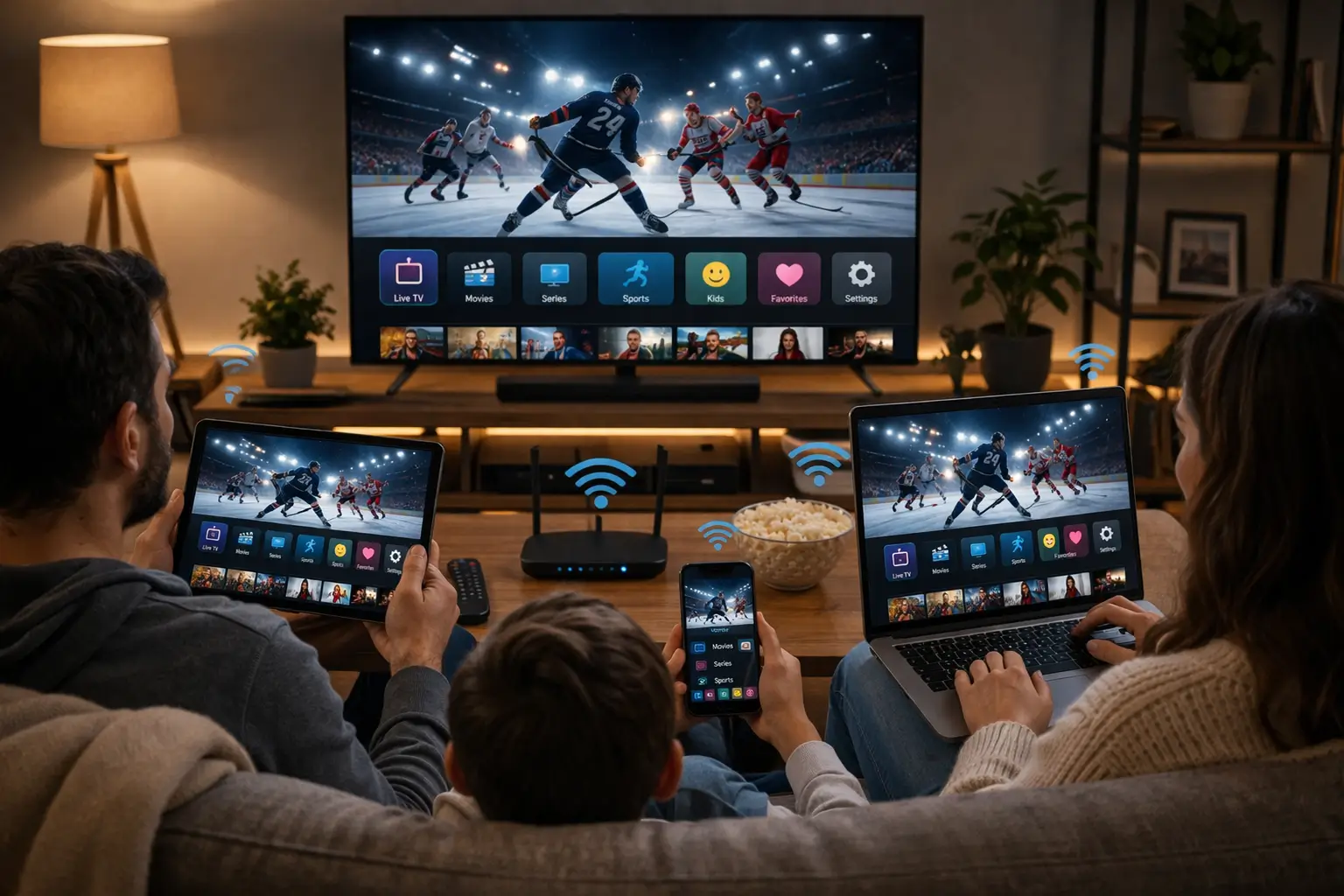
Library habits that save time
Large catalogues hold tens of thousands of titles. The Premium Pack, for example, lists 24,000+ series and 100,000+ movies, so browsing by scrolling alone is hopeless.
- Use the search bar: three or four letters beat any menu.
- Add the series you follow to favourites so they sit at the top.
- Press once and wait a few seconds when a title starts slowly.
- Hide movie categories you never browse to speed up loading.
- Check audio and subtitle tracks before starting a long series.
Repeated presses on a title that is slow to start are worth avoiding: each press can queue another request, and the wait grows longer rather than shorter. Keep in mind that resume points are stored on each device. If you start an episode on the living room box and continue on a phone, the phone may open at the beginning. Bilingual homes should check the audio track menu early, since our catalogue includes French-language and international content and the options vary by title. For a specific language, ask support before ordering.
Live TV and the guide in IPTV Smarters Pro
The live side of the player is perfectly usable for everyday viewing, with a few habits to get the best from it. The guide is simpler than in a grid-first player, so the aim is to make it accurate and quick rather than expecting it to be lavish.
- First evening
Refresh the guide
After the first login, open Live TV and refresh the guide manually so listings appear.
- Same evening
Set your time zone
Choose your province’s time zone and the time format you prefer, so programmes line up with the clock.
- Next evenings
Build favourites
Add the channels you watch most. Live TV opens faster when you start from a short list.
- Ongoing
Refresh once a day
Let the guide update daily rather than at every launch, which keeps starts quick.
Canada spans several time zones, and an offset of an hour or more is the most common guide complaint we hear. If programmes start before or after the listing says, the time zone setting is almost always the cause. Our page on setting up the IPTV TV guide walks through the offset step by step.
The multi-screen view and your 1 connection
Some versions of IPTV Smarters Pro include a multi-screen view that plays several channels side by side. It looks tempting, especially for busy evenings with several events on at once. The catch is technical and simple: each tile opens its own stream, and each stream uses a connection.
Important: each of our packs includes 1 simultaneous connection, so the multi-screen view will not work unless support has granted extra screens on request. Trying it on a single connection usually makes every tile stutter or stop. Never share your login with another household to get around a limit.
Close the view and return to a single channel. Playback should settle within a few seconds.
Then: check that no other device is playingAsk support about extra simultaneous screens; they will explain the conditions and price.
Then: read our multiple screens guideAgree a house rule: whoever stops watching closes the app on that device.
Then: keep favourites on the main TVTroubleshooting IPTV Smarters Pro
Most problems in this player fall into a few familiar patterns. Work through them in order and change one thing at a time, so you know which change fixed it. Reinstalling is rarely the answer and wipes your favourites.
| Symptom | First check | Next step |
|---|---|---|
| Login refused | Compare each field with the e-mail, character by character | Paste instead of typing; check for spaces at the end |
| Guide empty | Refresh the guide from Live TV | Check time zone; contact support if still empty |
| Every channel pauses | Test the line on a cable or 5 GHz near the router | Compare speed with what your quality needs |
| One channel stutters | Switch the decoder option | Raise the buffer a little; report the channel to support |
| Menus slow to open | Hide unused categories | Restart the device fully; leave storage space |
| Plays then stops | Check whether another device is using the connection | Close the app everywhere else and retry |
Deep dive: telling a player problem from a line problem
The quickest way to know whether the player is at fault is to watch the same channel on the same device in another supported app, or on a second device on the same network. If the channel stutters everywhere, look at the connection: plan for 10 Mbps per screen in HD, 15 Mbps in Full HD and 25 Mbps in 4K, and add those figures together when several people stream at once. If it plays smoothly elsewhere, the cause is in this player’s settings, most often the decoder. Our guides to fixing IPTV buffering and fixing IPTV freezing take each case further.
If none of these checks helps, our checklist for when IPTV is not working covers expired access and the connection limit, and our support team can look at your access directly.
Setting up IPTV Smarters Pro for a family
Because it is easy to learn, this player often ends up on the device the whole family shares. A little setup turns it from a general-purpose app into one that suits the people actually using it, including those who would rather not touch the settings.
- Name the profile after the room. “Living room” or “Kitchen tablet” avoids confusion when someone needs help.
- Turn on parental controls. Lock adult categories with a code that only adults know, and test that it works.
- Hide what nobody watches. A shorter list is quicker and less confusing for younger viewers.
- Set favourites for each regular viewer. Put their usual channels at the top so they never scroll the full list.
- Agree the one-screen rule. Explain that only one device can play at a time, and that closing the app frees the connection.
Older relatives in particular appreciate a layout that never changes. Resist the urge to rearrange things once they have learned where everything is; the familiarity is worth more than any optimisation you could add later.
Making help easy
When someone at home calls you over because “it stopped working”, a few minutes of preparation pays off. Keep the access e-mail in a known place, write the profile name on a sticky note near the TV and teach everyone the one-screen rule.
If the problem is beyond a quick fix, our support team answers 7 days a week by e-mail and on WhatsApp. Describe the device, the player and what the screen shows, and we can usually point to the cause in one reply.
IPTV Smarters Pro terms in plain English
The app and its settings use a handful of terms that can puzzle a first-time user. Here they are in plain words, as they apply to this player.
- Xtream Codes API
- The login option that takes a server URL, a username and a password and loads everything else on its own.
- Profile
- A saved login inside the app, with a name you choose. Not an extra screen.
- Category
- A group of channels, movies or series. Hiding unused ones keeps lists short.
- EPG
- The electronic programme guide, refreshed from Live TV.
- Decoder
- The part of the player that turns the stream into a picture. Hardware first, software as a fallback.
- Buffer
- A small reserve of video loaded ahead to absorb brief dips in the connection.
- Multi-screen
- A view that plays several channels at once, each using its own connection.
Using these words when you ask for help speeds things up. “The guide is empty on the living room profile after a refresh” points straight to the cause, where “it does not work” needs several more messages.
IPTV Smarters Pro compared with other players
Here is how IPTV Smarters Pro sits next to the other players we review, on the points that most often decide between them. It reflects our editorial view, not user ratings.
| Point | IPTV Smarters Pro | TiviMate | XCIPTV | IBO Player |
|---|---|---|---|---|
| Device reach | Widest | Android TV and Fire TV | Android only | Smart TVs mainly |
| Guide | Basic | Very detailed | Basic | Fair |
| Library | Good | Fair | Good | Good |
| Login on device | Typed or pasted | Typed | Typed or pasted | Added on publisher’s site |
| Best role | House player | Live TV screen | Light backup | TV without a box |
For a guide-first experience on one TV, read the TiviMate review. For something lighter on modest Android hardware, our XCIPTV review is worth a look. On a Samsung or LG TV where typing is painful, the IBO Player review covers the MAC-based route.
Who IPTV Smarters Pro suits, and our packs
It suits beginners who want something that simply works, parents who need simple controls, households with a mix of phones, TVs and sticks, and anyone who mainly watches movies and series through a clean menu. It suits less well if you live in the programme guide, switch constantly between dozens of live channels or want advanced recording. Many homes solve that by using IPTV Smarters Pro everywhere and a guide-first player on the one TV where live channels matter most.
If you are unsure which pack to pair with it, think about how your home uses the library. IPTV Smarters Pro is at its best browsing series and movies, so a household that spends most evenings there gets the most from a larger catalogue, while a home that mostly watches a handful of live channels may be well served by the smallest pack. Start with a short duration if you want to check the combination of player, device and connection at home before committing to a longer one; our 1-month IPTV subscription exists for exactly that, and nothing renews when it ends.
Our packs work with this player through Xtream Codes or an M3U link e-mailed within minutes. The catalogue includes French-language and international content; for a specific language, ask support before ordering. Each pack is a one-time payment for 1, 3, 6 or 12 months, in Canadian dollars by card or PayPal, with no contract and no automatic renewal.
Premium Pack
- 20,000+ channels
- 24,000+ series
- 100,000+ movies
- HD, Full HD and 4K
VIP Premium Pack
- 27,000+ channels
- 61,000+ series
- 155,000+ movies
- HD, Full HD and 4K
Ultimate 4K Pack
- 57,000+ 4K channels
- 47,000+ series
- 179,000+ movies
- 20 servers in Europe
Pick the pack to pair with your player
See current prices for every pack and duration in one place.
FAQ
Is IPTV Smarters Pro a service or a player?
It is a player. It includes no channels, movies or series. You add your own subscription and the player shows its content.
Is it legal to use IPTV Smarters Pro?
The technology is legal; whether a service is legal depends on the broadcasting rights it holds, so check before subscribing.
Why does the app show no guide?
The guide often needs a manual refresh after the first login. Open Live TV and refresh it. If it stays empty, contact support.
Can I use it on several devices?
Yes. Install it on each device and sign in with the same credentials. Watch on one device at a time, since each pack includes 1 simultaneous connection.
Do profiles give me extra screens?
No. A profile is a saved login inside the app. The number of streams that can play at once depends on your pack, not on profiles.
Why does multi-screen view not work?
Each tile opens its own stream. With 1 simultaneous connection, only one can play. Ask support about extra screens if you need them.
Do I have to pay for IPTV Smarters Pro?
Paid features differ by platform. We are independent from the publisher, so check the current price on the app’s official website.
Which speed do I need?
Plan for 10 Mbps per screen in HD, 15 Mbps in Full HD and 25 Mbps in 4K. Add those figures together when several people stream at home.
Can I use an M3U link instead of Xtream Codes?
Usually yes, through the playlist option, though the guide may need an extra step. Xtream Codes is the smoother route when offered.
How do I reach support?
By e-mail or WhatsApp at +33 6 44 65 43 13, 7 days a week, in English or French.