Looking for the best IPTV app can feel like comparing remote controls in a dark room. Every player calls itself fast and simple, and most lists crown a winner without explaining the scoring. This hub does the opposite. It gives you six criteria, a comparison table, a device-by-device shortlist, scenarios for different households and a first-week test plan, so the app you settle on is the one that suits your screen and your evenings, not the one with the loudest advertising.
A word on where we stand. ClearPick IPTV sells three packs of its own, and those packs work in every player reviewed here. We are independent from the companies that publish these apps, we do not sell any player licence, and we earn nothing from the one you pick. That lets us say plainly what each player does poorly as well as what it does well. If you only want the detailed reviews, here they are.
How we judge the best IPTV app
The right player depends less on the app itself than on three things around it: the device you watch on, the way you watch and the people who share the remote. Change any one of those and the answer changes with it. A player that delights a live-sports zapper on an Android box can frustrate a series fan on a Samsung TV, and the reverse is just as true.
Your device sets the shortlist. Some players run almost everywhere; others are built for one family of devices. A brilliant player that your TV’s store does not list is no use to you, so the first step is always to look at what your official app store offers.
Your habits set the priorities. If you flick through live channels, the programme guide and switching speed matter most. If you binge series, a tidy library, good search and reliable resume points come first. If your home watches in French and in other languages, check how the player handles audio and subtitle tracks.
Your household sets the complexity. A player with forty settings is a toy for a tinkerer and a puzzle for a grandparent. In a family home, parental controls, simple menus and a layout that looks the same on every screen count for more than an advanced option you will touch once.
Device first
Open your TV, box or phone store and note which players it lists. That is your real shortlist.
Habits second
Live TV, series or a mix? The answer decides whether the guide or the library deserves more weight.
People third
Ask who else will hold the remote and what annoys them today. Their answers beat any feature list.
A player is not a service
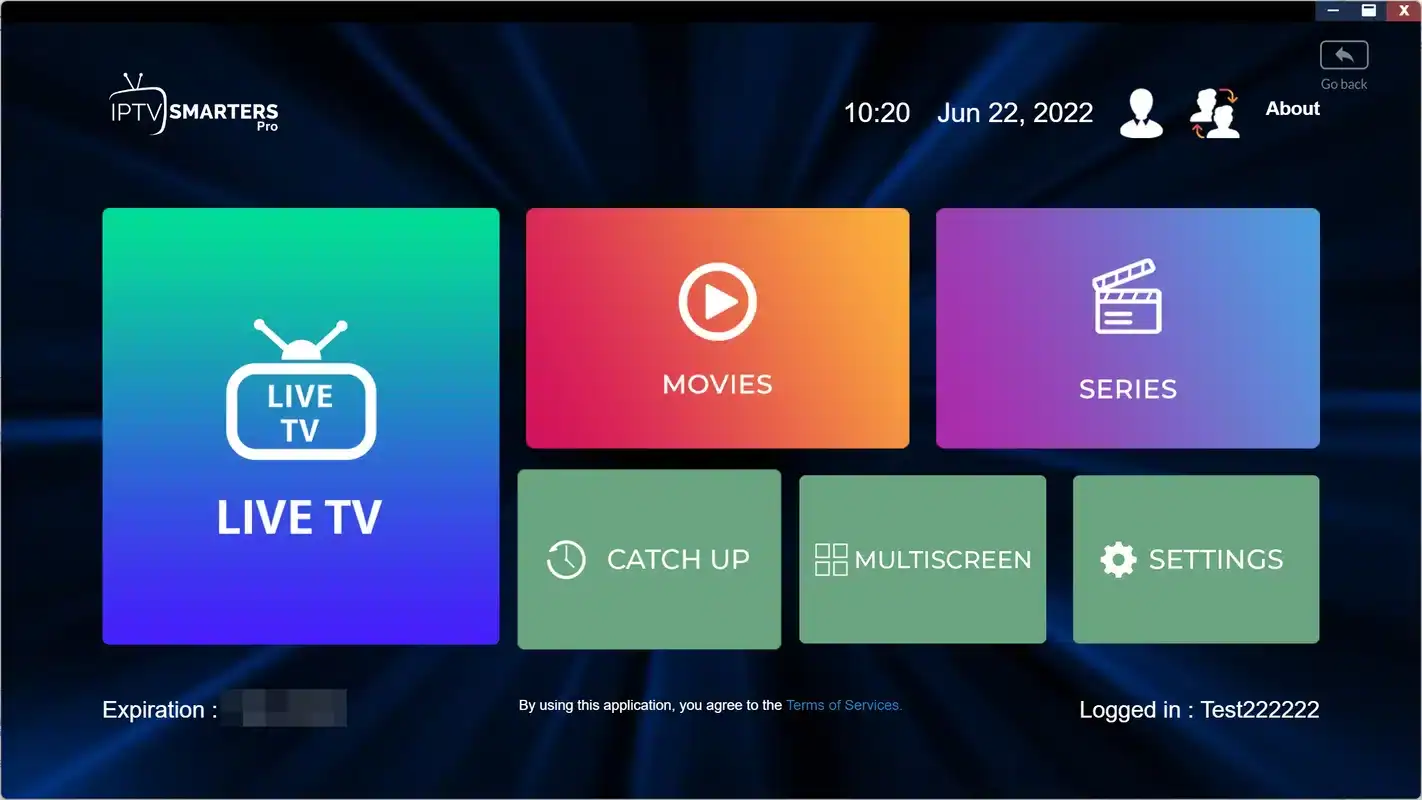
This is the point that confuses people most, and it is worth settling before any comparison. IPTV Smarters Pro, TiviMate, IBO Player, XCIPTV, Smart IPTV and GSE Smart IPTV are all players. None of them includes channels, movies or series. You add a subscription, usually as Xtream Codes details (a server URL, a username and a password) or as an M3U link, and the player shows what that subscription provides.
The split has a practical upside. If you change service one day, you keep the player you already know; if you change player, you keep your subscription. Your favourites and layout live in the app, your content lives with the service, and neither one locks you into the other. It also means a disappointing evening has two possible culprits, and good troubleshooting starts by working out which one it is.
So when a page offers a player “with everything included”, it is blending two separate products. Keep them apart in your head: choose a player you enjoy using, then choose a service you can check. Our guide to what IPTV is explains the wider picture if this is your first subscription.
On legality: the technology is legal; whether a service is legal depends on the broadcasting rights it holds, so check before subscribing. A player is a tool, in the same way a media player on a computer is a tool. Our page Is IPTV legal in Canada? covers the question in more depth.
The six criteria behind our best IPTV app scores
We use the same grid for every player we review, and you can use it too. Score each criterion as good, fair or weak for your own situation, not for an imaginary average viewer. A “weak” guide matters a great deal to someone who lives in live TV and very little to someone who only watches films on Sunday afternoons.
| Criterion | What good looks like | Question to ask yourself |
|---|---|---|
| Device support | Listed in the official store of every device you use | Is it on my TV, my box and my phone? |
| Login type | Accepts Xtream Codes, with M3U as a backup | Does the guide load on its own after sign-in? |
| Programme guide | A clear grid you can read from the couch | Can I see what is on later without stopping the picture? |
| Library | Covers, summaries, seasons and resume points | Can I find a title in a few seconds? |
| Settings | Decoder choice, buffer size, parental controls | Can I fix a stutter without reinstalling? |
| Licence model | Clear terms on the publisher’s official website | Is it paid once, paid per device or paid for a premium tier? |
Weigh device support and the guide more heavily than anything else. A player that is missing from your TV, or whose guide irritates you every evening, will not be rescued by a long list of extras. Library and settings come next, and the licence model is the tie-breaker when two players feel equally good.
How to turn scores into a choice
Give two points for good, one for fair and none for weak, then double the points for device support and the guide. Add them up for each player that your store lists. The highest total is your first candidate, and the runner-up is your backup. Keep the sheet: if you ever change TV or box, you only need to redo the device line.
The players we support at a glance
This table summarises our editorial view of the six players we support. It reflects how each behaves with an Xtream Codes or M3U subscription during ordinary evenings, not user ratings or a lab benchmark. Feature lists and store listings change, so treat it as a starting point and confirm the details in your own store.
| Player | Main devices | Strength | Limit |
|---|---|---|---|
| IPTV Smarters Pro | Android, Fire TV, Apple devices, some smart TVs, PC | Widest device coverage, easy login | Basic guide; features vary by platform |
| TiviMate | Android TV, Google TV, Fire TV where listed | Outstanding guide and fast channel switching | TV devices only; key features in premium |
| IBO Player | Samsung and LG TVs, other platforms by store | Playlist managed from your phone | Activation licence per device |
| XCIPTV | Android phones, tablets, boxes, Fire TV | Light, quick, choice of video engine | Plain design; Android only |
| Smart IPTV | Samsung and LG TVs | Simple, long-standing TV player | MAC-based setup; basic menus |
| GSE Smart IPTV | Apple devices, Android | Many settings for advanced users | Busier interface |
Two patterns stand out. First, no single player wins every row: the one with the best guide runs on the fewest devices, and the one that runs everywhere has the plainest guide. Second, the limits are mostly about reach and licences, not about picture quality. Picture quality depends far more on your connection, your device and the stream itself than on the menu wrapped around it.
Best IPTV app by device
Once you know your device, the shortlist shrinks quickly. Here is how we would narrow it down for each kind of screen, starting with the one most Canadian living rooms rely on. If you are still choosing hardware, our hub on the best devices for IPTV compares them first.

Start from what your store lists
Open the official app store on each screen you plan to use and search for the players below. Write down which ones appear. A player that is missing on one device is not a dead end; it simply means that device gets a different app with the same login.
- Note the exact model of your TV, box or stick.
- Search each player name in that device’s official store.
- Keep the list next to your access e-mail.
| Your device | First player to try | Good second player | Things to note |
|---|---|---|---|
| Android TV or Google TV box | TiviMate | XCIPTV or IPTV Smarters Pro | Widest choice; a cable connection helps most |
| Fire TV Stick | IPTV Smarters Pro or XCIPTV | TiviMate where the store lists it | Storage is tight; keep only the players you use |
| Samsung or LG smart TV | IBO Player | Smart IPTV, or IPTV Smarters Pro on some models | MAC-based players are managed from a phone |
| Apple TV, iPhone, iPad | IPTV Smarters Pro | GSE Smart IPTV | Look for one app that works across your Apple devices |
| Android phone or tablet | XCIPTV | IPTV Smarters Pro | Touch-friendly; handy as a second screen |
| PC | IPTV Smarters Pro | Another supported player your system lists | Useful for checking a login away from the TV |
Each device family has its own guide on our site: the Android TV box, the Fire TV Stick, Samsung and LG smart TVs and Apple TV and iPhone. They cover settings at device level, which often matter as much as the player.
Official stores only: install players only from your device’s official app store. If a player is not listed on your device or in your region, choose another one rather than installing it from elsewhere. Never enter your details on a site that is not the publisher’s official website, and never share your login with another household.
Matching the best IPTV app to the way you watch
Device narrows the field; habits pick the winner. The scenarios below describe the households we hear from most often and the player that tends to suit each one. They are starting points, not verdicts, and many homes end up with two players for two different jobs.
A full-screen guide and instant channel changes matter more than anything else. Try TiviMate on an Android TV or Google TV box.
Then: read the TiviMate reviewCovers, seasons, search and resume points come first. IPTV Smarters Pro and XCIPTV both handle the library cleanly.
Then: hide the live groups you never openPick the player with the simplest menus and set parental controls. A layout that never changes is worth more than extras.
Then: set favourites for each personA MAC-based player such as IBO Player lets you add the playlist from your phone instead of typing with the remote.
Then: keep a note of each TV’s MAC addressA light player keeps menus responsive. XCIPTV is designed for modest Android hardware.
Then: try the other video engine before giving upGSE Smart IPTV and TiviMate premium offer the most options. Expect a busier interface.
Then: change one setting at a timeBilingual homes deserve a special word. Our catalogue includes French-language and international content, and how a player shows audio and subtitle tracks varies from app to app. Before you commit, play a title with several tracks and check that switching between them is easy with your remote. For any specific language you need, ask support before ordering.
Three ways a player takes your login
Players accept your subscription in one of three ways, and the method affects how easy setup feels on each device. Knowing which one a player uses tells you in advance whether you will be typing with a remote, pasting on a phone or visiting a website.
| Method | What you enter | Typical players | Best for |
|---|---|---|---|
| Xtream Codes | Server URL, username, password | TiviMate, IPTV Smarters Pro, XCIPTV | Guide, movies and series loading on their own |
| M3U link | One playlist address | Most players, including TiviMate and GSE Smart IPTV | Players that only accept a playlist |
| MAC activation | Playlist added on the publisher’s website using the TV’s MAC address and key | IBO Player, Smart IPTV | Smart TVs, where remote typing is slow |
When a player offers Xtream Codes, choose it. The guide, the movie library and the series list usually arrive without any extra step, whereas an M3U link sometimes needs a separate guide address. Our access e-mail gives you Xtream Codes details or an M3U link, and our setup guides cover each route: setting up IPTV with Xtream Codes and setting up IPTV with an M3U link.
Most players ask this question first. The wording varies, but the three choices are the same.
Licence models without surprises
Players are made by independent publishers, and each one has its own way of charging. Some can be used at no cost for basic viewing, some sell a premium tier that unlocks extra features, and some ask for an activation licence per device after an initial period. None of these payments go to your IPTV service, and none of them are included in a subscription. We are independent from app publishers, so check the current price on the app’s official website before paying.
Reassuring signs
- Terms published on the publisher’s official website
- A clear statement of whether the licence covers one device or several
- Payment taken inside the official store or on the official site
- Basic playback you can check before paying anything
Reasons to pause
- A “licence” offered by a stranger or a seller in a chat
- A player bundled with channels for one combined fee
- An activation page reached through a link sent by message
- Terms that only appear after you have paid
A sensible routine is to install the player, add your access and watch for a few evenings before buying any premium tier or activation. That way you pay only for an app you already know you like. If a licence covers one device, a home with three TVs may need three activations, so count your screens before you decide. Our reviews describe each model in detail, for example the per-device activation in our IBO Player review and the premium tier in our TiviMate review.
Not sure which player fits your TV
Tell our team your device and how you watch. We answer 7 days a week in English and French.
Running two players on one pack
Many homes keep two players: one for live TV and one for the library, or one on the living room box and another on a phone. That works well with our packs, because the same credentials can be entered in several players and on several devices. The rule to remember is simple. Each pack includes 1 simultaneous connection, so only one stream can play at a time, whichever app or screen it plays on.
Some features quietly open a second stream. Multi-view screens that play several channels side by side, recording one channel while you watch another, and a phone left playing in another room all count. If one of those is running, the next stream you start will struggle. When your household genuinely needs more screens at the same time, contact our support, who will explain the conditions and price. Our guide to IPTV on multiple screens goes through the options in detail.
A tidy two-player setup
Choose a main player for the TV people use most and set it up carefully, with favourites, hidden groups and parental controls. Add a second, lighter player on the same box or a phone as a backup. When the main one misbehaves, close it fully, open the backup and keep watching. If the backup plays smoothly, the problem lies with the first player’s settings, not with your line or your access.
Setting up any player: the common routine
The details differ from app to app, but the routine is nearly identical everywhere. Keep your access e-mail open on a phone so you can copy each detail accurately, and give yourself a quiet half-evening rather than squeezing setup in before a match starts.
- Install from the official store. Search for the player by name in your device’s official app store and install it.
- Pick the login type. Choose Xtream Codes when it is offered; choose M3U if it is the only option or if you prefer a playlist link.
- Enter your access. Type the server URL, username and password, or paste the M3U link. On MAC-based players, add your playlist on the publisher’s official website using the MAC address and key shown on screen.
- Let it load. Give the player time to fetch channels, the guide, movies and series on its first launch.
- Tune the basics. Choose the hardware decoder, a medium buffer and a daily guide refresh. Hide groups you never watch.
- Test the chain. Play an HD channel, a 4K channel and a movie to confirm your line keeps up.
Most failed first logins come down to a typing slip: a missing character, a space at the end of the password, or a server URL without the part that follows the colon. Copying and pasting from the e-mail avoids nearly all of them. If a login still refuses to work, our checklist for when IPTV is not working walks through the usual causes in order.
A first-week test plan for a new player
The first evening with a new player is always the slowest, because the app is loading the full catalogue and guide for the first time. Judging it that night is unfair to the app and unhelpful to you. Spread the test over a week instead, and score it against the six criteria only at the end.
- Evening 1
Install and sign in
Add your access, let everything load and resist the urge to judge speed yet.
- Evening 2
Tidy the lists
Hide groups you never open, set favourites and choose a parental code if children use the TV.
- Evenings 3 and 4
Watch normally
Use it the way you always do. Note anything that annoys you, from slow menus to a hard-to-read guide.
- Weekend
Test at busy hours
Watch live TV when everyone at home is online. Try a 4K channel if your pack and TV support it.
- End of week
Score and decide
Fill in the six-criteria sheet. Keep the player or try your runner-up with the same plan.
Ask the other people in your home to note their frustrations too. A player that suits you perfectly but confuses everyone else will end up uninstalled. If two players tie, choose the one with fewer complaints from the least technical person in the house.
Speed and hardware checks before blaming the app
When a picture stutters, the player is often the last thing at fault. The chain from the service to your screen runs through your internet line, your router, your Wi-Fi or cable, and the device itself. Before switching apps, check that each link can carry the quality you are asking for.
Speed to plan for, per screen
Those figures add up when other people stream at the same time. A 4K stream in the living room while someone else watches in Full HD elsewhere in the house calls for about 40 Mbps of steady capacity, before anyone opens a video call. Steady matters as much as speed: a line that reaches high figures in a test but dips every few minutes will still cause pauses.
Quick hardware checks
These take a few minutes and fix more stutters than any change of player.
- Use Ethernet on a TV or box when the router is within reach.
- On Wi-Fi, prefer the 5 GHz band near the router over 2.4 GHz.
- Restart the router and the device fully, not just the screen.
- Leave storage space on sticks and boxes by removing apps you do not use.
- Update the device’s own software before installing a new player.
If the same channel stutters in two different players on the same device, the player is not the cause. If it stutters in one player but not the other, compare their decoder and buffer settings. Our guides to fixing IPTV buffering and fixing IPTV freezing go further.
Mistakes people make when picking the best IPTV app
Most disappointing player choices follow the same few patterns. None of them is about the app being bad; they are about choosing for the wrong reasons or judging too early.
Following the hype
Choosing the player everyone talks about, even though your TV’s store does not list it.
Judging on night one
Deciding a player is slow while it is still loading the catalogue for the first time.
Paying too early
Buying a premium tier or activation before checking that basic playback suits you.
Leaving the store
Installing a player from a link or file because it is missing from the official store.
Blaming the app
Switching players to fix a Wi-Fi problem that follows you into every app.
Forgetting the limit
Running multi-view or recording on a pack with 1 simultaneous connection.
The common thread is patience. A player is something you will use most evenings for months, so a week of honest testing is a small price for getting it right. If you are still choosing your subscription as well, our buyer’s method for the best IPTV in Canada applies the same patience to services.
Switching players without losing your setup
Changing player is easier than most people expect, because your subscription does not change at all. What you lose is the tidy-up work: favourites, hidden groups, parental codes and the order of channels. With a little preparation, you can rebuild that in one sitting.
- List your favourite channels and groups before you remove the old player.
- Note any parental code and which groups it protects.
- Keep your access e-mail handy; the same credentials work in the new player.
- Close the old player fully so it does not hold the connection while you sign in to the new one.
- Set the guide refresh and time zone in the new player during the first evening.
- Keep the old player installed for a week as a fallback, then remove it to recover storage.
On MAC-based players, remember that the playlist sits on the publisher’s website, linked to the TV’s MAC address. If you move away from one of those, remove the old playlist from the publisher’s site as well, so your access details are not left stored somewhere you no longer use. Our IBO Player review explains that housekeeping step.
What changes between players and what stays the same
Buyers sometimes expect a new player to unlock more channels, sharper pictures or extra screens. It cannot, because those things belong to the subscription, not to the app. Seeing the line between the two clearly saves you from switching players in search of something no player can give, and it helps you ask the right party when something needs fixing.
| Element | Changes with the player | Where it comes from |
|---|---|---|
| Channels, series and movies in the catalogue | No | Your subscription pack |
| Number of streams that can play at once | No | Your pack: 1 simultaneous connection |
| Your login details | No | Your access e-mail |
| Layout, menus and the look of the guide | Yes | The player app |
| Favourites, hidden groups and parental codes | Yes | Set inside each player |
| Decoder and buffer options | Yes | The player’s settings |
| Licence or premium tier | Yes | The player’s publisher |
The practical rule follows from the table. Questions about what you can watch, how many screens can play and whether your access is active go to your service. Questions about menus, licences and where a setting lives go to the publisher’s official documentation, or to us if you want a second pair of eyes, since we help our buyers with every player on this page. When you are unsure, describe what you see on screen and which app you are using; that is usually enough to point the question in the right direction.
Deep dive: why the same stream can look different in two players
Two players showing the same channel on the same TV can look slightly different. One may start the picture faster, another may hold it more steadily during a busy evening, and a third may scale it a little more softly. Those differences come from the decoder each app uses, the size of its buffer and how it hands the picture to the device. They are real, but they are small next to the effect of your connection and the stream itself. If one player looks clearly worse, compare its decoder setting with the other app’s before deciding it is the wrong player for you.
A worked example: one home, three screens
Picture a household with a Samsung TV in the living room, an Android TV box on the bedroom set and two phones. Nobody wants to learn four different menus, and only one stream plays at a time on their pack. Here is how the six criteria sort that home out in practice.
The living room TV lists IBO Player and Smart IPTV in its store. The parents prefer adding the playlist from a phone rather than typing with the remote, so IBO Player wins the device and setup lines, and they plan for its per-device activation after the initial period. The bedroom box lists TiviMate, XCIPTV and IPTV Smarters Pro. The teenager who uses it mostly watches live channels, so TiviMate takes that screen on the strength of its guide. On the phones, XCIPTV stays light and matches the layout the family already sees on Android, and it doubles as a backup if the bedroom player ever misbehaves.
The best player for a home is often a small team of players, each chosen for one screen, all signed in with the same details.
Because the pack includes 1 simultaneous connection, the family agrees a simple house rule: whoever starts watching closes the app when they stop. When they later want the living room and bedroom to play at the same time, they ask support for the conditions and price of an extra screen rather than hoping it works.
Words you will meet in player menus
Player settings use a small vocabulary that can feel technical at first. Knowing these terms makes the reviews easier to follow and helps you describe a problem precisely when you ask for help.
- EPG
- The electronic programme guide: the grid of what is on now and later.
- Xtream Codes
- A login made of a server URL, a username and a password.
- M3U link
- A single playlist address that some players use instead of separate fields.
- MAC address
- A unique identifier of your TV’s network card, used by MAC-based players to link a playlist.
- Decoder
- The part of the player that turns the stream into a picture. Hardware is usually smoother; software is a fallback.
- Buffer
- A small reserve of video loaded ahead. A larger buffer absorbs brief dips but starts channels more slowly.
- Time offset
- A setting that shifts the guide so listings match the clock in your province.
- Multi-view
- A screen that plays several channels at once, each using its own connection.
Our page on setting up the IPTV TV guide explains the time offset in more detail, which is the setting Canadian viewers adjust most often because of the country’s several time zones.
Our app reviews and where to go next
Each review applies the criteria on this page to one player and adds a full setup routine, the settings worth changing, troubleshooting and a frank note on who it suits. Read the one for the player your store lists, then follow it step by step with your access e-mail open.
Our packs work in every player listed here. Each one is a one-time payment for 1, 3, 6 or 12 months, in Canadian dollars by card or PayPal, with no contract and no automatic renewal. Access is e-mailed within minutes as Xtream Codes details or an M3U link.
VIP Premium Pack
- 27,000+ channels
- 61,000+ series
- 155,000+ movies
- HD, Full HD and 4K
Ultimate 4K Pack
- 57,000+ 4K channels
- 47,000+ series
- 179,000+ movies
- 20 servers in Europe
Compare packs and durations
See current prices for every pack, then pick the player that suits your screen.
FAQ
Which is the best IPTV app overall?
There is no single winner. TiviMate is our pick for live TV on Android TV and Fire TV, IPTV Smarters Pro for mixed devices, IBO Player for Samsung and LG TVs and XCIPTV for light Android setups.
Do IPTV apps include channels?
No. They are players. You add a subscription and the app shows its content. Be wary of anyone selling a player with channels included.
Should I choose Xtream Codes or M3U?
Choose Xtream Codes when the player offers it, because the guide, movies and series usually load on their own. M3U works too, and some players only accept that format.
Can I use two different players with one pack?
Yes, with the same credentials, one at a time. Each pack includes 1 simultaneous connection, so close one player before watching in the other.
Do I have to pay for a player?
It depends on the app. Some offer basic playback at no cost, some sell a premium tier and some need an activation per device. Check the current price on the app’s official website.
Where should I install a player from?
Only from your device’s official app store. If a player is not listed there, choose another supported player rather than installing it from elsewhere.
Why does a channel stutter in my player?
Check your connection first: plan for 10 Mbps per screen in HD, 15 Mbps in Full HD and 25 Mbps in 4K. Then try the other decoder and a slightly larger buffer.
Does the player change picture quality?
Only a little. Quality depends mostly on the stream, your connection and your device. Decoder and buffer settings help with smoothness rather than sharpness.
Can a player record shows on my pack?
Recording while you watch another channel opens a second stream, which a single connection does not allow. Ask support about extra screens if you need it.
Who can help me set up my player?
Our support team answers 7 days a week by e-mail or WhatsApp at +33 6 44 65 43 13, in English or French. Tell us your device and player, and we will guide you.